![Cario logo RGB blue-1.png]](https://knowledge.cario.com.au/hs-fs/hubfs/Cario%20logo%20RGB%20blue-1.png?height=50&name=Cario%20logo%20RGB%20blue-1.png)
Purpose
This article explains how Tenant Administrators can reset or create a new password (passphrase) for another user in Cario. This workflow allows admins to securely restore access without needing to know the user’s existing password, ensuring continuity of operations while maintaining security.
Who This Is For
- Tenant Administrators
- System Administrators
- Super Users with Users management access
What You Can Do
As a Tenant Admin, you can:
- Reset another user’s password securely
- Enforce Cario passphrase policies
- Restore access for users who are locked out
- Manage access when staff changes occur
🔐 Important: You do not need to know the user’s current password to reset it.
When You Might Need This
Common scenarios include:
- A user has forgotten their username or password
- A user is locked out after multiple failed login attempts
- An employee has left the business, and access needs to be controlled
- An admin needs to log in on behalf of a user for troubleshooting or handover
- A password reset is required for security or compliance reasons
Steps: Resetting a User Password
Step 1: Navigate to Users
- Log in to Cario as a Tenant Administrator
- Go to Administration → Users
- Locate the user using search or filters
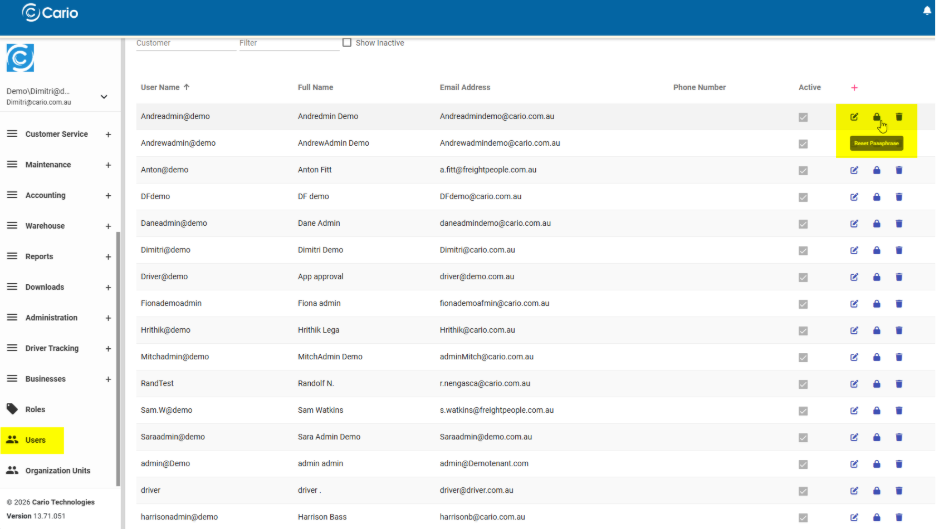
Step 2: Select Reset Password
- In the Actions column, click the lock / reset passphrase icon next to the user
- This will open the Passphrase Policy window
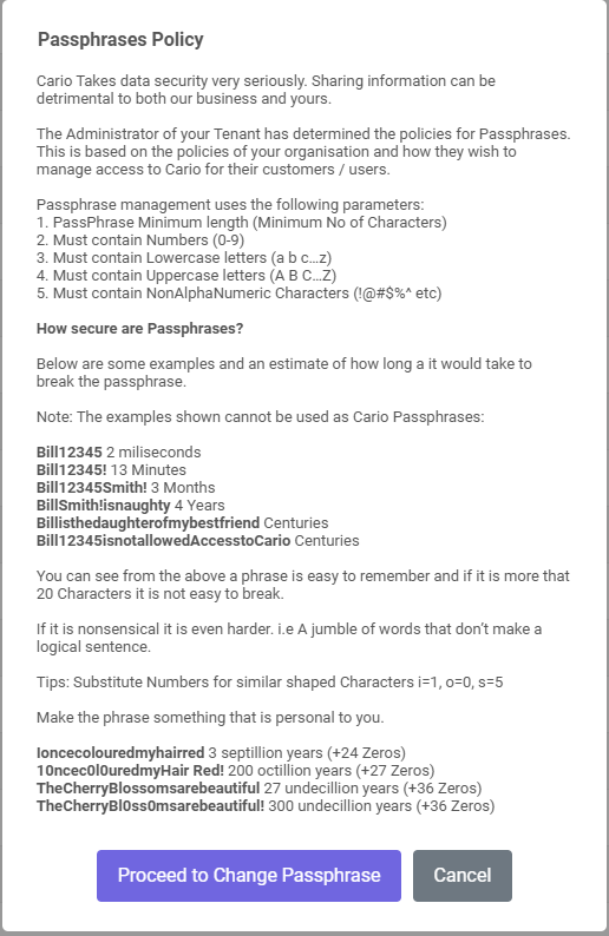
Step 3: Review Passphrase Policy
Cario enforces secure passphrase standards, which may include:
- Minimum length
- Uppercase and lowercase characters
- Numbers
- Special characters
These policies are set at a tenant level to align with your organisation’s security requirements.
Click Proceed to Change Passphrase to continue.
Step 4: Set the New Passphrase
- Enter your own admin passphrase to authorise the change
- Enter the new passphrase for the user
- Confirm the new passphrase
- Click Save
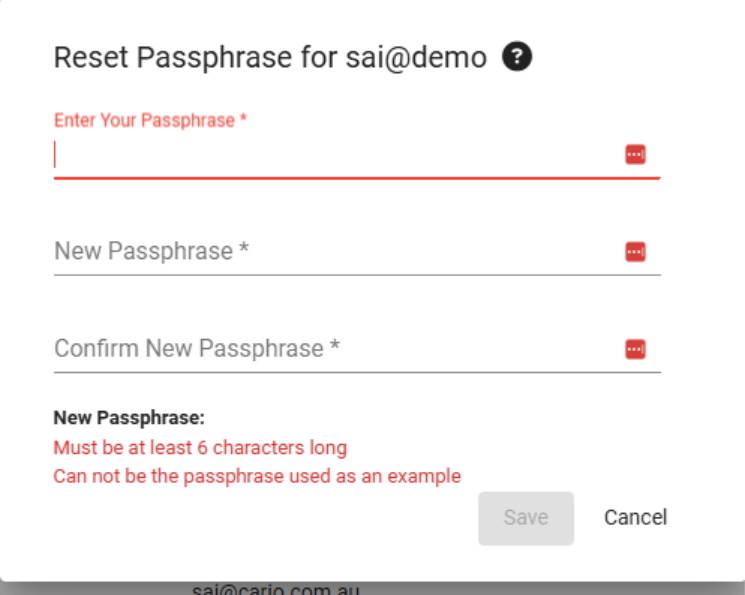
✅ The user’s password is now updated.
What Happens Next
- The user can immediately log in using the new password
- No notification of the old password is required
- The previous passphrase is invalidated automatically
Security Notes & Best Practices
- Share the new password securely (e.g. phone call or internal secure channel)
- Encourage users to update their password after first login
- Avoid reusing old or temporary passwords
- Disable or deactivate users who no longer require access
Troubleshooting
If the user still cannot log in:
- Confirm the correct tenant URL is being used
{yourtenant}.cario.com.au
- Ensure the user account is Active
- Verify the passphrase meets all policy requirements
- Ask the user to clear browser cache or try a different browser