![Cario logo RGB blue-1.png]](https://knowledge.cario.com.au/hs-fs/hubfs/Cario%20logo%20RGB%20blue-1.png?height=50&name=Cario%20logo%20RGB%20blue-1.png)
Purpose
The Order Packing Optimisation feature allows Cario to automatically pack unpacked products from a warehouse order into suitable containers, converting them into transport units for consignments.
Using a 3D Visualisation Packing Optimiser, this feature:
- Reduces manual packing decisions
- Improves space utilisation
- Minimises packing errors
- Provides visual confidence before consigning to carriers
This is especially valuable for high-volume, mixed-item, or palletised freight.
What Is Order Packing Optimisation?
Order Packing Optimisation:
- Automatically packs Products (unpacked goods) into Containers
- Converts those containers into Shipment / Transport Units
- Allows users to visually review the packing solution in 3D
- Preloads the optimised result directly into Create New Consignment
Where to Access This Feature
Warehouse → Orders → Order Maintenance
⚠️ This feature must be enabled on your tenant.
If it is not visible, request activation from Cario Support.
Prerequisites & Configuration
1. Tenant & Customer Configuration
The following settings must be enabled:
Customer Configuration → General Tab
- ✅ Enable Order Pack
- ✅ Product Dimension Tolerance (cm) (optional)
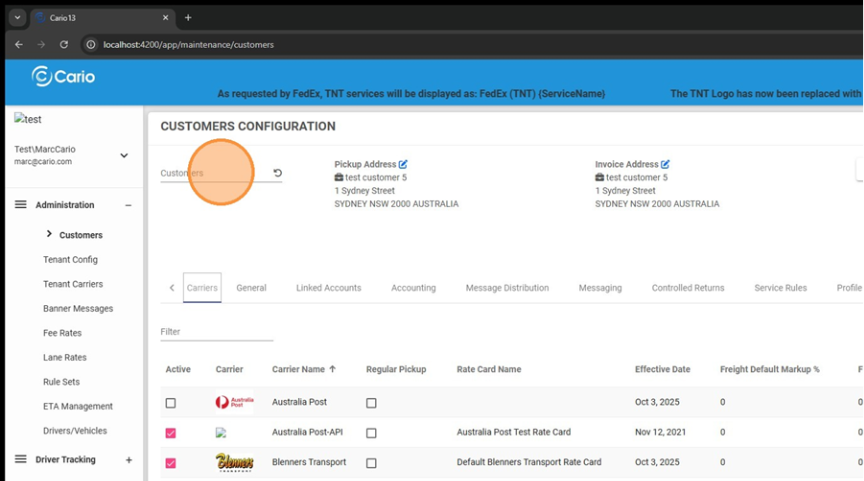
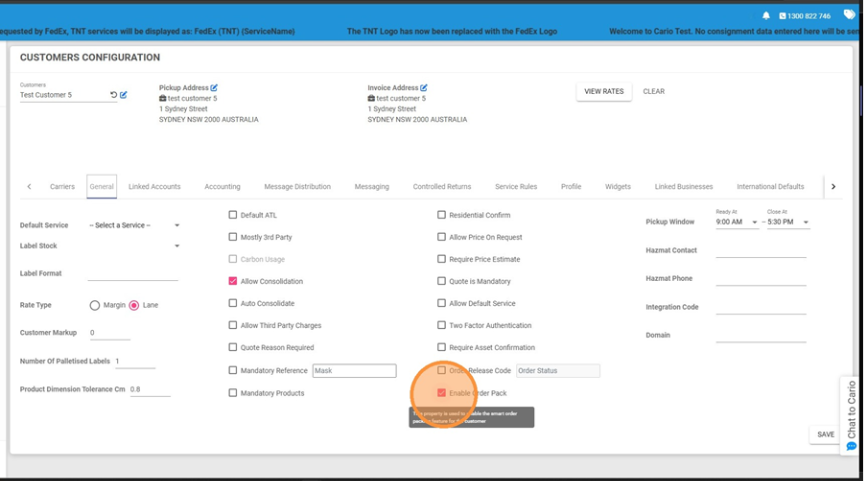
⚠️ Order Pack cannot be enabled at a customer level if it is disabled at a tenant level.
2. Product Dimension Tolerance (cm)
This setting adds a buffer to product dimensions during packing.
Example:
- Product size: 30 × 30 × 30 cm
- Tolerance: 1 cm
- Treated as: 31 × 31 × 31 cm
Important Consideration:
- Helps avoid tight or unrealistic packing
- Can significantly change packing outcomes
- Should be used conservatively
⚠️ Example:
A 60 × 60 × 60 cm container fits four 30 cm cubes
With 1 cm tolerance → only one cube may fit
Product Configuration (Critical Step)
3. Configure Products Correctly
Navigate to:
Maintenance → Products
Click the ➕ (Add Product) button. 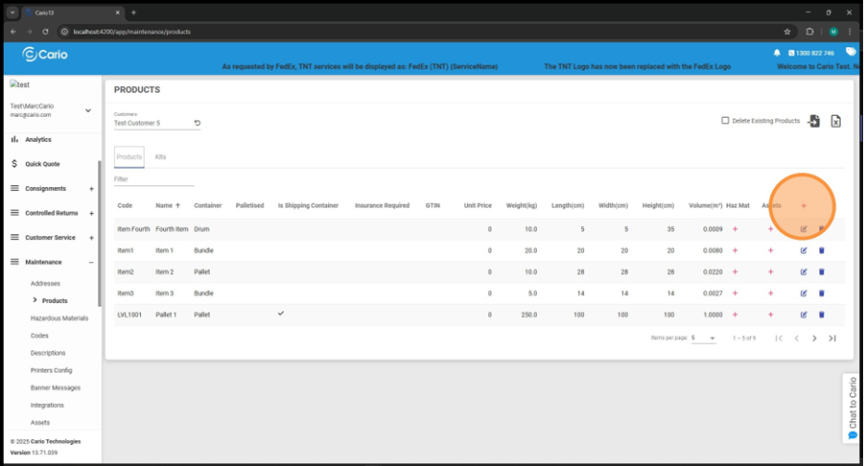
The following fields directly impact the optimiser:
Shipping Container
- ✅ Tick this if the product is a container
- At least one shipping container must exist per customer
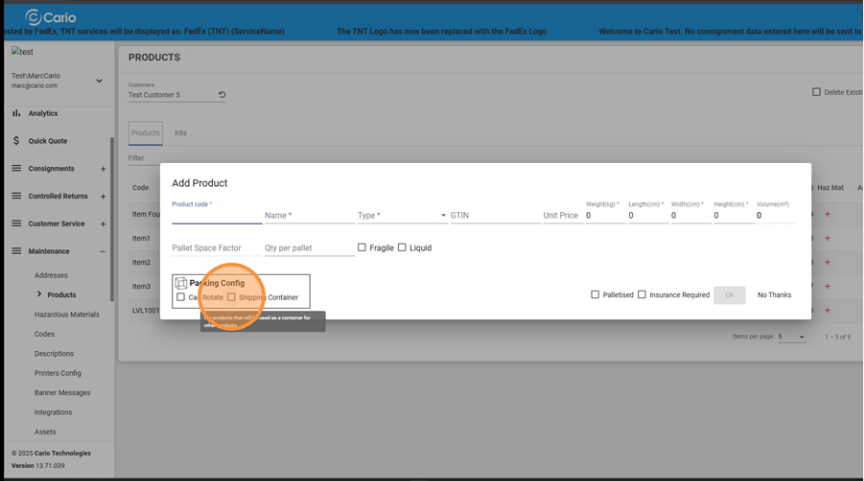
Weight, Length, Width, Height
- Products: actual item weight and dimensions
- Containers:
- Weight = maximum allowable load
- Dimensions = internal usable space only
5. Advanced Packing Settings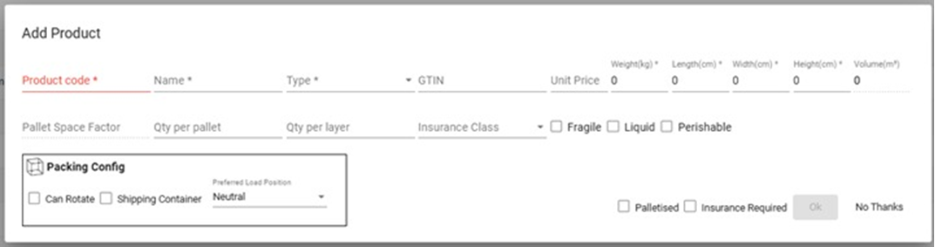
Qty per Pallet
- Defines how many items form a complete pallet
- Optimiser prioritises full pallets
- Ignored if impossible to pack
Qty per Layer
- Defines items per layer on a pallet
- May be overridden by load position rules
Can Rotate
- Allows product rotation for better fit
- ❌ Disable for orientation-sensitive goods
Type / Palletised
- If Pallet, Skid, or Palletised is enabled:
- Adds 15 cm height
- Adds 38 kg weight
- Reduces usable container space
Preferred Load Position
- Top – stays near top
- Bottom – stays near bottom
- Neutral – system optimises placement
Creating an Order for Optimisation
6. Create an Unpacked Order
Navigate to:
Warehouse → Create Order 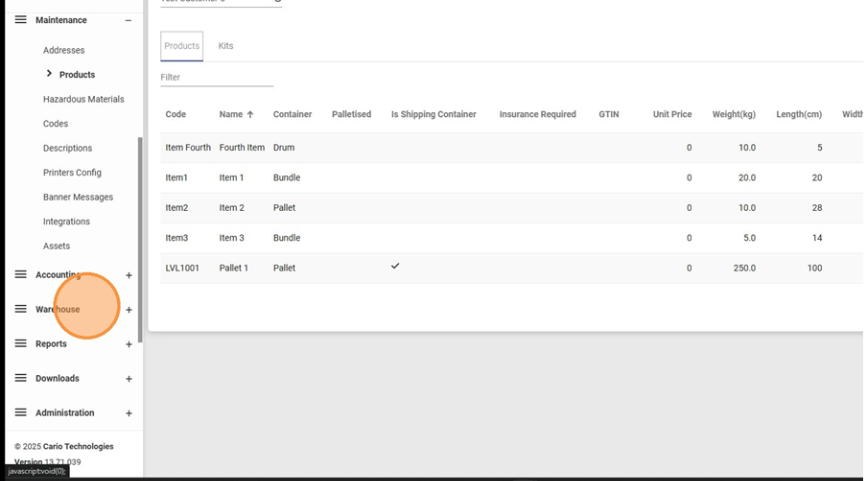
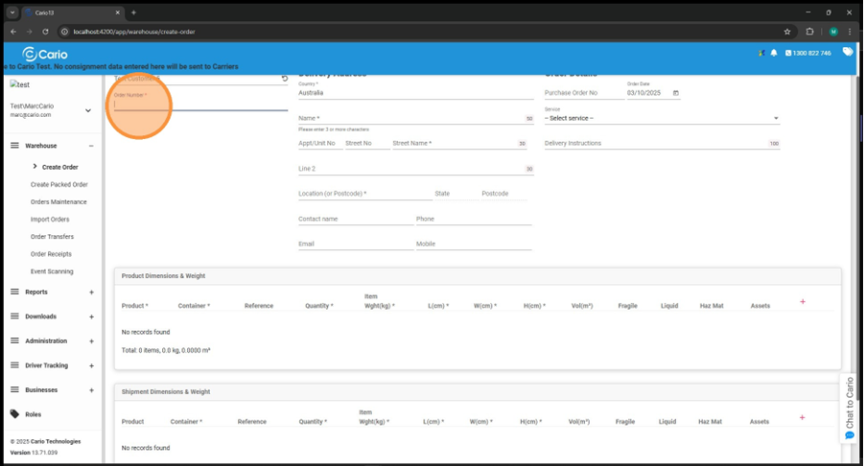
You will see two sections:
Product Dimensions & Weight
- For unpacked products
- These will be automatically packed
Shipment Dimensions & Weight
- For already packed transport units
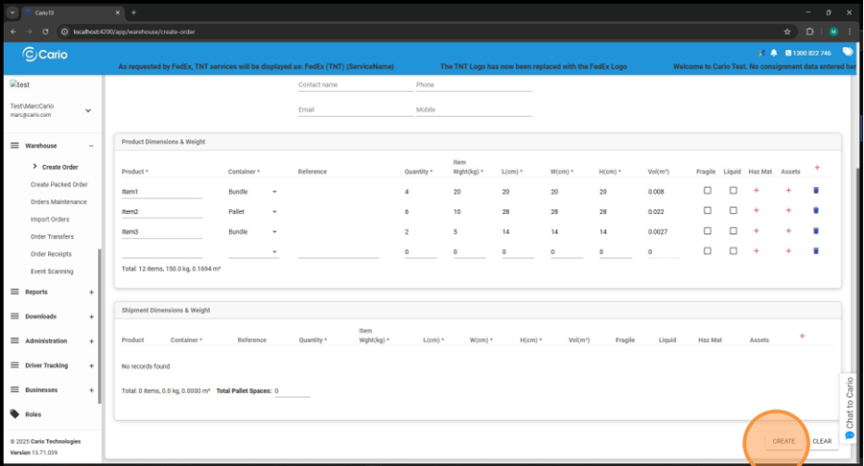
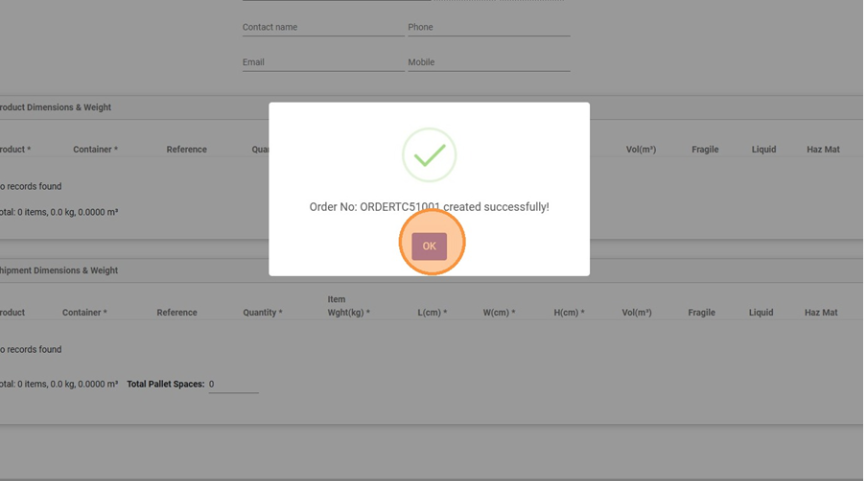
7. Add Products
- Enter the Product Code
- Add required quantities
- Click Create
- Click OK
Using Order Packing Optimisation
8. Open Order Maintenance
Warehouse → Orders → Order Maintenance
Locate your unconsigned order. 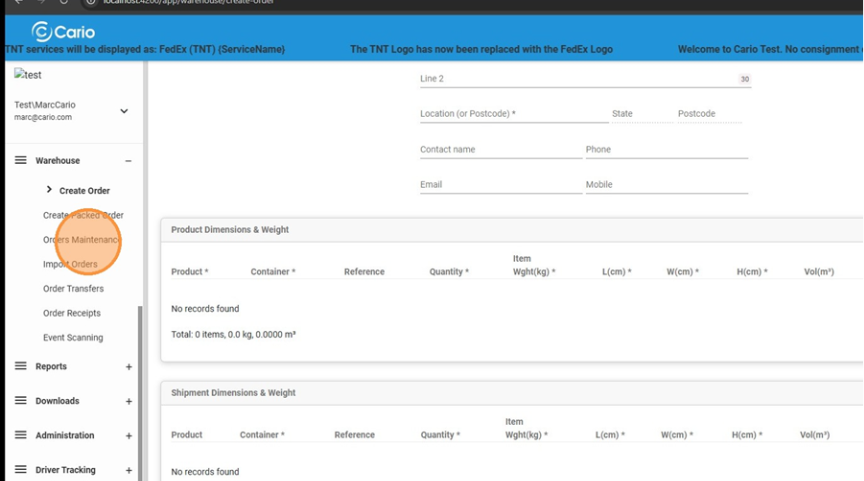
9. Pack & Create Consignment Icon
If enabled, you will see a new icon: 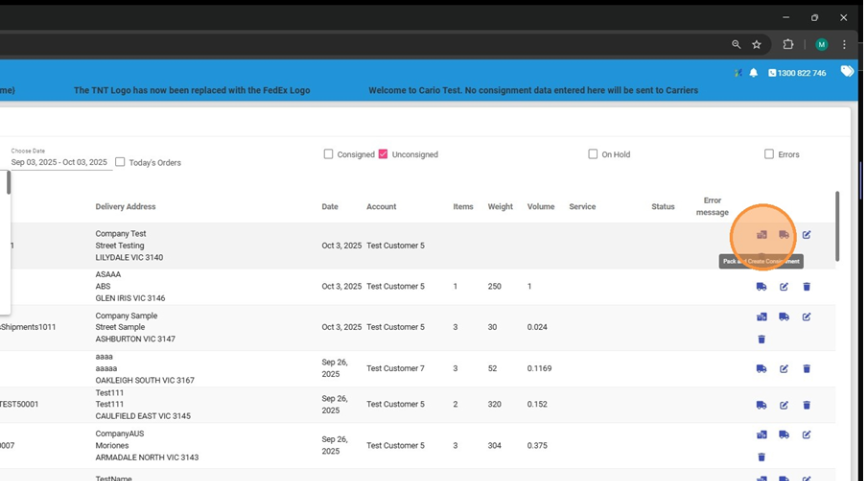
- 🚚 Create Consignment
- ✏️ Update Order
- 🗑️ Delete Order
➡️ 📦 Pack & Create Consignment 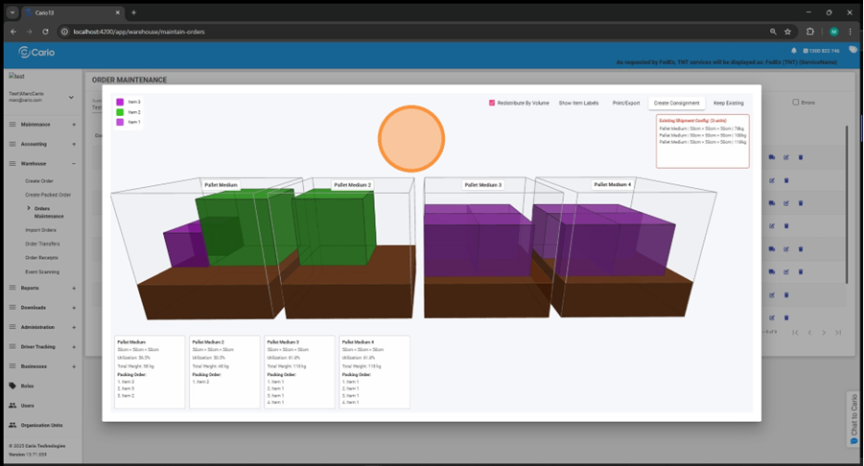
3D Visualisation Packing Screen
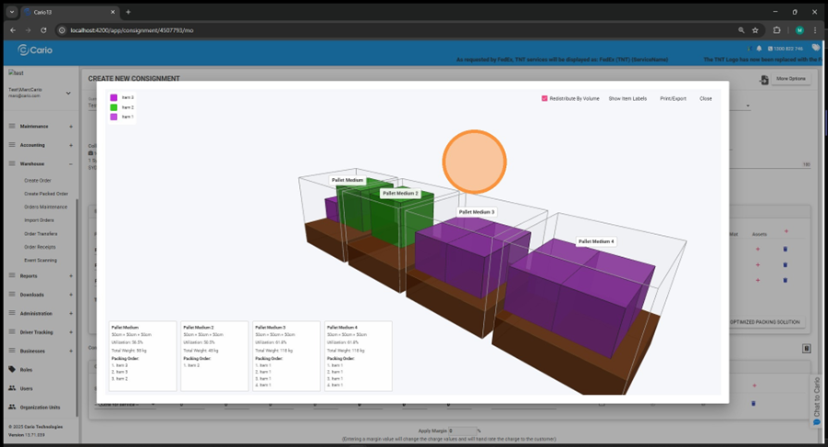
10. Review Packing Solution
You can view:
- Container usage
- Packing order (bottom-left panel)
- Pallet/skid representation (brown base)
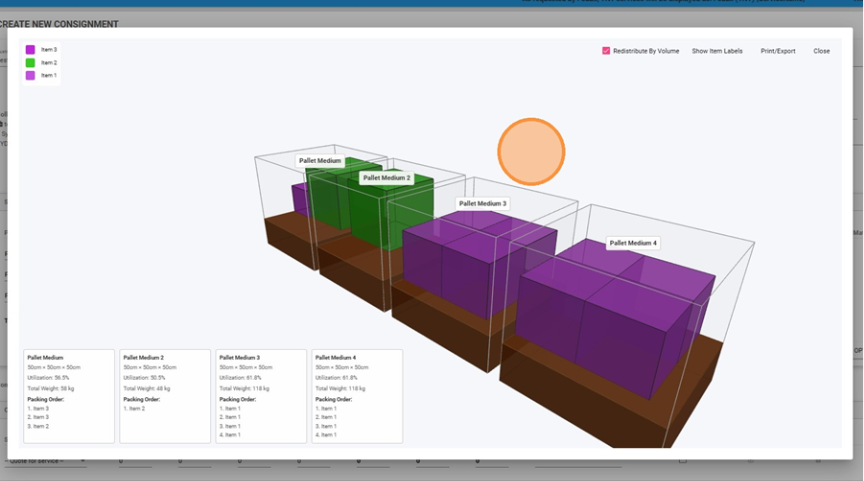
- Right-click + drag: Rotate
- Left-click + drag: Pan
- Mouse wheel: Zoom in/out
12. Printing & Exporting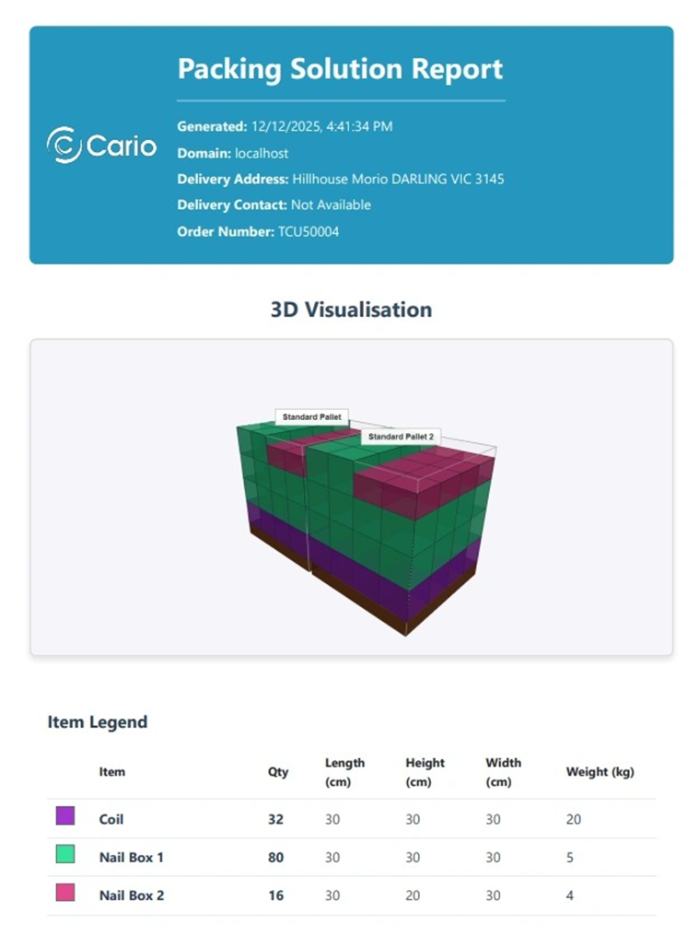
- Click Print to capture current view
- Printing is based on current camera angle
- Use Print/Export to generate a PDF with:
-
- Visual snapshot
-
- Product & container summary
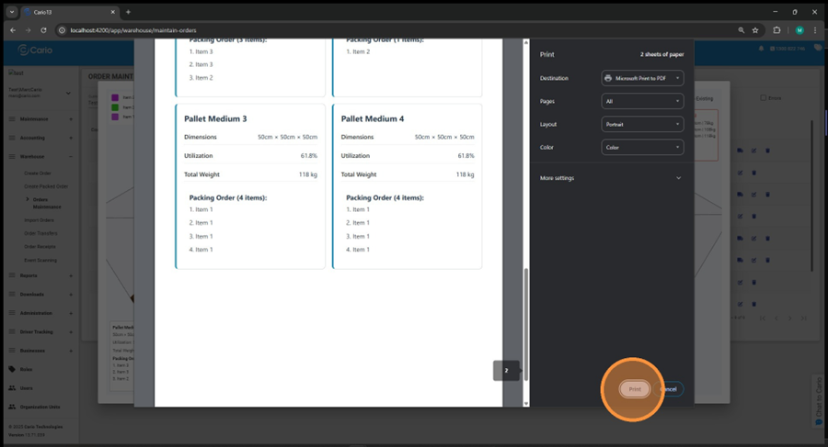
- Product & container summary
13. OptimisationTools
- Redistribute by Volume
Attempts to balance items evenly across containers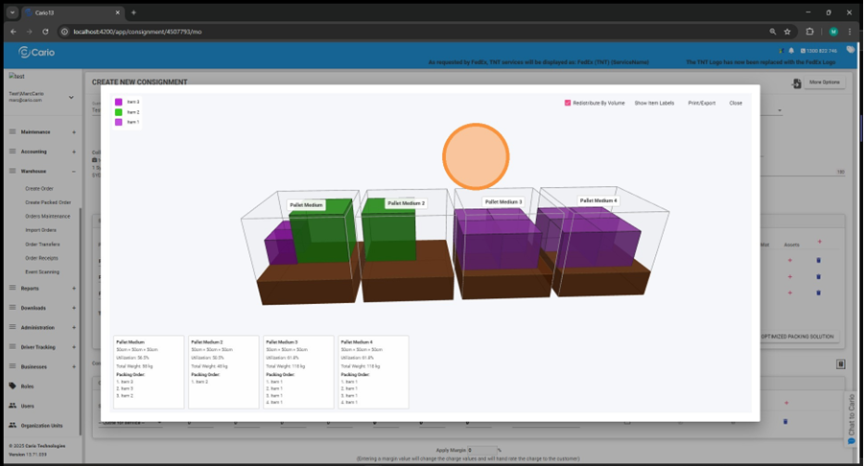
Creating the Consignment
14. Create Consignment
- Click Create Consignment
- System preloads:
- Transport units
- Dimensions & weights
- Optional:
- Reopen optimised view
- Show item labels
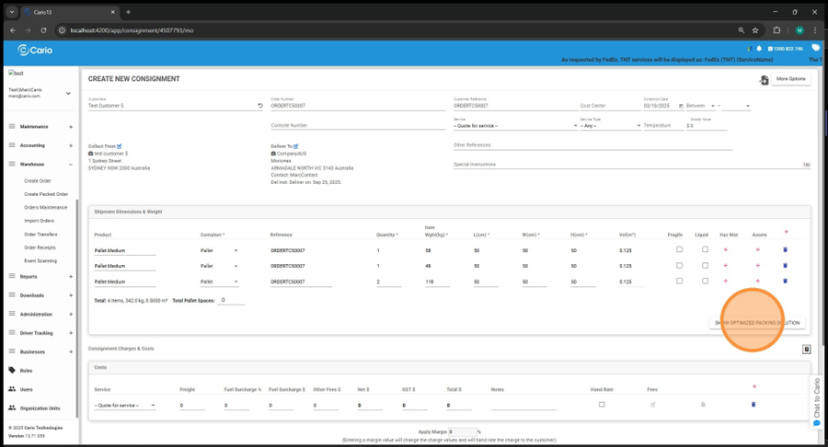
Click CREATE to finalise. 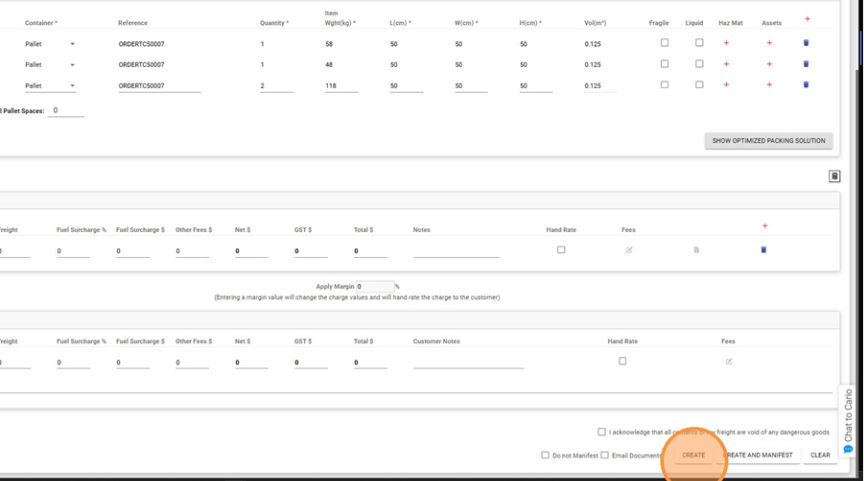
Final Outcome
15. Confirm Consigned Status
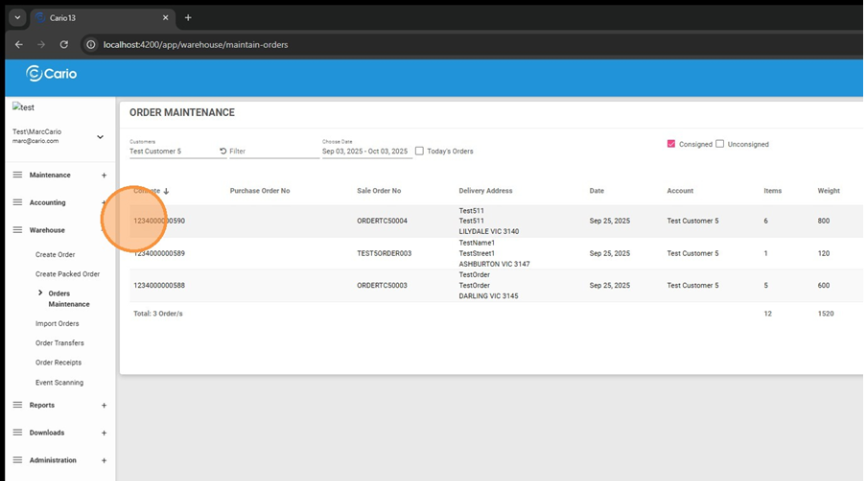
- Return to Orders Maintenance
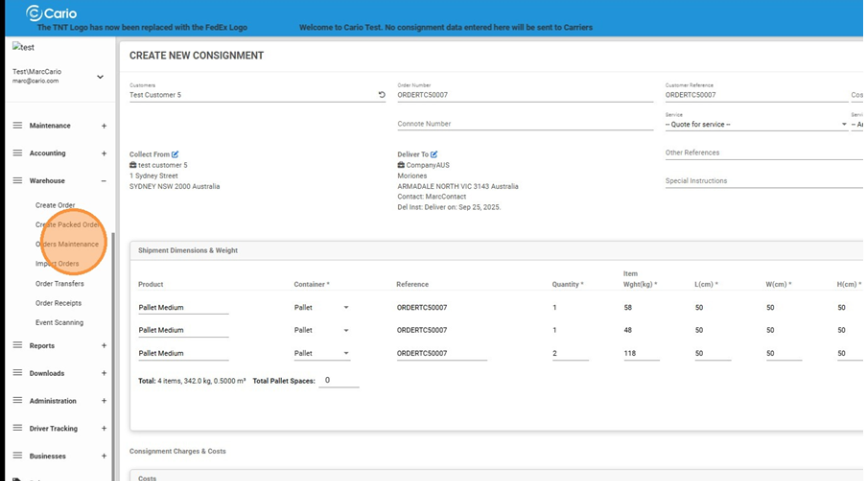
- Tick Consigned
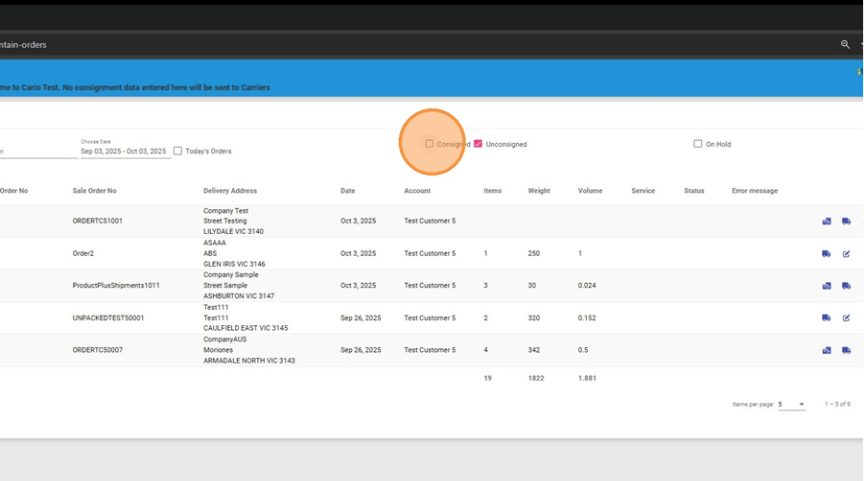
- Your packed order will now appear as Consigned
Summary
The 3D Order Packing Optimisation feature:
- Automates complex packing logic
- Improves accuracy and efficiency
- Provides visual confidence before freight booking
- Seamlessly transitions orders into consignments
It is designed to ensure optimal space utilisation, reduced freight costs, and fewer packing errors across warehouse operations.