![Cario logo RGB blue-1.png]](https://knowledge.cario.com.au/hs-fs/hubfs/Cario%20logo%20RGB%20blue-1.png?height=50&name=Cario%20logo%20RGB%20blue-1.png)
Purpose
The Order Maintenance screen is the central workspace for managing warehouse orders before they become consignments.
It allows users to review, update, convert, or remove orders that have been created manually or received via integrations.
This screen acts as the bridge between warehouse orders and carrier consignments, helping teams validate order details before progressing to freight booking.
What Appears in Order Maintenance?
The Order Maintenance screen displays orders from three sources:
- Create Order
Orders manually created via Warehouse → Create Order - Create Packed Order
Orders created via Warehouse → Create Packed Order (ready-to-ship transport units) - Integrated Orders
Orders automatically pulled into Cario via integrations (e.g. WMS, ERP, eCommerce platforms)
Orders received via integrations can be reviewed here and then converted into consignments without re-keying data.
How to Access Order Maintenance
- Log in to Cario
- Navigate to Warehouse
- Click Orders → Order Maintenance
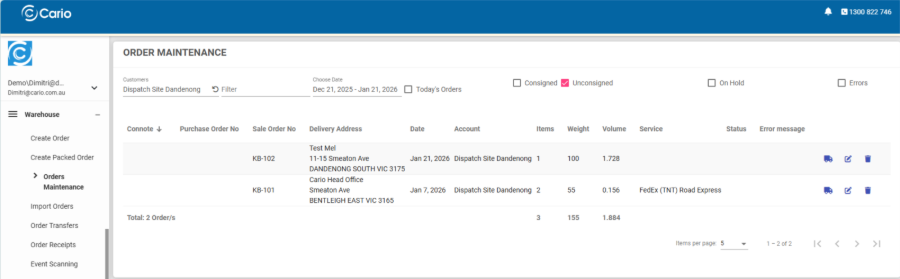
You will see a list of orders with key information such as:
- Purchase Order / Sale Order numbers
- Delivery address
- Items, weight, and volume
- Assigned service (if any)
- Current status
Understanding the Order Maintenance Icons
Each order row includes three action icons, which represent the main functions of this screen.
Create Consignment (Truck Icon) 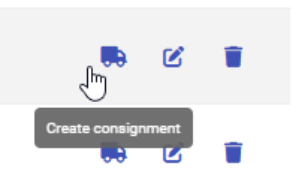
Purpose:
Converts the selected order into a carrier consignment.
What it does:
- Pulls all order details (addresses, items, weights, dimensions)
- Moves the order into the next step of the freight process
- Allows selection of carrier service and booking
When to use it:
- When the order is ready to be shipped
- After validating quantities, dimensions, and delivery details
🔗 This action links directly to the Create New Consignment workflow.
Update Order Details (Pencil Icon) 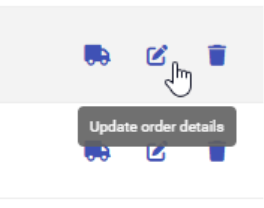
Purpose:
Edits the order without creating a consignment yet.
What it does:
- Allows changes to delivery address
- Updates product quantities or dimensions
- Adjusts references or instructions
When to use it:
- If information is incomplete or incorrect
- When changes are required before booking freight
Delete Order (Trash Icon) 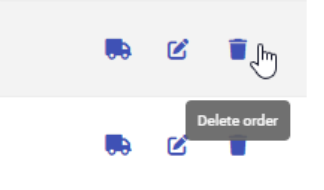
Purpose:
Removes the order from Order Maintenance.
What it does:
- Permanently deletes the selected order
- Cannot be undone
When to use it:
- Duplicate orders
- Cancelled or invalid orders
- Orders created in error
⚠️ Use with caution — deleted orders cannot be recovered.
Key Benefits of Order Maintenance
- Central view of all warehouse orders
- Supports manual and integrated workflows
- Reduces rework before consigning
- Enables clean handoff from warehouse to transport
- Prevents errors before carrier booking
Summary
The Order Maintenance screen is designed to:
- Review all incoming and created orders
- Prepare orders for freight booking
- Control when and how orders become consignments
- Maintain accuracy before carrier interaction
It ensures warehouse teams can validate first, consign second, improving efficiency and reducing freight errors.