![Cario logo RGB blue-1.png]](https://knowledge.cario.com.au/hs-fs/hubfs/Cario%20logo%20RGB%20blue-1.png?height=50&name=Cario%20logo%20RGB%20blue-1.png)
Purpose
The Event Scanning feature allows warehouse and operations teams to scan item barcodes and update consignment status milestones in real time. This ensures accurate tracking, visibility, and auditability of freight as it moves through each stage of the delivery lifecycle.
Event Scanning is commonly used to confirm actions such as pickup, transit, depot receipt, delivery, or exceptions, ensuring that all items within a consignment are accounted for.
What Can Be Updated Using Event Scanning
You can record a wide range of operational milestones, including:
- Collected from Sender
- Ready for Pickup
- In Transit
- On Board for Delivery
- Delivered
- Received at Pickup / Delivery Depot
- DIFOT Exceptions or Reasons
- Missing in Transit
- Damaged
- Manual or Internal Notes
- Driver allocation or approaching delivery notifications
How to Access Event Scanning
- Log in to Cario.
- Navigate to Warehouse from the left-hand menu.
- Click Event Scanning.
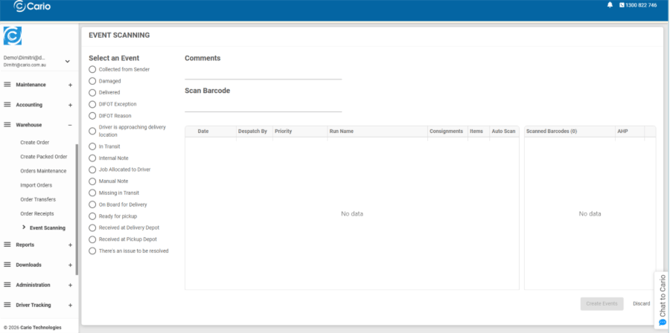
Steps to Scan and Create Events
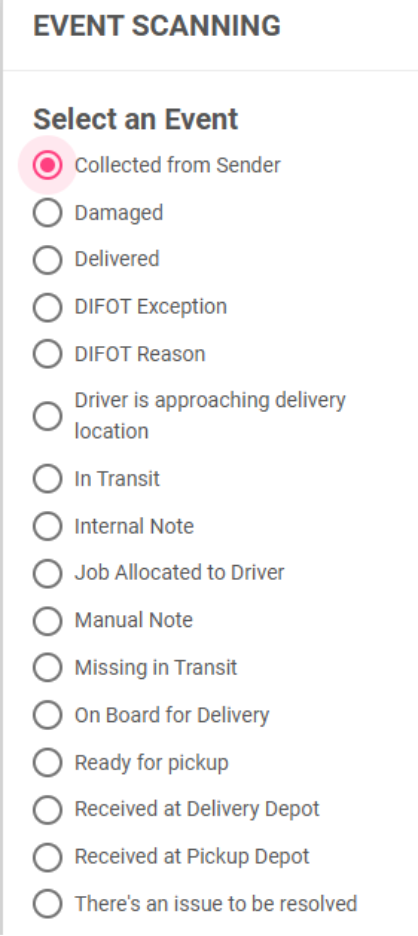
- Select an Event Milestone
From the Select an Event panel on the left-hand side, choose the appropriate event that reflects the current status of the freight (e.g. Collected from Sender, Delivered, In Transit).
- Add Optional Comments
In the Comments field, enter any relevant operational details such as:
- Driver name
- Vehicle registration number
- Additional handling notes
This information will be logged against the event for traceability.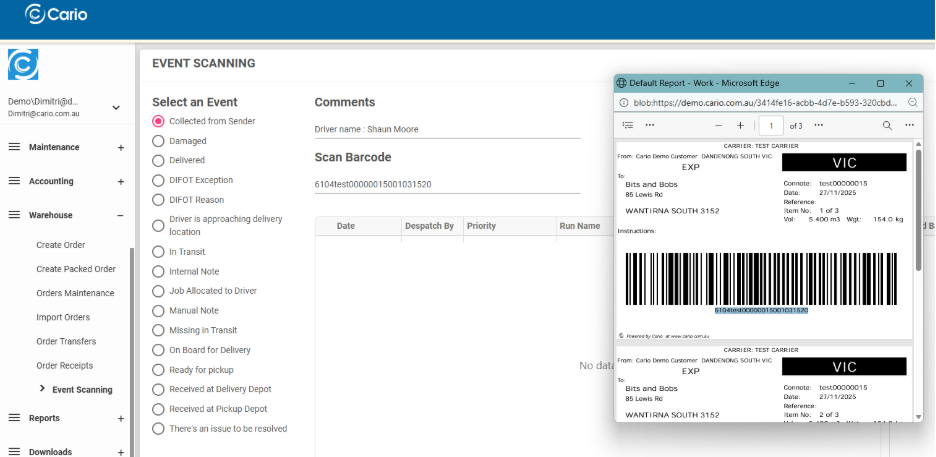
- Scan the Barcode
- Click into the Scan Barcode field.
- Scan the item label using a barcode scanner (or manually enter the barcode).
- Press Enter.
The system will automatically identify the consignment and display:
- Run name
- Number of consignments
- Total items
- Scanned vs unscanned items
- Review Scanned vs Unscanned Items
Once scanning begins, you will see a live breakdown of:
- Items successfully scanned
- Items still unscanned
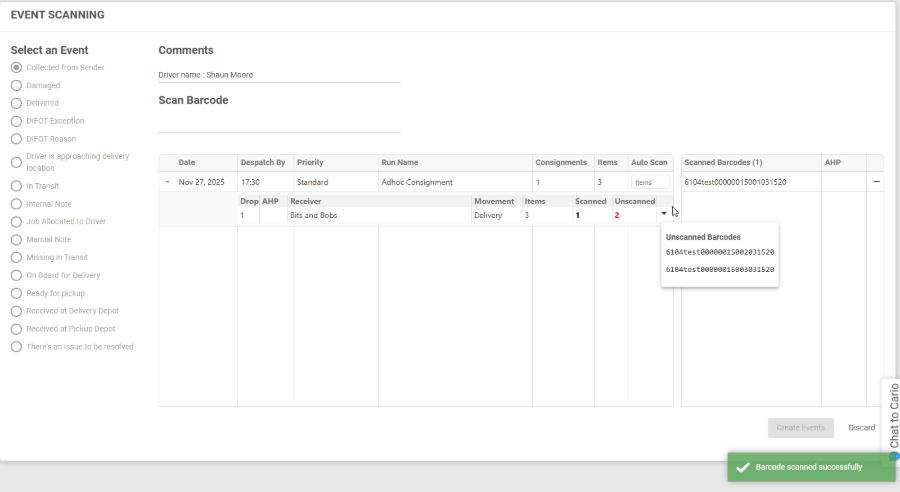
You can expand the list to view exactly which barcodes are outstanding.
- Use Auto Scan (Optional)
If all remaining items are physically present and accounted for:
- Enter the number of items in the Auto Scan field.
- Confirm the Auto Scan prompt.
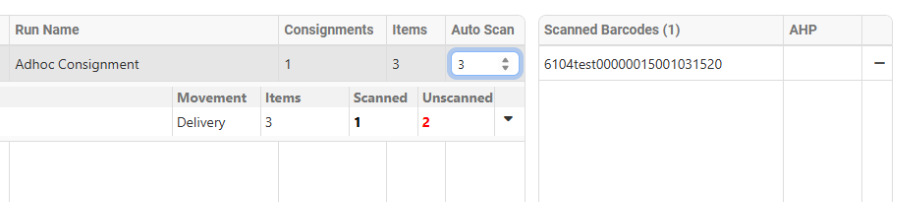
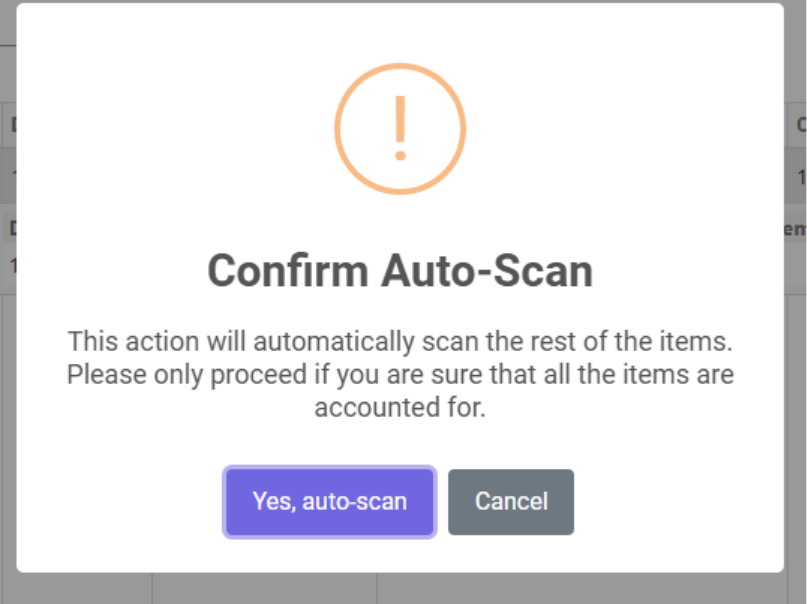
⚠️ Only use Auto Scan when you are confident all items are present, as this action will automatically mark the remaining items as scanned.
- Create Events
Once all items show as scanned: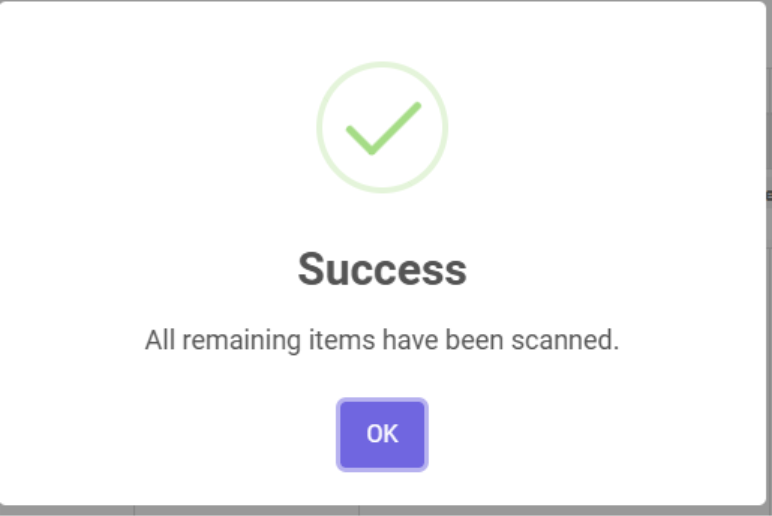
- Click Create Events.
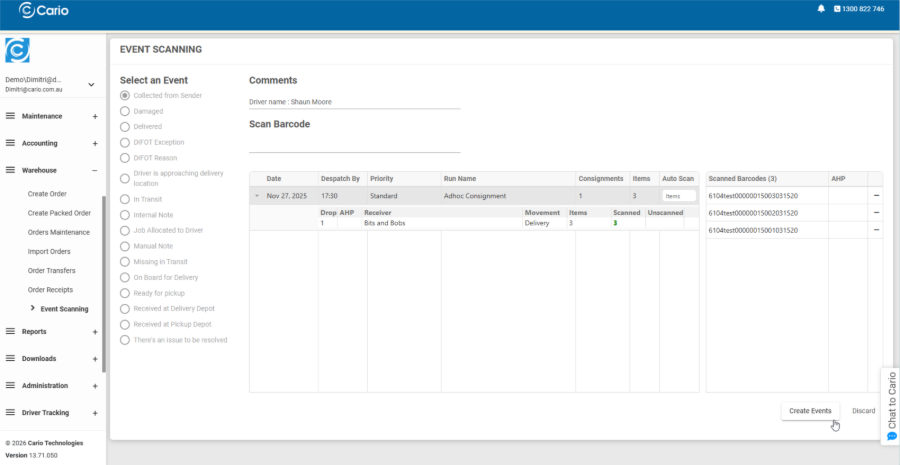
- A success banner will confirm that the events have been created successfully.
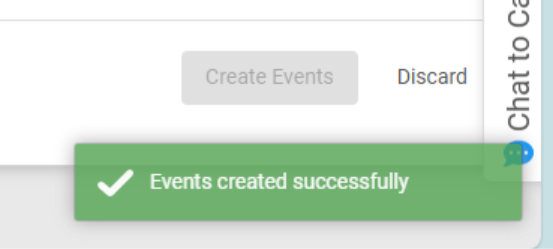
The selected milestone is now applied to all scanned items and recorded against the consignment history.
- Click Create Events.
Key Benefits
- Ensures item-level accountability
- Reduces missed or incorrect status updates
- Provides real-time visibility to operations and customers
- Supports compliance and audit requirements
- Minimises manual errors through barcode scanning
Tips & Best Practices
- Always select the correct event milestone before scanning
- Use comments consistently for driver or vehicle identification
- Avoid Auto Scan unless all items are physically verified
- If items remain unscanned, review the barcode list before finalising