![Cario logo RGB blue-1.png]](https://knowledge.cario.com.au/hs-fs/hubfs/Cario%20logo%20RGB%20blue-1.png?height=50&name=Cario%20logo%20RGB%20blue-1.png)
Purpose
The Create Packed Order function is used when your goods are already packed and ready to be handed over to the carrier.
Unlike Create Order, this workflow focuses on transport-ready units (pallets, cartons, cages, etc.) and provides additional delivery, pickup, and quoting options before booking.
This is ideal for:
- Orders that are already packed in pallets or cartons
- Direct handover to carriers
- Scenarios where you want to compare carrier quotes before booking
Key Difference: Create Order vs Create Packed Order
|
Feature |
Create Order |
Create Packed Order |
|
Intended use |
Order creation before packing |
Goods already packed and ready |
|
Product vs Shipment |
Products + Shipments |
Transport Units only |
|
Quote comparison |
Limited |
Full quote comparison available |
|
Pickup & Delivery options |
Basic |
Expanded options (Tail Lift, Book-In, Dates) |
|
Special Instructions |
Limited |
Delivery & Special Instructions supported |
How to Create a Packed Order
Step 1: Navigate to Create Packed Order
- Log in to Cario
- Go to Warehouse
- Select Create Packed Order
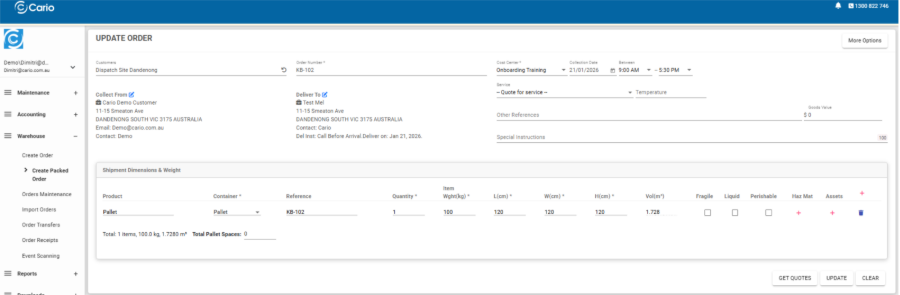
Step 2: Enter Order Header Details
- Select the Customer / Dispatch Site
- Enter the Order Number
- Select the Cost Centre
- Choose the Collection Date and time window
- (Optional) Enter Customer Reference or Other References
Step 3: Enter Pickup & Delivery Addresses
- Collect From
This is auto-filled based on the dispatch site
- Deliver To
- Enter or select the delivery address
- Add contact name, phone, and email if required
- Enter Delivery Instructions (dropdown if pre-saved)
- Enter Special Instructions if applicable
Step 4: Add Packed Transport Units (Shipment Dimensions & Weight)
In Create Packed Order, you are entering transport units, not unpacked products.
Examples of transport units:
- Pallets
- Cartons
- Cages
For each line:
- Select the Container Type (e.g. Pallet, Carton)
- Enter Quantity
- Enter Weight
- Enter Length, Width, Height
- Confirm calculated Volume (m³)
Optional flags:
- Fragile
- Liquid
- Perishable
- Haz Mat
- Assets
ℹ️ Important:
- Products = unpacked goods
- Shipments / Packed Orders = how goods are handed over to the carrier
Step 5: Configure Pickup & Delivery Options
Click the options panel to configure:
- Pickup Options
-
- Tail Lift
-
- Loading Crane Required
- Delivery Options
-
- Hand Unload
-
- Tail Lift
-
- Loading Crane Required
-
- Confirmed with Receiver
-
- Book-In Date & Time
-
- Deliver On (specific date)
- Warranty
-
- Transit Warranty (if required)
Step 6: Get Carrier Quotes
- Click Get Quotes
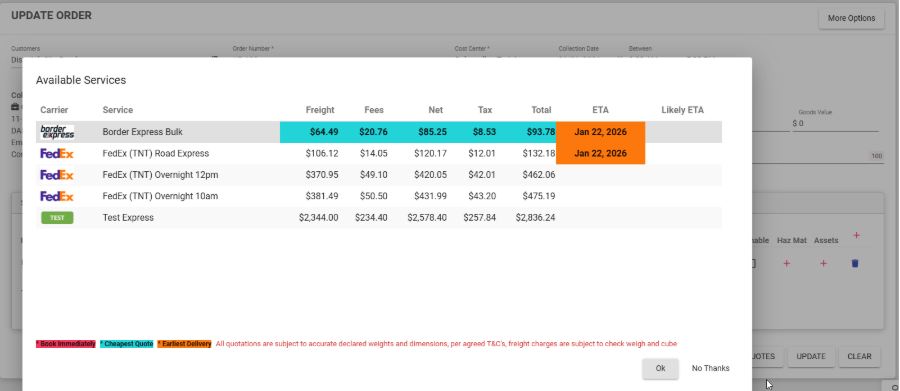
- Review available carrier services
- Compare:
- Freight cost
- Fees
- Tax
- Total price
- ETA / Likely ETA
System indicators:
- 🟦 Cheapest Quote
- 🟧 Earliest Delivery
- 🔴 Book Immediately
All quotes are subject to declared weights and dimensions.
Step 7: Finalise the Packed Order
- Select the preferred carrier service
- Click Create/Update to save the packed order
- The order is now ready for booking and handover
Benefits of Using Create Packed Order
- Faster carrier handover for ready goods
- Accurate quoting based on final packed dimensions
- Reduced data entry and rework
- Improved delivery planning and ETA visibility