![Cario logo RGB blue-1.png]](https://knowledge.cario.com.au/hs-fs/hubfs/Cario%20logo%20RGB%20blue-1.png?height=50&name=Cario%20logo%20RGB%20blue-1.png)
Purpose
The Create Order function allows warehouse users to create outbound orders before they are packed and consigned. This ensures accurate delivery details, product information, and shipment configuration are captured early, supporting efficient warehouse operations and downstream freight processing.
Orders created here can later be packed, scanned, and transferred into consignments for carrier booking.
When to Use Create Order
Use Create Order when:
- Orders can be created before packing occurs
- Warehouse teams need to record delivery details and item quantities
- Goods will be packed and shipped at a later stage
- You want to reduce manual data entry during consigning
Key Concepts
Products vs Shipments
Understanding the difference is important when creating an order:
- Product
Refers to the unpacked goods or items (e.g. cartons, inner units, boxes).
- Shipment
Refers to the transport unit handed over to the carrier
(e.g. pallets, cages, stillages).
Product = What is on the pallet
Shipment = How it is handed over to the carrier
Steps to Create an Order
- Navigate to Create Order
- Log in to Cario
- Go to Warehouse
- Click Create Order
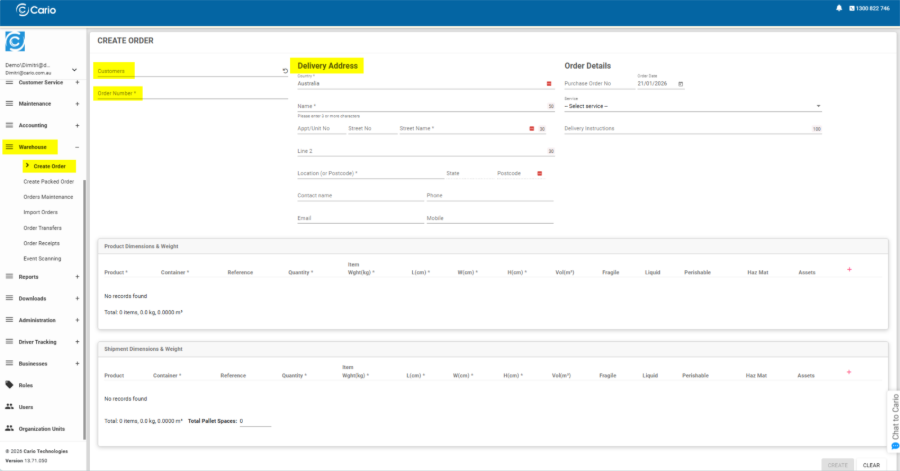
- Select Customer & Enter Order Details
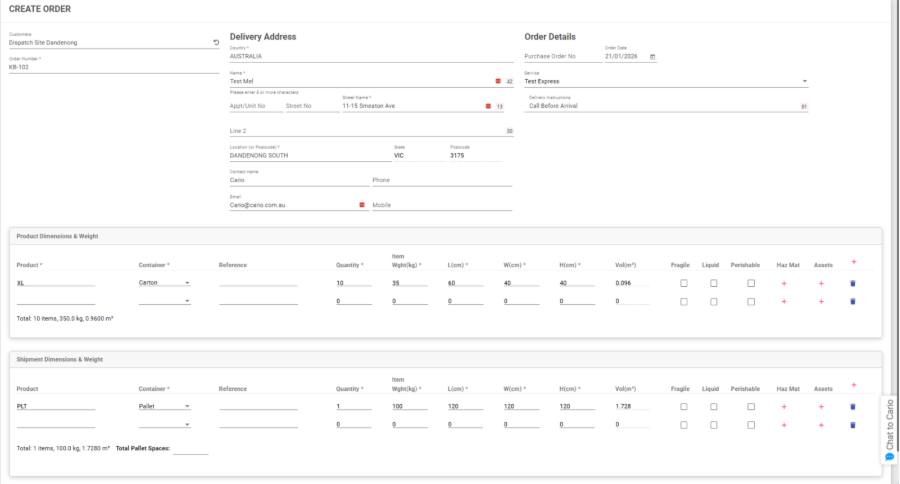
- Select the Customer / Dispatch Site
- Enter an Order Number
- Confirm or enter the Order Date
- (Optional) Enter a Purchase Order Number
- Enter Delivery Address
- Select Country
- Enter:
- Name
- Street Address
- Suburb, State, Postcode
- Contact Name
- Phone / Email (if required)
- Add Delivery Instructions if needed
Saved addresses can be reused to speed up order creation.
- Select Carrier Service
- From the Service dropdown, select the required carrier service
- This determines how the order will be handed over once consigned
- Add Product Dimensions & Weight (Unpacked Goods)
This section represents the individual items or cartons.
- Click the ➕ (plus) icon under Product Dimensions & Weight
- Select or enter:
- Product
- Container type (e.g. Carton)
- Quantity
- Weight
- Length, Width, Height
- Mark flags if applicable:
- Fragile
- Liquid
- Perishable
- Haz Mat
Totals update automatically at the bottom of the section.
- Add Shipment Dimensions & Weight (Transport Units)
This section represents how goods are shipped (e.g. pallets).
- Click the ➕ (plus) icon under Shipment Dimensions & Weight
- Select:
- Product (e.g. Pallet)
- Container type
- Quantity
- Weight
- Dimensions
- Review Total Pallet Spaces if applicable
- Create the Order
- Review all entered information
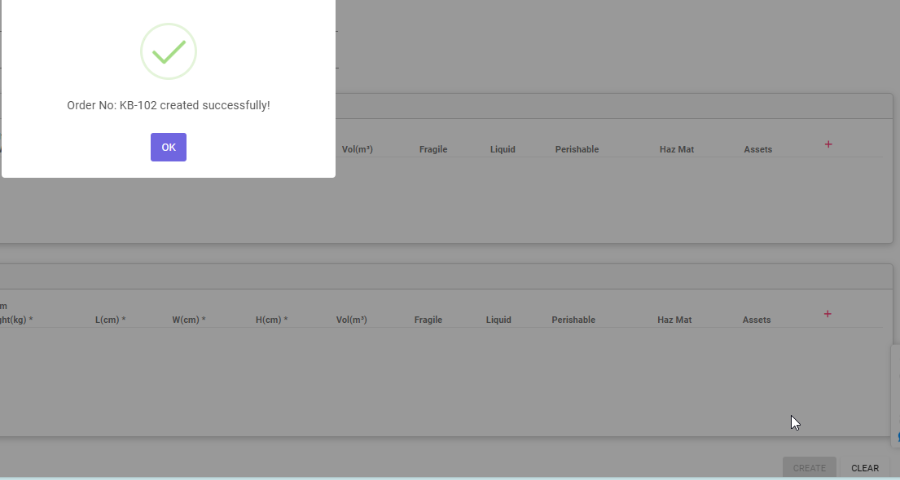
- Click Create
- A confirmation message will appear confirming the order has been created successfully
Outcome
Once created:
- The order is available for packing, scanning, and consolidation
- It can be transferred into a consignment for carrier booking
- All dimensions, weights, and delivery details are preserved
Tips & Best Practices
- Use predefined Products to reduce manual data entry
- Always separate Products (items) from Shipments (transport units)
- Confirm dimensions early to avoid rework during consigning
- Use Delivery Instructions to reduce failed deliveries