![Cario logo RGB blue-1.png]](https://knowledge.cario.com.au/hs-fs/hubfs/Cario%20logo%20RGB%20blue-1.png?height=50&name=Cario%20logo%20RGB%20blue-1.png)
Purpose
The Import Consignments feature in Today’s List (Basic) allows you to create multiple consignments in bulk using a CSV file. This is ideal for high-volume shipping, system migrations, or when preparing consignments outside of Cario (for example, from Excel).
Instead of creating consignments one by one, you can upload a CSV file containing all shipment details and process them in a single action.
Why Use Import Consignments
- Save time when creating multiple consignments
- Reduce manual data entry
- Use a standardised CSV template to ensure consistency
- Quickly identify and fix errors before manifesting
- Ideal for daily dispatch runs or bulk uploads
Step 1: Export the CSV Template
Before importing, you must first export the CSV template so you have the correct column structure.
- Go to Consignments
- Select Today’s List (Basic)
- Ensure the correct Customer is selected
- Click the Export to CSV icon (top right)

- Download and open the CSV file
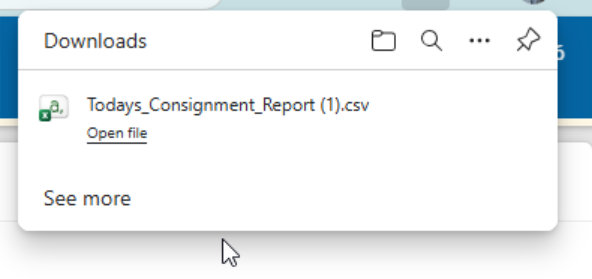
This exported file acts as the template for importing consignments.
Step 2: Fill in the CSV File
Once you have the template:
- Open the CSV file in Excel

- Fill in each row with your consignment details, such as:
- Company / Customer
- Pickup Address
- The pickup address is not a mandatory field to fill. If the Pickup address is left empty, it will default to the collect from address configured for the customer dispatch location selected.
- Delivery addresses

- Service
- Product, dimensions, weight, quantity
- References and instructions
- Ensure all mandatory fields are completed

- Do not change the column headers
- Save the file as CSV (Comma delimited)

Step 3: Import the CSV File
After completing the CSV:
- Return to Consignments
- Go to Today’s List (Basic)
- Select the Import tab
- Click the Import File icon

- Choose your saved CSV file

Step 4: Select Customer and Upload
- Confirm the correct Customer is selected
- Review the imported rows in the grid
- Click Upload

If the upload is successful, the consignments will appear in Today’s List.
Step 5: Fix Import Errors (If Any)
If there are validation errors:
- Click the Edit (pencil) icon on the affected row
- Fields with errors will be highlighted in red

- Common issues include:
- Invalid suburb or locality
- Incorrect postcode
- Missing mandatory fields
- Correct the highlighted fields
- Save the changes
- Re-upload if required
Once all errors are resolved, the consignments can be processed normally.
CSV Column Headers – TRUE / FALSE Fields
Some columns in the CSV template are Boolean fields, meaning they only accept TRUE or FALSE values.
These fields control optional service requirements and must be completed correctly to avoid import errors.
How to Complete TRUE / FALSE Columns
- TRUE → The option is required / enabled
- FALSE → The option is not required / not enabled
Do not leave these fields blank.
Common TRUE / FALSE Columns Include:
- Require Hand Unload
- Require Tailgate
- Residential
- Hazardous Materials
- Fragile
- Perishable (if applicable)
Helpful Tips
- Always export a fresh CSV template if fields or configurations change
- Ensure postcodes and suburbs match valid carrier data
- Double-check service and container types before uploading
- Use references consistently to make tracking easier