![Cario logo RGB blue-1.png]](https://knowledge.cario.com.au/hs-fs/hubfs/Cario%20logo%20RGB%20blue-1.png?height=50&name=Cario%20logo%20RGB%20blue-1.png)
Purpose
Organisation Units in Cario are used to define and manage business-level structures such as branding, domains, and visual identity within a tenant. This allows organisations to apply consistent branding across login screens, banners, invoices, and customer-facing documents while maintaining clear organisational separation.
Scope
This article applies to Tenant Admins and Administrators responsible for configuring organisational structure and branding within the Cario platform.
Prerequisites
Before managing Organisation Units, ensure that:
- You are logged in as a Tenant Admin or Admin
- The Organisation Unit already exists or has been created
- You have access to the Administration menu
Accessing Organisation Units
- Log in to Cario
- Navigate to Administration → Organisation Units
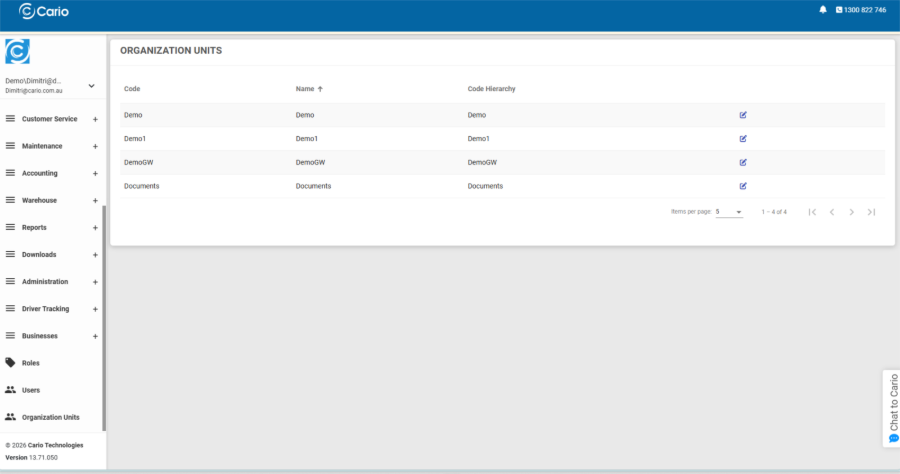
- You will see a list of Organisation Units displayed in a table with the following columns:
- Code
- Name
- Code Hierarchy
Each Organisation Unit represents a logical business grouping within the tenant.
Editing an Organisation Unit
To update an existing Organisation Unit:
- Locate the Organisation Unit you wish to update
- Click the pencil (edit) icon on the right-hand side of the row
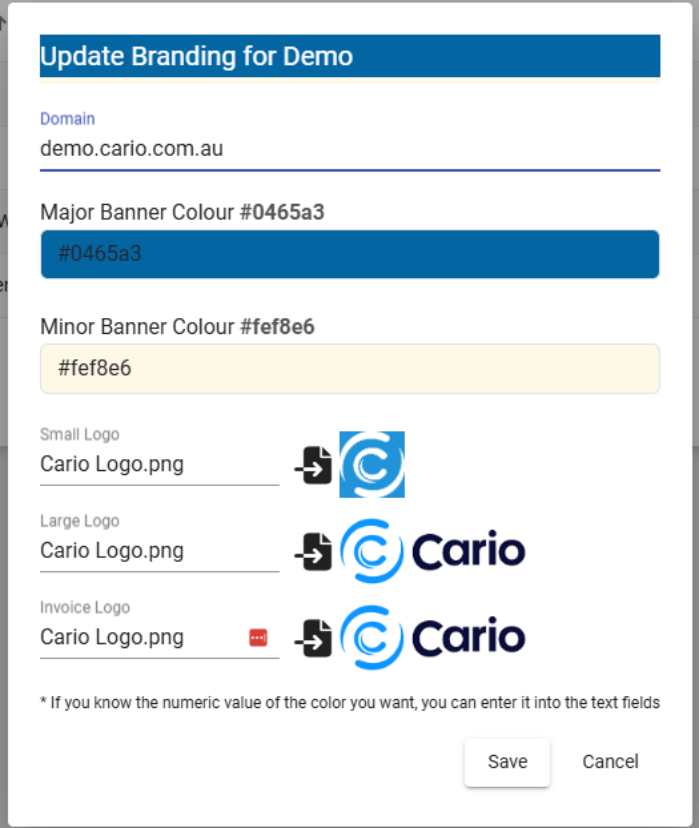
- This opens the Update Branding screen for the selected Organisation Unit
Update Branding Screen Overview
The Update Branding screen allows you to configure branding and identity settings for the Organisation Unit.
Domain
- Displays the domain associated with the Organisation Unit
- Example: demo.cario.com.au
- This domain is used for tenant access and branding context
Banner Colours
- Major Banner Colour
-
- Controls the primary colour used across the top banner in Cario
-
- Accepts hexadecimal colour values (for example, #0465a3)
-
- You can manually enter the value or use the colour picker
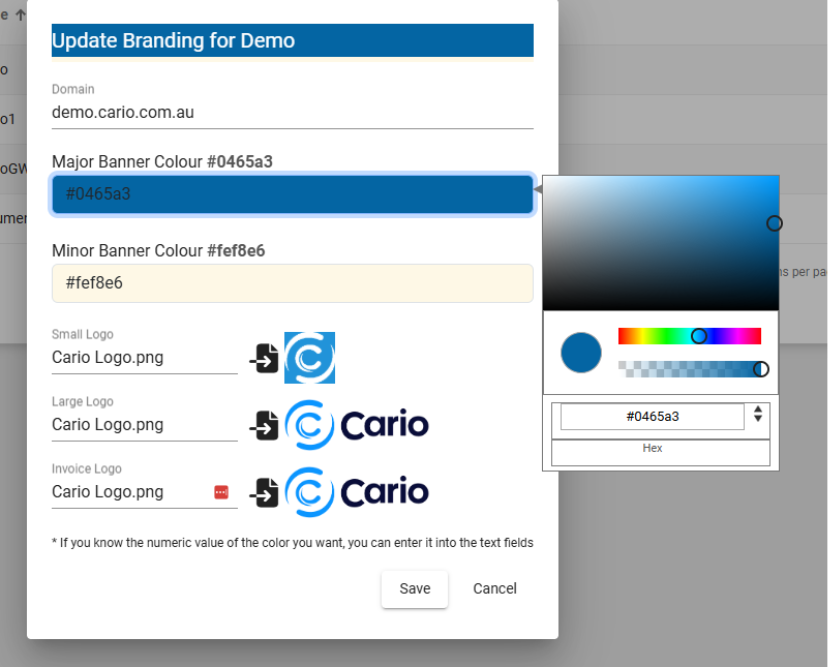
- You can manually enter the value or use the colour picker
- Minor Banner Colour
-
- Used as a secondary or accent colour
-
- Also accepts hexadecimal values (for example, #fef8e6)
These colours affect the overall look and feel of the Cario interface for this Organisation Unit.
Logo Configuration
You can upload different logos depending on where they are used in the platform.
Small Logo
- Used on the top navigation banner
- Typically a square or compact logo
Large Logo
- Used on the login screen
- Should be clear and readable at larger sizes
Invoice Logo
- Used on invoices and invoice-related documents
- Should be suitable for print and PDF output
To update any logo:
- Click the import/upload icon next to the logo field
- Select the image file from your device
- The preview will update immediately
Tooltips in the interface indicate where each logo is used:
- Top banner
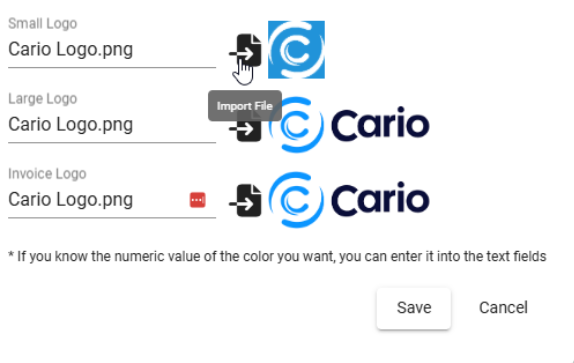
- Login screen
- Invoice documents

Saving Changes
Once all updates are completed:
- Review the domain, colours, and logos
- Click Save to apply the changes
- The updated branding will take effect immediately for that Organisation Unit
Key Notes and Best Practices
- Ensure colour contrast meets accessibility standards
- Use high-resolution logos to avoid pixelation on invoices and login screens
- Changes apply only to the selected Organisation Unit and do not affect others
- Branding updates do not impact operational data such as consignments or orders