![Cario logo RGB blue-1.png]](https://knowledge.cario.com.au/hs-fs/hubfs/Cario%20logo%20RGB%20blue-1.png?height=50&name=Cario%20logo%20RGB%20blue-1.png)
Purpose
The Products module in Cario allows you to define preconfigured freight items that can be reused when creating consignments. Products act as shipment templates, storing container type, dimensions, weight, and handling characteristics so users do not need to manually enter these details each time.
This ensures consistency, accuracy, and speed when creating consignments.
What This Helps With
Maintaining Products helps to:
- Reduce manual data entry when creating consignments
- Improve accuracy of shipment dimensions and weights
- Ensure consistent handling requirements are applied
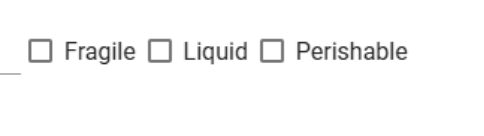
- Support special freight types such as fragile, liquid, and perishable items
- Reduce carrier rating and invoicing discrepancies
- Speed up booking for repeat shipment types
What Is a Product in Cario
A Product represents a predefined freight item and may include:
- Container type (e.g. carton, pallet, cage)
- Dimensions and weight
- Dangerous Goods (if applicable)
- Handling attributes such as:
-
- Fragile
-
- Liquid
-
- Perishable
When a Product is selected during consignment creation, only the quantity needs to be entered — all other shipment details are automatically populated.
Accessing Product Maintenance
- Log in to Cario.
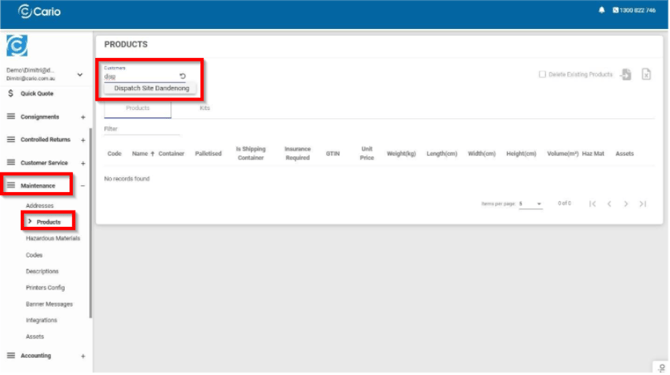
- Navigate to Maintenance → Products from the left-hand menu.
- Select the relevant Customer / Dispatch Location.
Adding a New Product
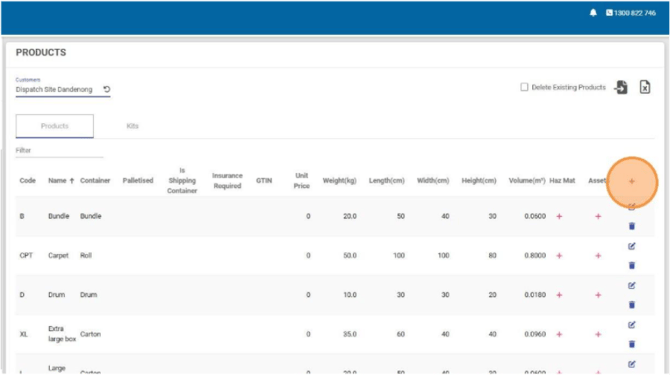
- In Maintenance → Products, click the red plus (+) icon.
- A product form will appear.
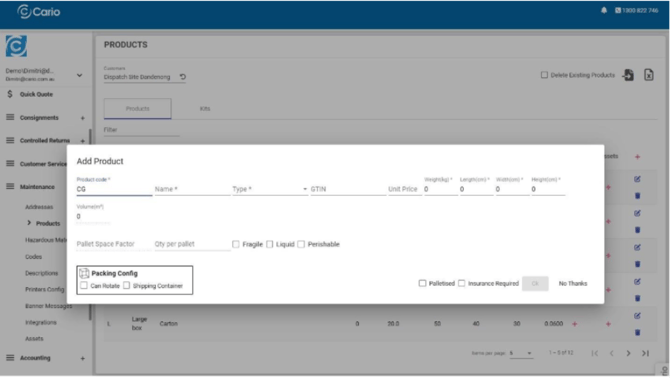
- Complete the required fields:
- Product Code – Internal reference (max 20 characters)
- Name – Product name (used as the search field during consigning)
- Type – Container type (e.g. Carton, Pallet, Cage)
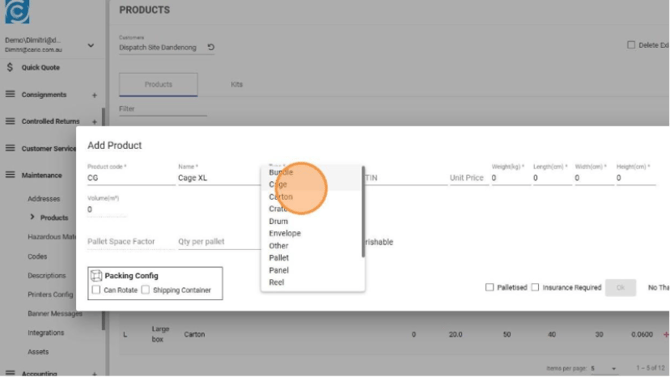
- Weight (kg) – Mandatory
- Length (cm)
- Width (cm)
- Height (cm)
- (Optional) Apply handling attributes:
- Fragile – Indicates items requiring careful handling
- Liquid – Identifies liquid freight for carrier and compliance purposes
- Perishable – Used for time- or temperature-sensitive goods
- (Optional) Configure Dangerous Goods if applicable:
- UN Code (must already exist in Cario)
- Proper Shipping Name
- Trade Name
- Aggregate Quantity and Units
- Click OK to save the product.
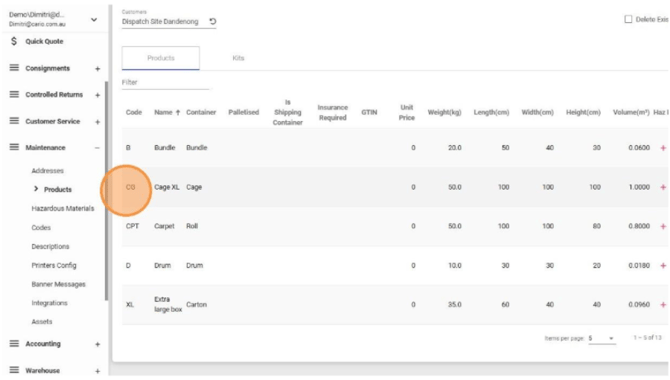
Using Products When Creating a Consignment
- Go to Consignments → Create New.
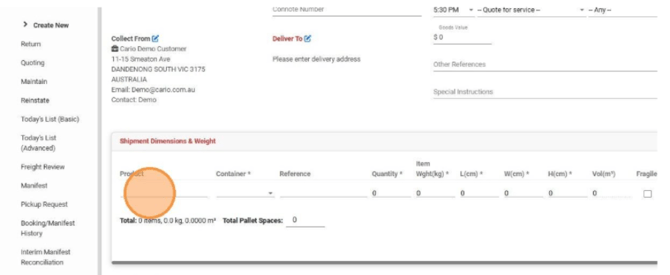
- In Shipment Dimensions & Weight, select the Product Code or Product Name.
- The system will automatically populate:
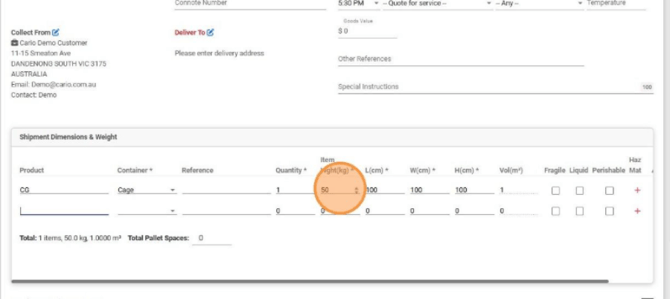
- Container type
- Dimensions
- Weight
- Handling attributes
- Enter the quantity only.
This significantly reduces data entry time and minimises errors.
Editing or Deleting a Product
- Edit: Click the pencil icon next to the product to modify details.
- Delete: Click the trash bin icon to remove the product.
Editing a product does not affect historical consignments already created.
Bulk Importing Products (CSV)
Cario supports bulk product management using CSV import.
Exporting the Template
- Navigate to Maintenance → Products.
- Click Export to CSV to download the product template.
CSV Field Overview

Mandatory fields:
- Code – Max 20 characters, no special characters
- Name – Max 20 characters
- ContainerType
- Length (cm)
- Width (cm)
- Height (cm)
- Weight (kg)
Optional fields:
- Volume
- GTIN
- UNCode (numbers only)
- ProperShippingName
- TradeName
- Division
- SubsidiaryHazard
- PackingGroup
- NoOfUnits
- AggregateQty
- AggregateQtyUOM
- Receptacle
Importing Products
- Complete the CSV file with your product data.
- Save the file as CSV.
- Click Import File in Maintenance → Products.
- Select the file and click Open.
- (Optional) Tick Delete Existing Products if you want to fully replace the current product list.
Important Notes
- Products are customer-specific.
- Handling attributes (Fragile, Liquid, Perishable) help guide carrier suitability and handling.
- Dangerous Goods products require the UN Code to exist in Cario before assignment.