![Cario logo RGB blue-1.png]](https://knowledge.cario.com.au/hs-fs/hubfs/Cario%20logo%20RGB%20blue-1.png?height=50&name=Cario%20logo%20RGB%20blue-1.png)
Purpose
The Printer Configuration (Auto Print) feature allows labels and connotes to be printed automatically from the consigning screens without opening printer selection pop-ups.
This is achieved using a background tray application (QZ-Tray) that intercepts print jobs and sends them directly to predefined local printers.
Benefits
Using Auto Print helps you:
- Eliminate manual printer selection during consigning
- Speed up high-volume label and connote printing
- Reduce user error when selecting printers
- Assign different printers per service if required
- Standardise printing behaviour across users and sites
Prerequisites
Before enabling Auto Print, ensure the following:
- Each local PC ideally has a unique Cario username
- The user role has:
- Printer Configuration menu visibility enabled
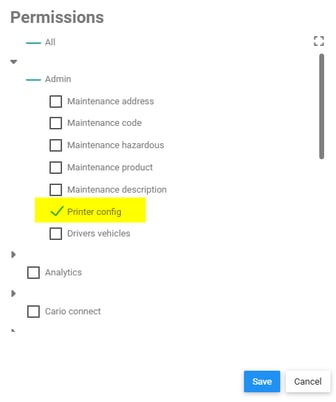
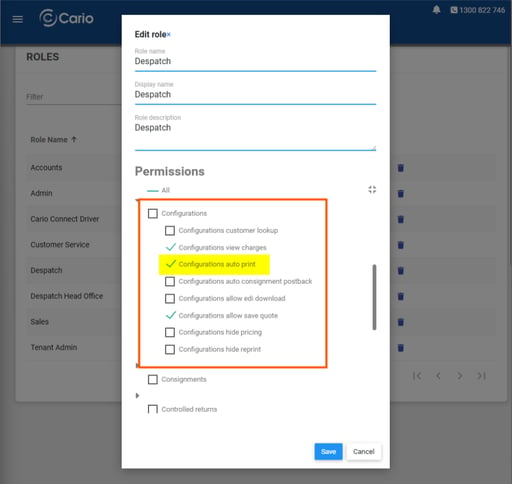
- Auto Print enabled for consigning screens
- QZ-Tray is installed and running on the local machine
(Auto Print will not work without it)
Accessing Printer Configuration
- Log in to Cario
- Navigate to Maintenance → Printers Config
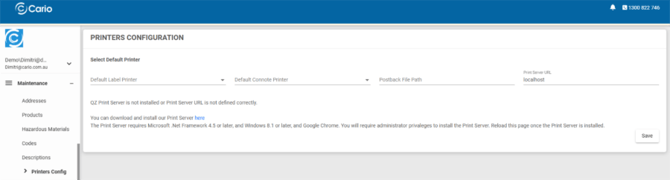
If QZ-Tray is not detected, a message will appear prompting installation.
Installing QZ-Tray
- Click the highlighted “here” link on the Printer Configuration screen
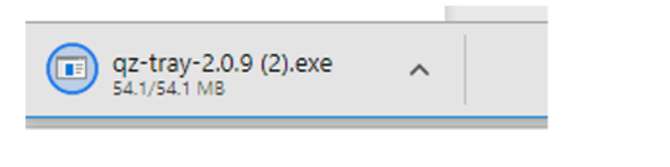
- The installer will download to your Downloads folder
- Run the installer:
- Click Yes if prompted to allow changes
- Click Next
- Click Install (use default location)
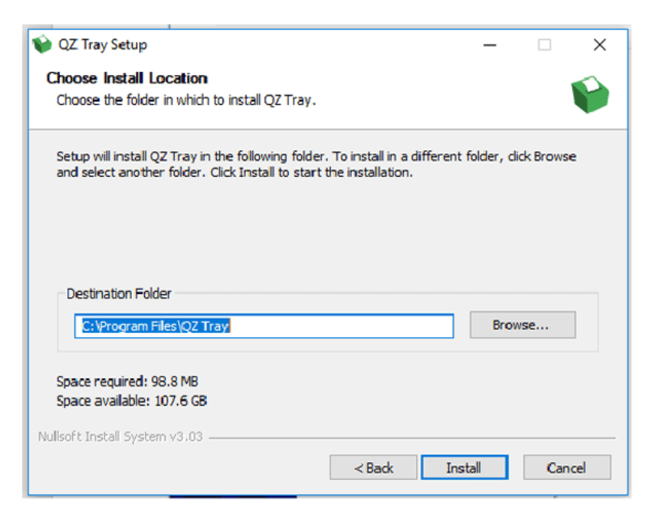
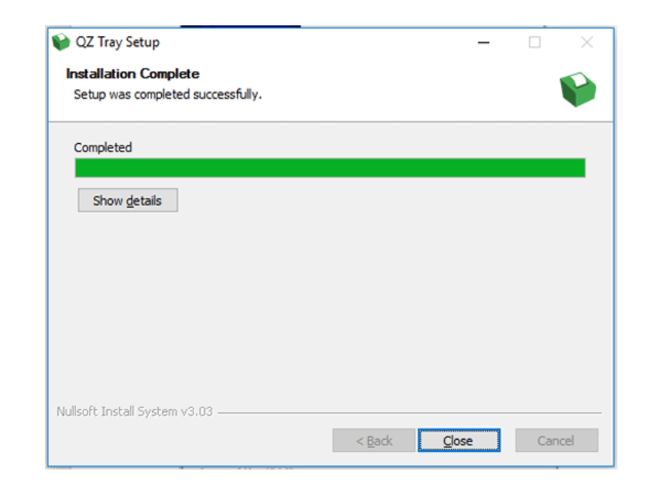
- Click Close once installation completes
Confirm QZ-Tray Is Running
- Check the system tray (bottom-right of your screen)
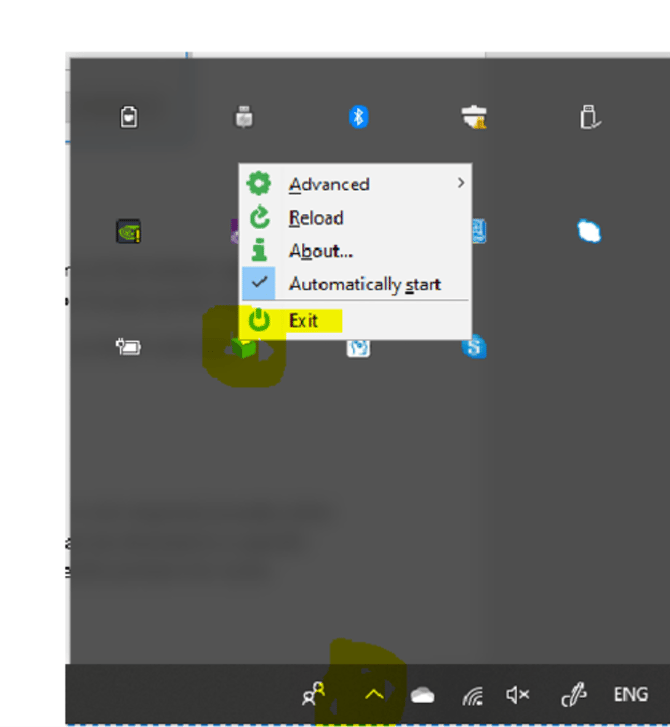
- If not visible, click the up arrow to show hidden tray icons
- Locate the QZ-Tray icon
- Right-click and enable Automatically Start so it runs on startup
Setting Default Printers
- Return to Maintenance → Printers Config
- Press F5 to refresh the page
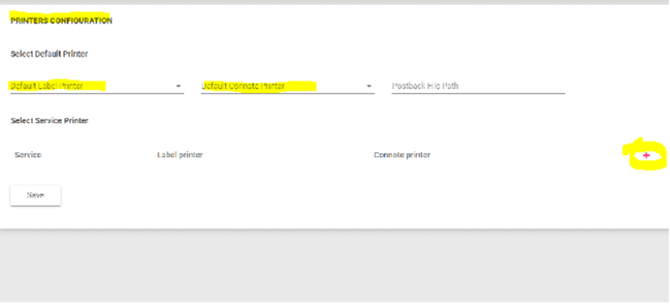
- Once QZ-Tray is detected, printer dropdowns will appear
- Select:
- Default Label Printer
- Default Connote Printer
Note: Printer defaults are saved per username.
If the same user logs in on a different PC, defaults may need to be reconfigured unless printer names are identical.
Assigning Printers by Service (Optional)
Specific printers can be assigned to individual carrier services.
- Click the red plus (+) icon
- Select:
- Carrier Service
- Label Printer
- Connote Printer
- Click the tick to confirm the row
- Repeat as required
- Click Save to apply all printer settings
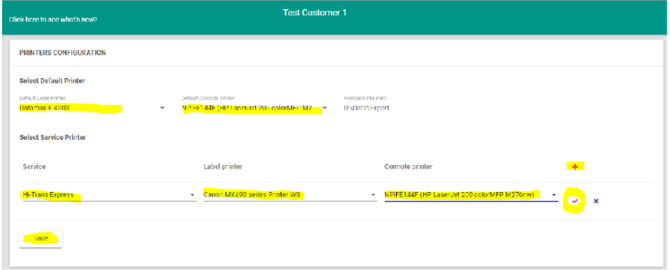
Example:
All labels print to the default printer except Hi-Trans Express, which prints to a dedicated printer.
Refreshing the Printer List
If new printers are added to the PC:
- Stop QZ-Tray
- Restart QZ-Tray
- Press F5 on the Printer Configuration screen
This refreshes the available printer list.
Important Notes
- Leave Post back File Path blank unless instructed by your freight provider
(Incorrect setup may cause consigning errors) - QZ-Tray must be running before opening consigning screens
Using Auto Print During Consigning
When Auto Print is correctly configured:
- Labels and connotes will print automatically
- No printer selection pop-ups will appear
To Stop Auto Print
- Exit QZ-Tray from the system tray
- Press F5 on the consigning screen
- Printing will revert to manual printer selection