![Cario logo RGB blue-1.png]](https://knowledge.cario.com.au/hs-fs/hubfs/Cario%20logo%20RGB%20blue-1.png?height=50&name=Cario%20logo%20RGB%20blue-1.png)
Purpose
Banner Messages allow administrators to display important announcements at the top of the Cario platform. These messages are visible immediately upon login and can be targeted to all users or specific customer accounts for a defined period of time.
This feature is ideal for communicating system notices, holiday messages, operational updates, or time-sensitive information.
Note : Banner Messages can be accessed in both the Administration and Maintenance menus.
Benefits
Using Banner Messages helps you:
- Communicate important updates instantly to users
- Display time-bound notices without sending emails
- Target messages to specific customers or dispatch sites
- Reduce confusion during outages, holidays, or changes
- Ensure consistent visibility across the platform
How Banner Messages Work
- Messages appear as a scrolling banner at the top of the Cario screen
- Messages can be:
-
- Global (visible to all users in the tenant (leave customer field blank)
-
- Customer-specific (visible only to selected accounts)
-
- Messages automatically appear and disappear based on the selected date range
Steps to Create a Banner Message
- Log in to Cario
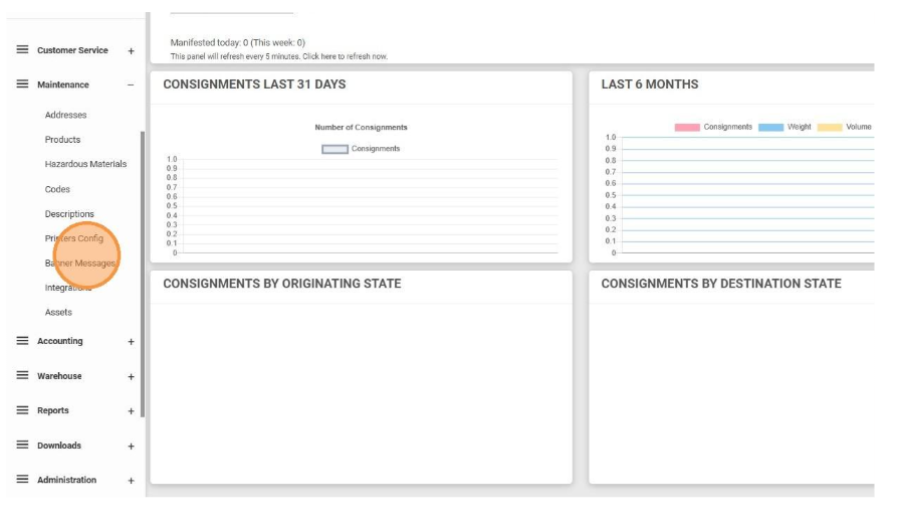
- Navigate to Maintenance → Banner Messages
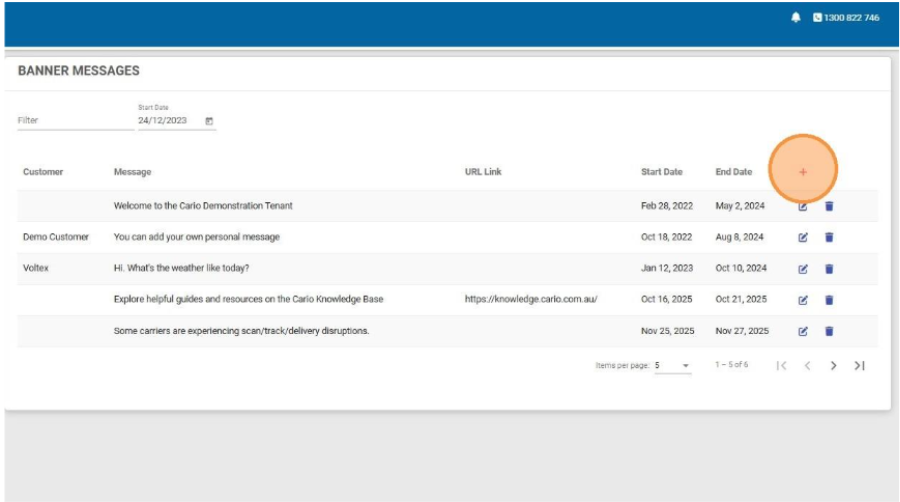
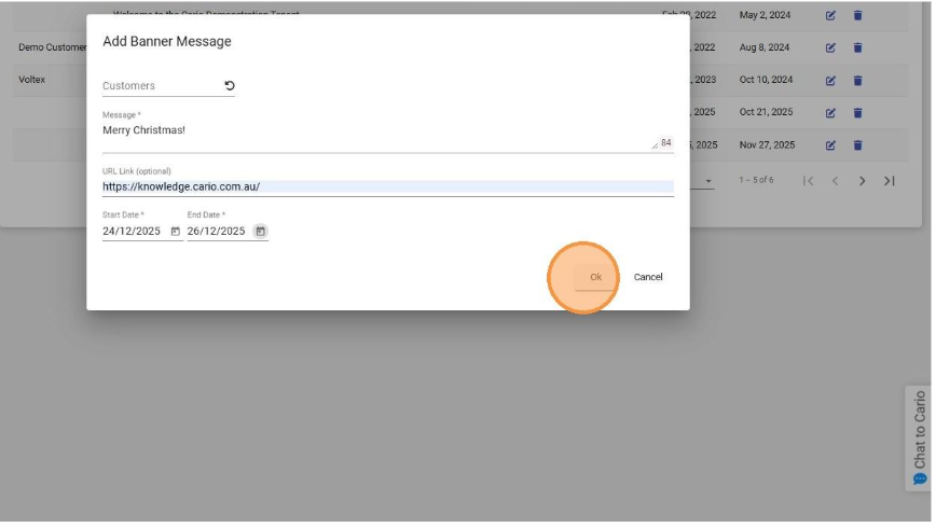
- Click the red plus (+) icon to add a new banner message
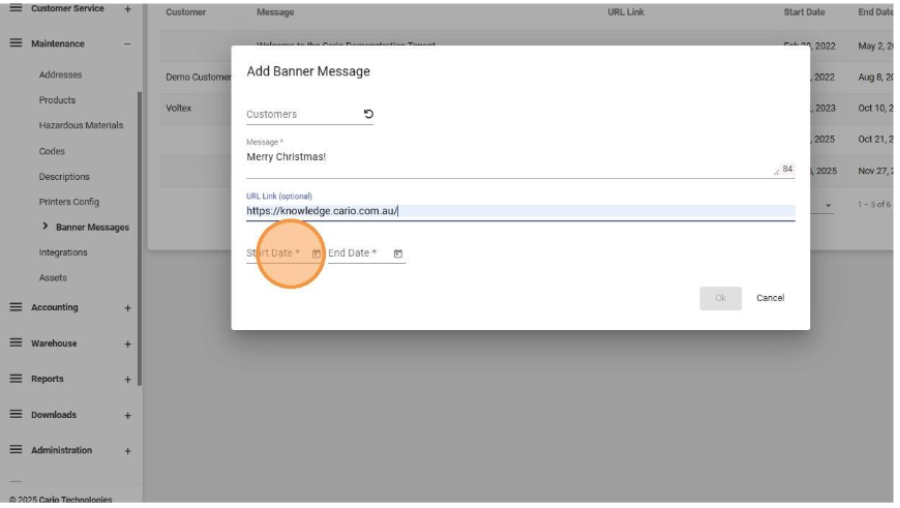
- In the Customers field:
- Leave blank to display the message to all users
- Select a customer to display the message only for that account
- In the Message* field, enter your banner text
Example: Merry Christmas! - (Optional) Enter a URL Link if users need to access more information
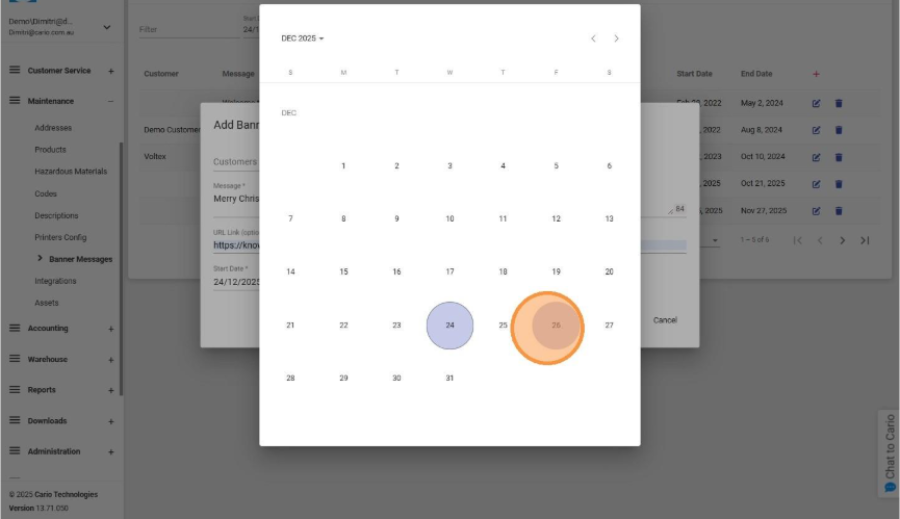
- Select the Start Date* and End Date* for the message display period
- Click OK to save
What Happens Next
- The banner message will appear at the top of the screen as a scrolling notification
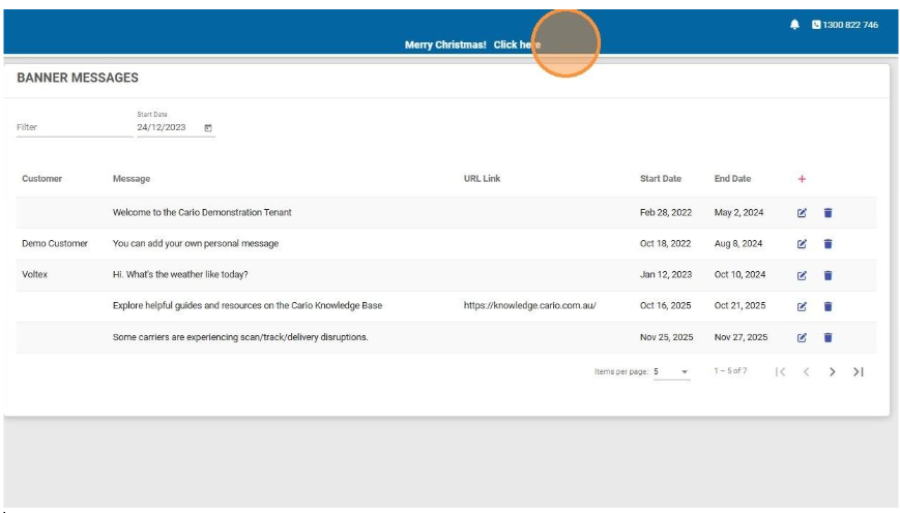
- The message will only display during the configured date range
- Once the end date passes, the banner is automatically removed
Best Practices
- Keep messages short and clear for easy readability
- Use banners for time-sensitive or high-impact communications
- Set accurate start and end dates to avoid outdated messages
- Use customer targeting for site-specific or operational notices