![Cario logo RGB blue-1.png]](https://knowledge.cario.com.au/hs-fs/hubfs/Cario%20logo%20RGB%20blue-1.png?height=50&name=Cario%20logo%20RGB%20blue-1.png)
This guide explains how to create a tracker asset and assign it to a consignment.
Creating a Tracker Asset
- Go to Maintenance
Open Maintenance → Assets from the main menu.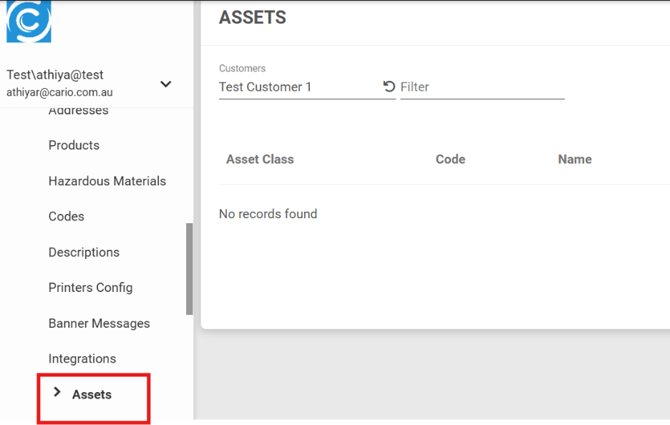
- Select Customer
Choose the appropriate customer from the selector. - Add a New Asset
Click the ( + ) icon. - Select Asset Type
Choose Tracker Asset from the drop-down list.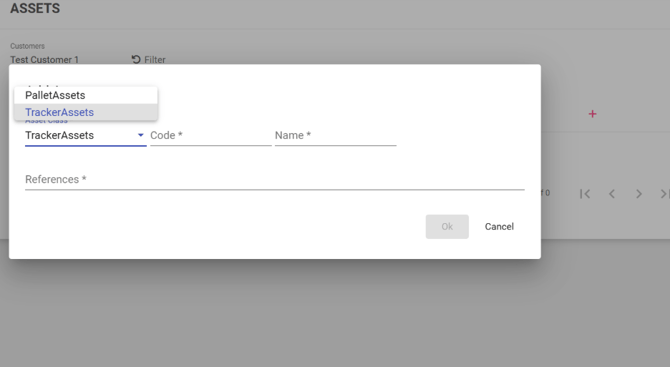
- Enter Tracker Details
|
Field |
Description |
|
Code |
Enter the tracker model number. |
|
Name |
Enter the make and model (e.g., "Tile Tracker SMS-257"). |
|
Reference Number |
Add the unique identifier found on the back of the physical tracker. |
Click OK to save the tracker asset.
Adding a Tracker Asset to a Consignment
- Open Consignments
Go to Consignments → Create New.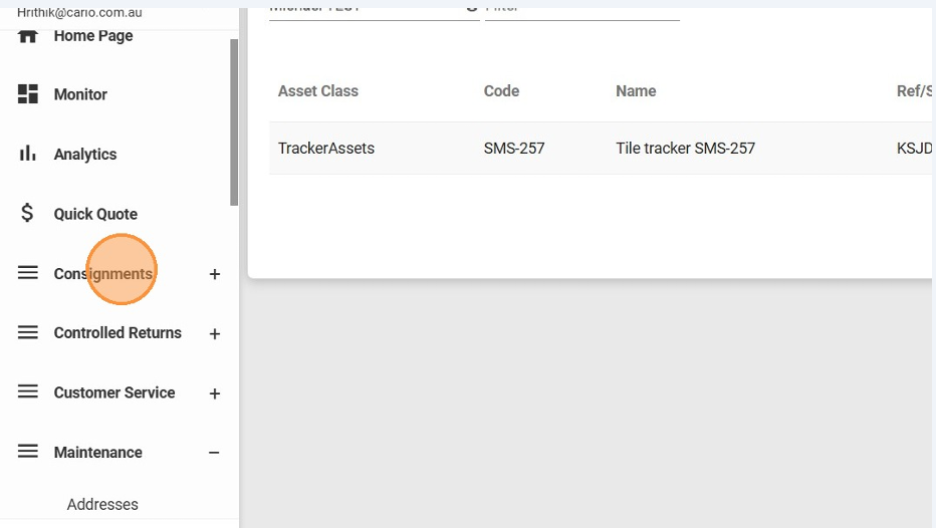
- Enter Required Consignment Details
Fill in customer, sender, delivery address, product information, container type, and dimensions. - Assign the Tracker Asset
- Go to the Assets section.
- Click the ( + ) icon.
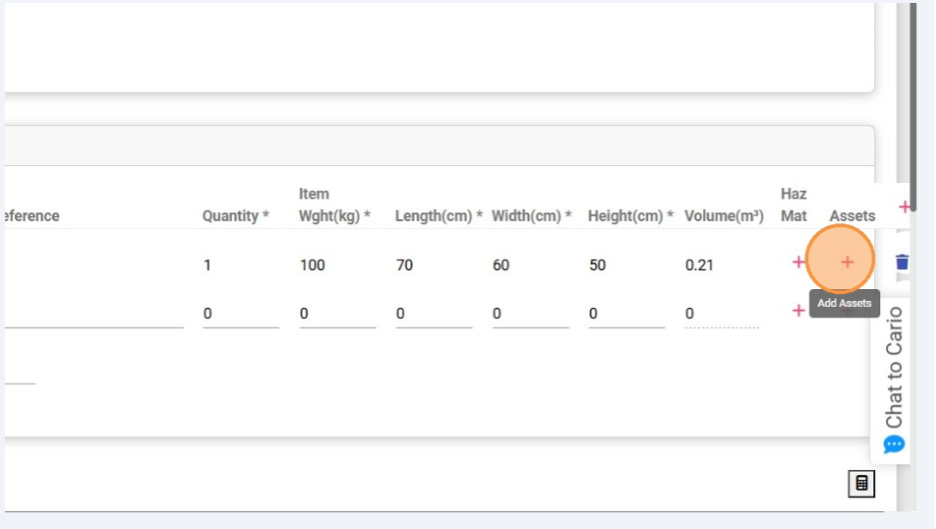
- Select the tracker using its Asset Code or Model Number.
- Choose what happens to the tracker after delivery:
- Return – tracker must be returned
- Dispose – tracker not required back
- Confirm the Asset
Add optional reference information, confirm the Customer Name, and click OK. - Finalise the Consignment
Tick the Acknowledgement checkbox and click Create.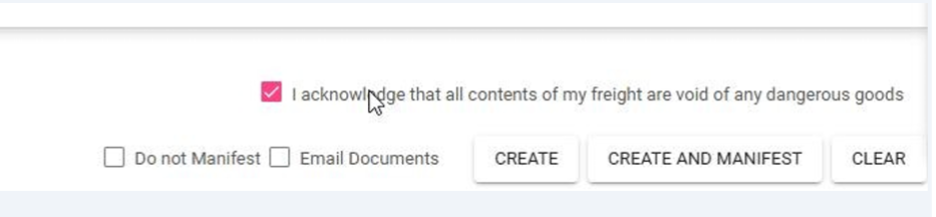
Select the carrier and confirm the consignment creation.
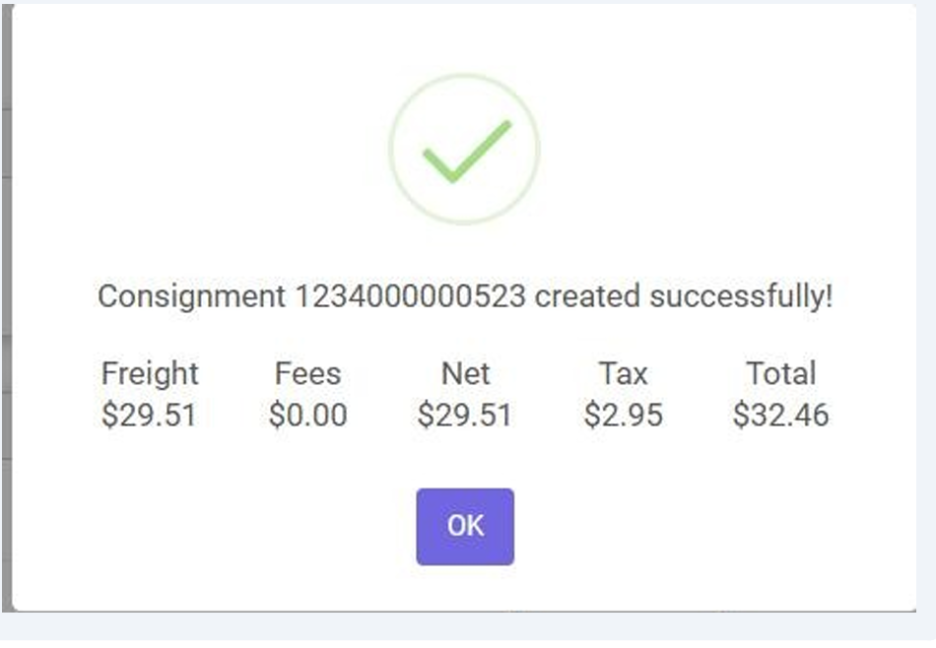
A success message confirms the consignment and tracker asset have been successfully recorded.