![Cario logo RGB blue-1.png]](https://knowledge.cario.com.au/hs-fs/hubfs/Cario%20logo%20RGB%20blue-1.png?height=50&name=Cario%20logo%20RGB%20blue-1.png)
This article outlines how to create a pallet asset and how to add it to a consignment.
Creating a Pallet Asset
- Go to Maintenance
Navigate to Maintenance → Assets from the left-hand menu. - Select the Customer
Use the Customer field to choose the customer the asset belongs to. - Create a New Asset
Click the ( + ) icon to add a new asset.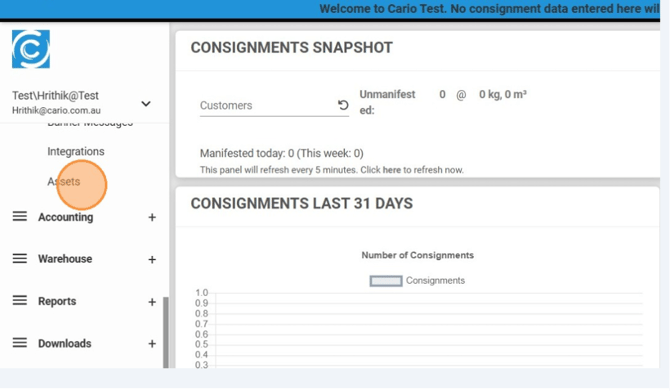

- Choose Asset Type
Select Pallet Asset from the available asset categories.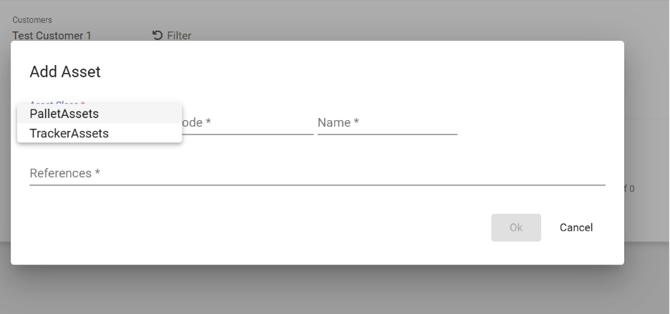
- Enter Asset Details
|
Field |
Description |
|
Code |
Enter the pallet model number. |
|
Name |
Provide the pallet name/make. |
|
Reference Number |
Input the unique reference number located on the physical pallet. This uniquely identifies the asset. |
Once complete, click OK to save.
Adding a Pallet Asset to a Consignment
- Open Consignments
Select Consignments → Create New.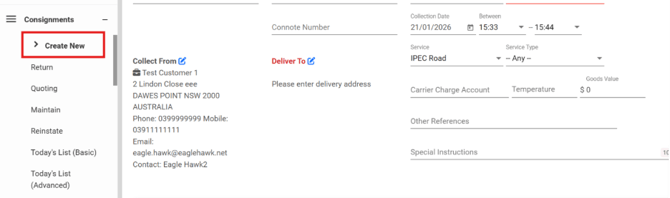
- Enter Consignment Details
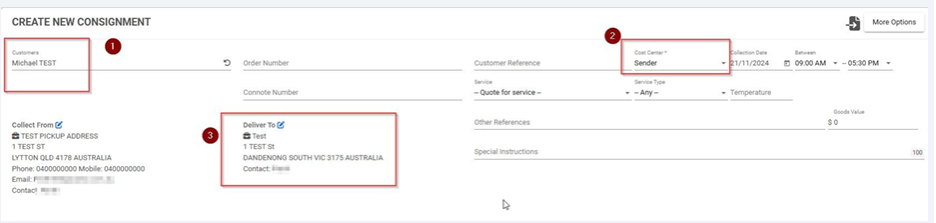
Fill in:
- Customer
- Cost Centre (Sender)
- Delivery Address
- Items and dimensions
- Add the Pallet Asset
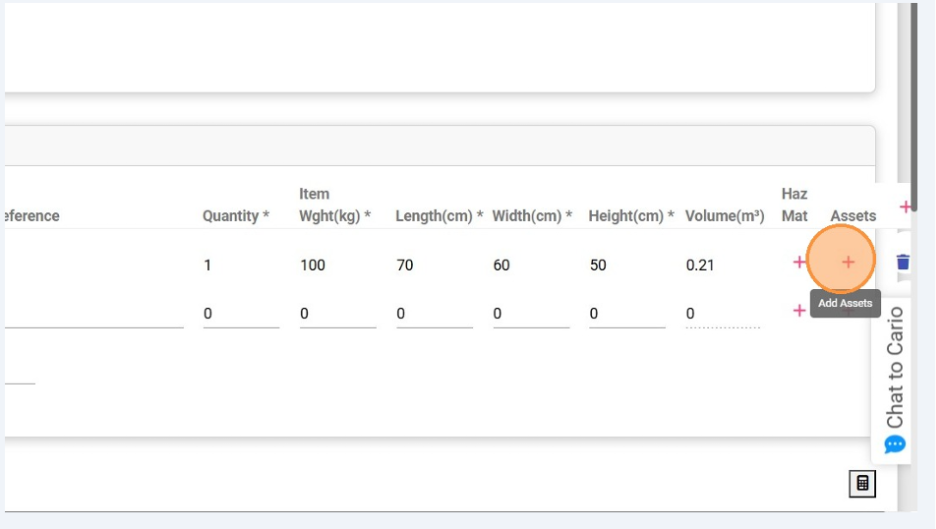
Scroll to the Assets section.- Click the ( + ) icon.
- Select the pallet using its Asset Code or Model Number.
- Choose the Movement Type:
-
- Return – pallet must be collected and returned
- Dispose – pallet will not be returned
- Click OK Complete the Asset Assignment
- Add any optional Reference Code
- Confirm Customer Name
- Finalise the Consignment
Tick the Acknowledgement box, then click Create.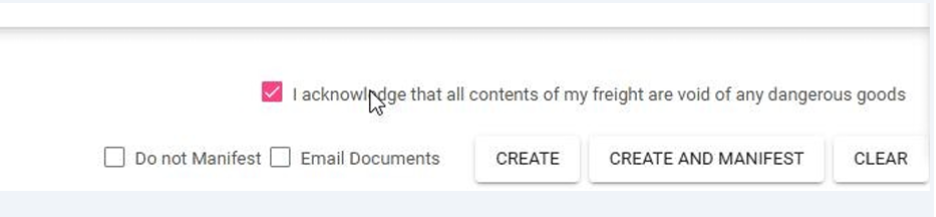
Select the carrier and confirm.
A success message will appear once the consignment is created.