![Cario logo RGB blue-1.png]](https://knowledge.cario.com.au/hs-fs/hubfs/Cario%20logo%20RGB%20blue-1.png?height=50&name=Cario%20logo%20RGB%20blue-1.png)
Purpose of this update
The purpose of these changes is to help users:
-
Quickly identify overcharged invoice lines
-
Quickly identify undercharged invoice lines
-
Review all invoice discrepancies by default
-
Separate discrepancy filtering from reconciliation status filtering
-
Reduce manual reconciliation work when estimated and invoiced values match
-
Better distinguish system-reconciled invoice lines from manually reconciled invoice lines
-
Who should use this feature?
These updates are useful for:
-
Finance teams reviewing carrier invoices
-
Freight review users
-
Customer service or operations users assisting with invoice queries
-
Administrators managing invoice reconciliation processes
-
Users responsible for checking freight cost discrepancies
Important Notes
-
Overcharged means the invoiced value is higher than the estimated value.
-
Undercharged means the invoiced value is lower than the estimated value.
-
Auto-reconciled lines are reconciled by Cario when the estimated and invoiced values match. This happens once, when the invoice is first opened.
-
Manually reconciled lines can still be identified separately from system auto-reconciled lines.
-
Filter options may be temporarily disabled while invoice details are loading.
Understanding Estimated, Invoiced and Net Discrepancy Amounts
Every reconciliation line has two key amounts:
-
Estimated: what Cario calculated the freight should cost, based on your rate cards or the quote at the time of booking.
-
Invoiced: what the carrier actually billed on the uploaded CSV invoice.
The difference between these two amounts is the net discrepancy.
Net Discrepancy = Invoiced Net − Estimated Net
This means each discrepancy can fall into one of two categories: Overcharged or Undercharged.
Overcharged
An invoice line is considered Overcharged when the net discrepancy is greater than zero.
This means the carrier billed more than the Cario estimate.
Example:
Estimated freight cost: $100
Carrier invoiced amount: $120
Net discrepancy: +$20
In this case, the carrier has overcharged by $20.
This is usually the first area reconciliation teams review because it may directly increase freight costs. These lines may need to be disputed with the carrier, raised as a claim, or investigated to confirm whether the shipment was heavier, larger or handled differently than originally booked.
This is also why actions such as accepting carrier dimensions or accepting carrier costs may be relevant on the reconciliation screen.
Undercharged
An invoice line is considered Undercharged when the net discrepancy is less than zero.
This means the carrier billed less than the Cario estimate.
Example:
Estimated freight cost: $100
Carrier invoiced amount: $85
Net discrepancy: -$15
In this case, the carrier has undercharged by $15.
Although this may appear positive at first, it should still be reviewed. An undercharge may indicate that the estimate is incorrect, the rate card may need updating, a carrier fee may be missing, or the invoice line may relate to a partial or split invoice.
If your customer billing or accounting data is based on the estimated value, undercharged lines can also affect margin reporting and cost accuracy.
Why the Overcharged and Undercharged filters matter
The Overcharged and Undercharged filters allow reconciliation teams to split their review by discrepancy direction.
-
Use Overcharged to review where the carrier billed more than expected.
-
Use Undercharged to review where the carrier billed less than expected.
-
Use both filters together to review all discrepancy rows in either direction.
A line with a zero discrepancy means the invoiced amount matches the estimated amount. These lines are not overcharged or undercharged and can now be automatically reconciled by Cario when the values match.
What has changed?
1. Overcharged and Undercharged filters added
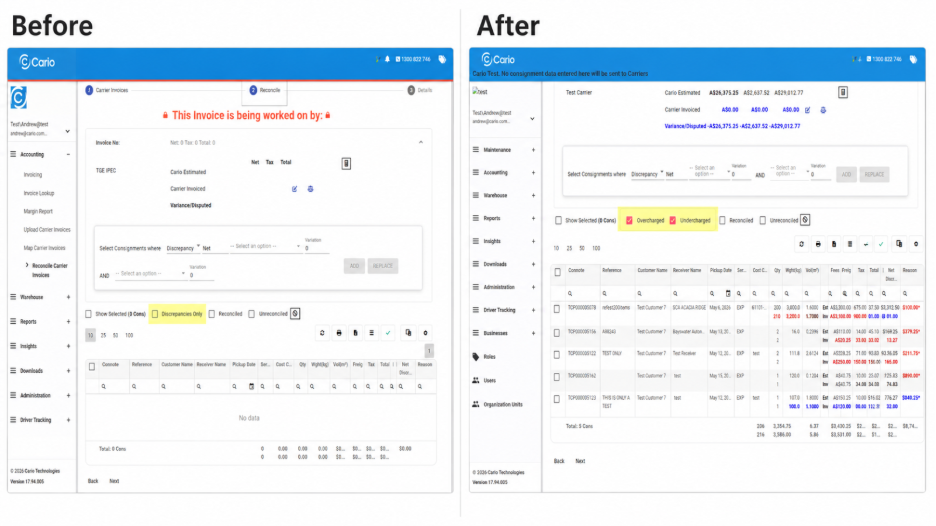 Overcharged and Undercharged filter checkboxes
Two new filters have been added to the Invoice Reconciliation detail screen:
-
Overcharged
-
Undercharged
These filters allow users to quickly focus on invoice lines where the invoiced amount does not match the estimated freight amount.
What this means
Users no longer need to manually scan all discrepancy rows to identify whether the carrier has charged more or less than expected.
The new filters make it easier to review invoice discrepancies by type.
2. Invoice detail view now defaults to all discrepancies
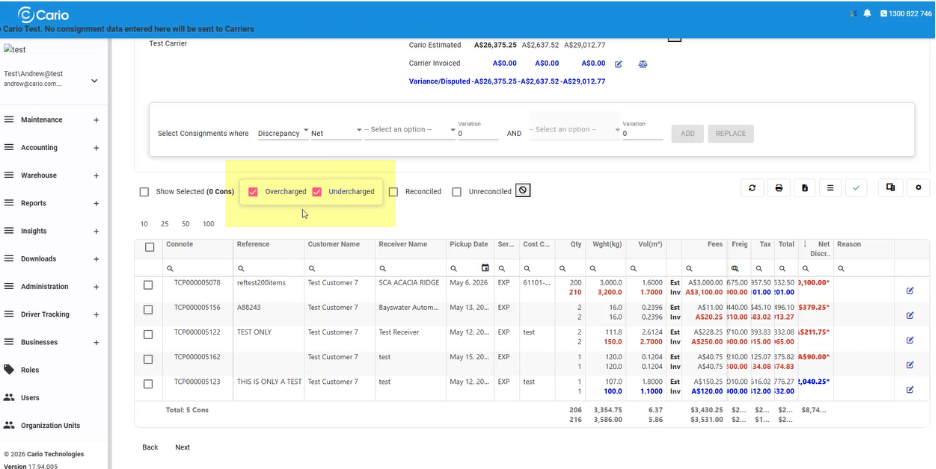
Invoice detail screen showing all discrepancy rows by default
The invoice detail view now defaults to showing all invoice line discrepancies.
What this means
When users open the invoice details, Cario will prioritise showing lines where there is a difference between the estimated and invoiced values.
This helps users immediately focus on the lines that need attention, instead of having to apply filters manually first.
3. Overcharged filter shows positive net discrepancy rows only
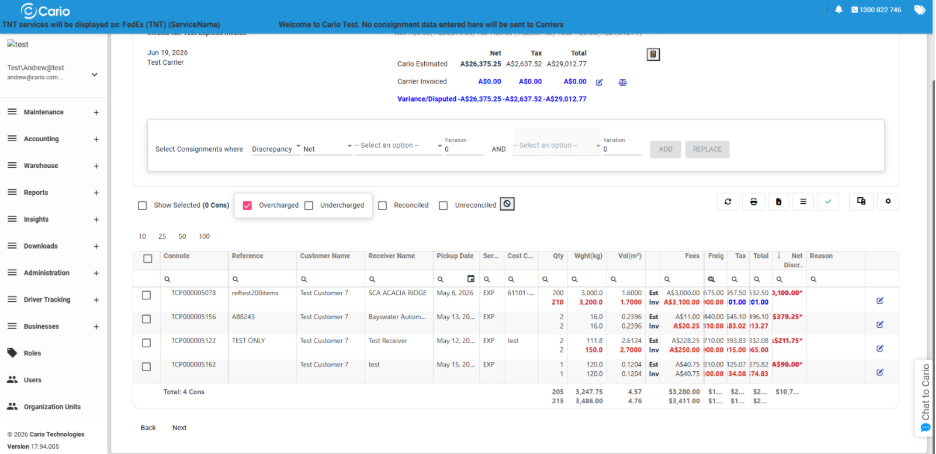 Overcharged filter selected showing positive net discrepancy rows
The Overcharged filter now only displays invoice lines where the net discrepancy is positive, highlighted in red.
What this means
A positive net discrepancy indicates that the invoiced amount is higher than the estimated amount.
For example:
Estimated cost: $100
Invoiced cost: $125
Net discrepancy: +$25
This line would appear when the Overcharged filter is selected.
This helps users quickly identify where the carrier has charged more than expected.
4. Undercharged filter shows negative net discrepancy rows only
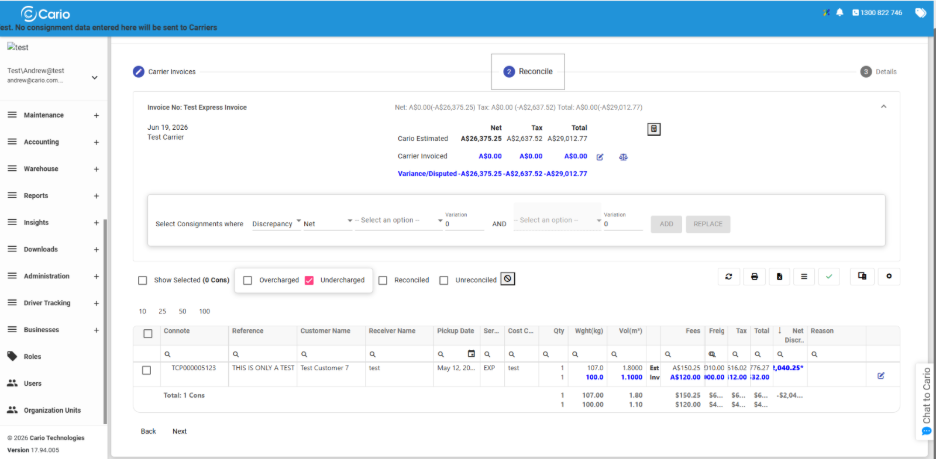 Undercharged filter selected showing negative net discrepancy rows
The Undercharged filter now only displays invoice lines where the net discrepancy is negative, highlighted in blue.
What this means
A negative net discrepancy indicates that the invoiced amount is lower than the estimated amount.
For example:
Estimated cost: $100
Invoiced cost: $85
Net discrepancy: -$15
This line would appear when the Undercharged filter is selected.
This helps users identify invoice lines where the carrier charged less than expected.
5. Overcharged and Undercharged filters are separate from Reconciled and Unreconciled filters
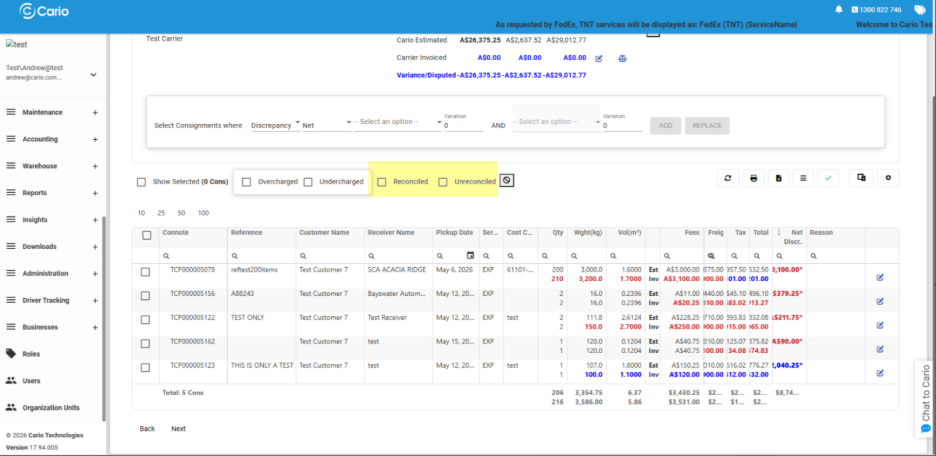
Filter options showing Overcharged, Undercharged, Reconciled and Unreconciled separately
The Overcharged and Undercharged filters now work separately from the Reconciled and Unreconciled filters.
What this means
Overcharged and Undercharged are discrepancy-based filters.
Reconciled and Unreconciled are status-based filters.
This separation makes the filtering behaviour clearer and helps avoid confusion when reviewing invoice lines.
6. Selecting Reconciled or Unreconciled clears Overcharged and Undercharged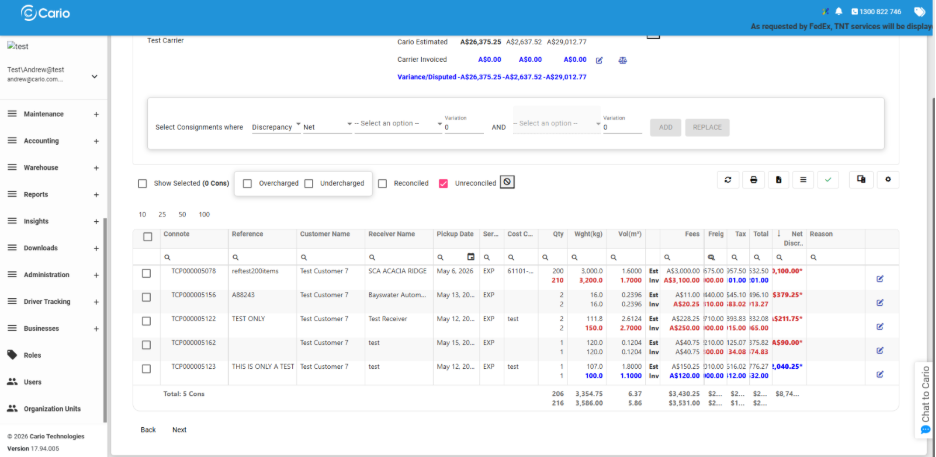
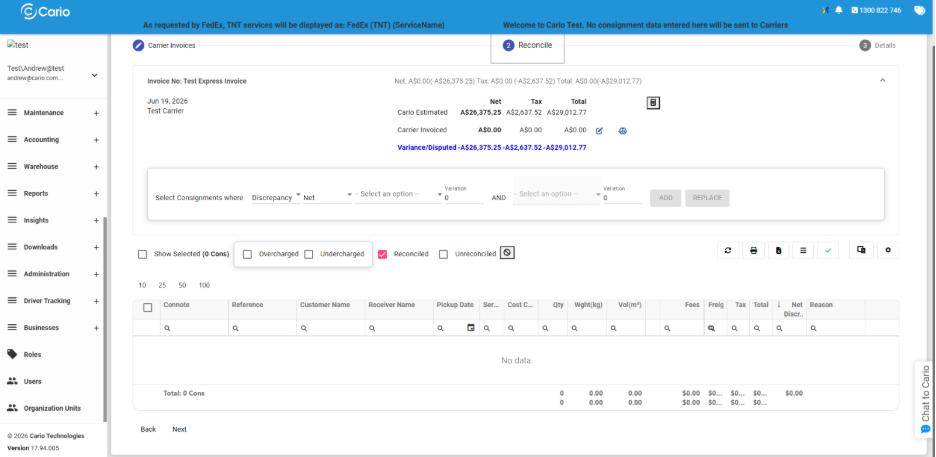
Reconciled selected with Overcharged and Undercharged unchecked
When a user selects either Reconciled or Unreconciled, Cario will automatically uncheck Overcharged and Undercharged.
What this means
This prevents conflicting filters from being applied at the same time.
For example, if a user wants to review reconciled invoice lines, the screen will focus on the reconciliation status rather than also applying discrepancy filters.
7. Selecting Overcharged or Undercharged reloads the full invoice line set first
If a user selects Overcharged or Undercharged after previously selecting Reconciled or Unreconciled, Cario reloads the full invoice line set before applying the new filter.
What this means
This ensures the Overcharged or Undercharged filter is applied against the full invoice detail set, not only against the previously filtered rows.
This helps prevent missing discrepancy rows that may have been hidden by another filter.
Auto-Reconciliation Improvements
8. Invoice lines with matching estimated and invoiced values are now auto-reconciled
Cario now automatically reconciles invoice lines where the carrier's invoiced amounts match the Cario estimate. Auto-reconciliation runs once, when a carrier invoice's reconciliation is opened for the first time. At that moment, Cario compares the estimated and invoiced values on every line. Any line where the net, tax and total amounts all match is marked as reconciled automatically.
What this means
Lines with no discrepancy no longer need to be reviewed and reconciled by hand.
When you open a new invoice, the matching lines are already done, and you can focus on the lines that need attention.
Please note the following:
-
Existing invoices are not affected. Auto-reconciliation only applies to invoices opened for the first time after this update. Invoices that were already opened will continue to work exactly as before.
-
Auto-reconciliation does not re-run. If a line's values come to match later, for example after a rate card correction or a manual update, the line will not be reconciled automatically. It can still be reconciled manually as usual.
-
Some matching lines are intentionally left unreconciled so they can be reviewed by a person.
-
Lines that could not be matched to a consignment in Cario.
-
Lines for a consignment that already appears on another invoice from the same carrier, as this may indicate duplicate billing.
-
Auto-reconciled lines remain fully visible. Select the Reconciled filter to review them, and they can be unreconciled using the existing options if needed.
9. System auto-reconciled lines can be distinguished from manually reconciled lines
Lines reconciled automatically by Cario show a reconciliation date but no ReconciledByUserId.
Lines reconciled by a person show that person's name, as they do today.
What this means
You can always tell whether a line was reconciled by Cario or by a member of your team. A blank ReconciledByUserId value on a reconciled line is expected. It identifies the line as system-reconciled and is not an error. This is useful for audit visibility and reporting, as it is always clear whether a reconciliation action was completed by a person or by Cario automatically.
10. Auto-reconciled lines record the reconciliation time
The ReconciledTime is now updated for invoice lines that are automatically reconciled by the system.
What this means
Auto-reconciled lines carry a full reconciliation timestamp. This gives you clear visibility of when the system reconciled each line and keeps a complete audit trail across both automatic and manual reconciliations.
Summary of Filter Behaviour
|
Filter selected |
What Cario displays |
|
Overcharged + Undercharged (default when opening an invoice) |
All rows with a discrepancy in either direction |
|
Overcharged |
Rows with positive net discrepancies only |
|
Undercharged |
Rows with negative net discrepancies only |
|
Reconciled |
Rows that have been reconciled |
|
Unreconciled |
Rows that have not been reconciled |
|
No filters selected |
Invoice details will display everything including non-discrepancies. |
|
Reconciled or Unreconciled selected |
Overcharged and Undercharged are automatically unchecked |
|
Overcharged or Undercharged selected after Reconciled or Unreconciled |
Full invoice line set reloads before the discrepancy filter is applied |
Example Scenario
A carrier invoice is uploaded into Cario and the invoice details are opened. Cario displays the discrepancy rows by default.
The user can then:
-
Select Overcharged to review invoice lines where the carrier charged more than expected.
-
Select Undercharged to review invoice lines where the carrier charged less than expected.
-
Select Unreconciled to focus on invoice lines that still require action.
-
Select Reconciled to review invoice lines that have already been reconciled.
-
Review automatically reconciled lines where the estimated and invoiced values match.
This allows finance and freight review teams to work through invoice differences more efficiently and with clearer visibility.
Key Benefits
These updates help users:
-
Review invoice discrepancies faster
-
Separate overcharge and undercharge investigation
-
Reduce manual checking
-
Avoid conflicting filters
-
Improve invoice reconciliation accuracy
-
Identify system-reconciled lines
-
Support clearer audit history
-
Focus attention on invoice lines that need action