![Cario logo RGB blue-1.png]](https://knowledge.cario.com.au/hs-fs/hubfs/Cario%20logo%20RGB%20blue-1.png?height=50&name=Cario%20logo%20RGB%20blue-1.png)
Purpose
The Reports List in Cario provides access to a wide range of operational, financial, and performance reports across consignments, customers, deliveries, and exceptions.
This article explains how to view, export, and schedule reports so your data can be shared automatically via email, FTP, or SFTP.
Scope
This guide applies to users with access to the Reports module in Cario FMS and covers:
- Navigating the Reports List
- Exporting reports manually
- Scheduling automated reports
- Sending reports via Email, FTP, or SFTP
Prerequisites
Before starting, ensure:
- You have permission to access Reports
- You know which report category you need (e.g. Consignments, Customers, Delivery)
- FTP/SFTP credentials are available if scheduling file transfers
Each report row includes actions for:
- View (preview on screen)
- Export (download immediately)
- Schedule (automate delivery)
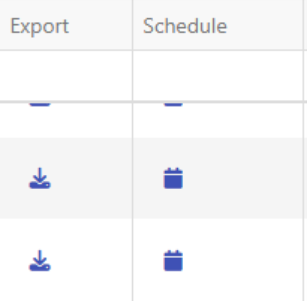
Use the Search bar to quickly find a specific report by name.
Exporting a Report Manually
- Locate the report you want to export
- Click the Download icon under the Export column
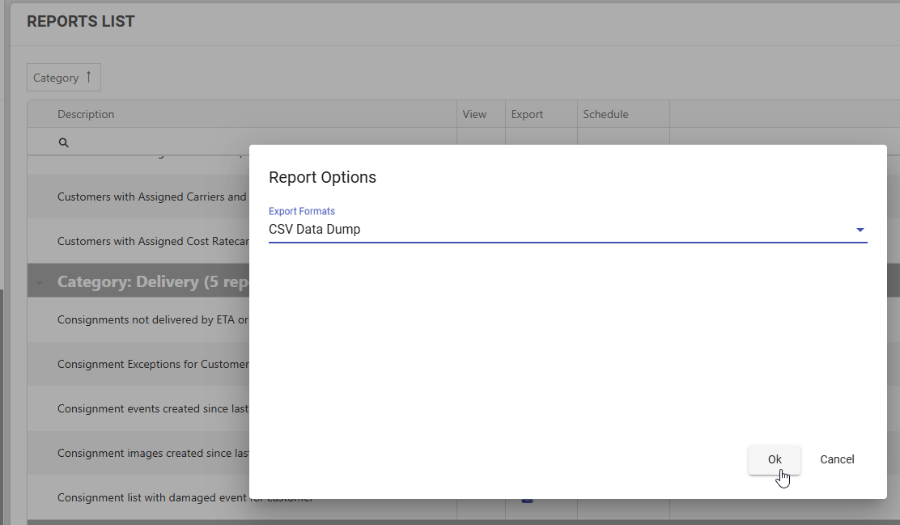
- In the Report Options popup:
- Select Export Format (e.g. CSV Data Dump)
- Click OK
- The file will download to your device
Scheduling a Report
- Locate the report you want to automate
- Click the Calendar icon under the Schedule column
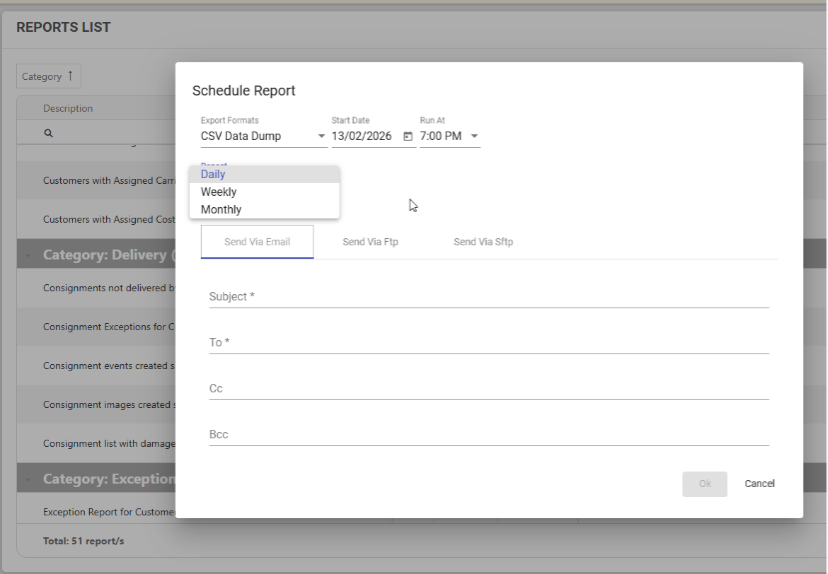
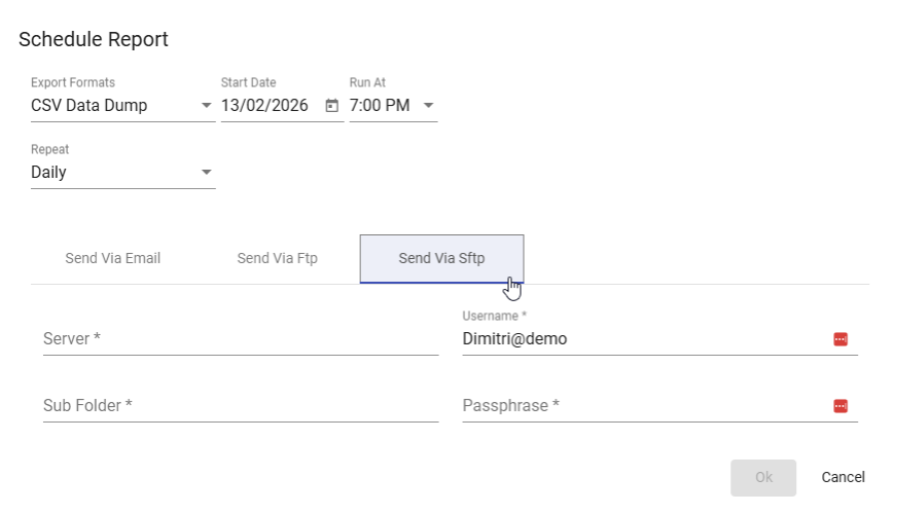
- The Schedule Report window will open
Configure Schedule Details
- Select the Export Format (e.g. CSV Data Dump) \
- Choose a Start Date
- Select the Run At time
- Choose how often the report should run:
- Daily
- Weekly
- Monthly
Choose Delivery Method
Option 1: Send via Email
- Select Send via Email
- Enter:
- Subject
- Recipient email(s)
- Optional CC / BCC
- Click OK to save
Option 2: Send via FTP
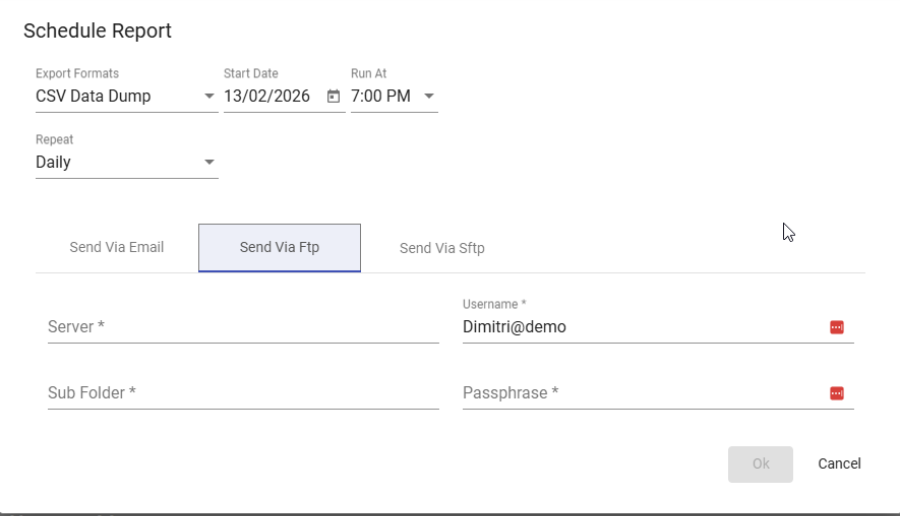
- Select Send via FTP
- Enter:
- Server
- Username
- Passphrase
- Sub Folder
- Click OK to save
Option 3: Send via SFTP
- Select Send via SFTP
- Enter:
- Server
- Username
- Passphrase
- Sub Folder
- Click OK to save
Confirming a Scheduled Report
- Once saved, the report will automatically run based on your schedule
- Files will be delivered using the selected method
- You can cancel or modify schedules at any time by reopening the Schedule option
Common Use Cases
- Daily consignment activity sent to finance
- Weekly delivery exception reports
- Monthly customer or rate card audits
- Automated data feeds to external systems via SFTP
Tips & Best Practices
- Use CSV Data Dump for integrations and data analysis
- Schedule reports outside business hours to reduce load
- Confirm FTP/SFTP credentials before saving schedules
- Use descriptive email subjects for easier identification