![Cario logo RGB blue-1.png]](https://knowledge.cario.com.au/hs-fs/hubfs/Cario%20logo%20RGB%20blue-1.png?height=50&name=Cario%20logo%20RGB%20blue-1.png)
Overview
The Time Approval screen in Cario Connect TMS allows supervisors and administrators to review, approve, and manage driver time records captured via the Cario Connect mobile app. This includes chargeable time, break time, operating time, and total approved time, ensuring accurate payroll, invoicing, and compliance tracking.
Time Approval supports manual approvals, bulk approvals, and CSV export for reporting and reconciliation purposes.
Navigation
To access the Time Approval screen:
- From the left-hand menu, navigate to
Driver Tracking > Time Approval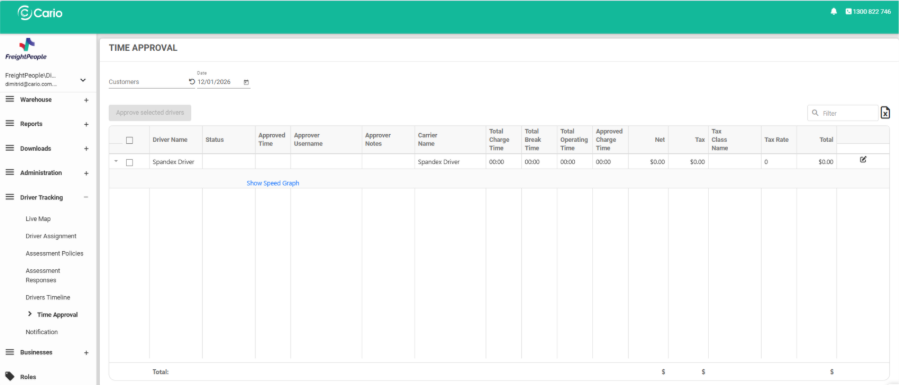
Viewing Driver Time Records
Steps to Follow
- Use the Customers dropdown to select the relevant customer or carrier.
- Select the Date you want to review (e.g. 12/01/2026).
- The screen will load all drivers with recorded time entries for the selected date.
You will see a table displaying driver-level time summaries.
Understanding the Time Approval Columns
Each driver row includes the following key fields:
- Driver Name – Name of the driver recorded in Cario Connect
- Status – Approval status of the time entry
- Approved Time – Time approved by the supervisor
- Approver Username – User who approved the time
- Approver Notes – Optional notes added during approval
- Carrier Name – Carrier or fleet the driver belongs to
- Total Charge Time – Total chargeable time recorded
- Total Break Time – Breaks logged by the driver
- Total Operating Time – Active driving/working time
- Approved Charge Time – Final approved billable time
- Net / Tax / Total – Calculated cost values where applicable
Approving Driver Time
Approve Individual Driver Time
- Locate the driver you want to approve.
- Click the Edit (✏️) icon on the far right of the row.
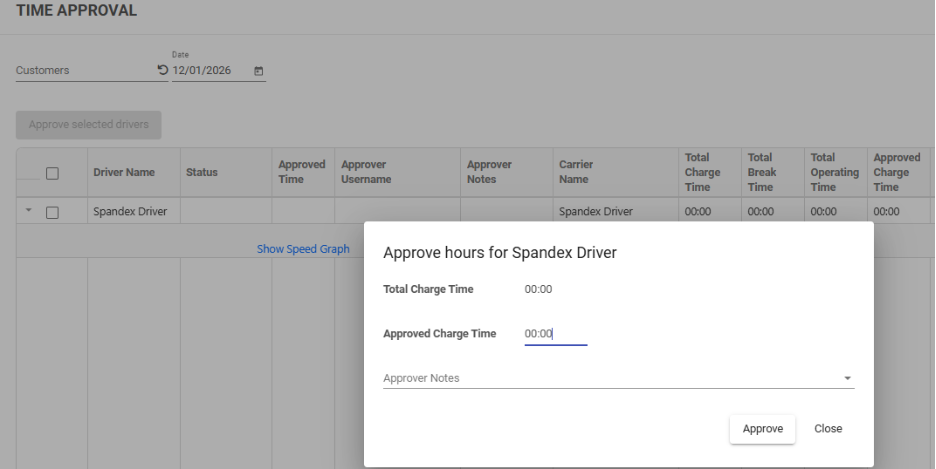
- The Approve Hours modal will appear.
- Review:
- Total Charge Time
- Approved Charge Time
- Enter or adjust the Approved Charge Time if required.
- Add Approver Notes (optional).
- Click Approve to confirm.
Approve Multiple Drivers (Bulk Approval)
- Use the checkboxes next to driver names to select multiple drivers.
- Click Approve selected drivers at the top of the screen.
- Confirm approval to apply the action to all selected drivers.
Speed Graph & Driver Activity
- Click Show Speed Graph beneath a driver’s row to view a visual breakdown of driver activity.
- This helps validate operating time, movement, and potential anomalies before approving hours.
Exporting Time Approval Data to CSV
The Time Approval screen supports exporting data for payroll, auditing, or reporting.
Steps to Export
- Apply your Customer and Date filters.
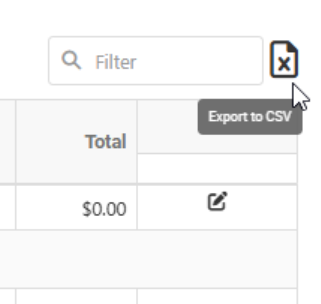
- Click the Export to CSV icon on the top-right of the screen.
- A CSV file will download containing all visible driver time records.
Key Notes & Best Practices
- Time data is captured from Cario Connect App activity, including run start/end, breaks, and movements.
- Approved time is final and should be reviewed carefully before confirmation.
- Use Approver Notes to document adjustments or exceptions.
- Export CSV files regularly for payroll reconciliation or compliance checks.
Related Articles
- Cario Connect TMS – Drivers Timeline
- Cario Connect TMS – Driver Assignment
- Cario Connect TMS – Assessment Responses
- Cario Connect TMS – Live Map Driver Tracking