![Cario logo RGB blue-1.png]](https://knowledge.cario.com.au/hs-fs/hubfs/Cario%20logo%20RGB%20blue-1.png?height=50&name=Cario%20logo%20RGB%20blue-1.png)
Overview
The Notifications screen in Cario Connect TMS provides a centralised view of all communication between drivers and supervisors, as well as system-generated driver activity updates. It allows administrators and supervisors to review messages, send notifications to drivers, and track operational events logged by the Cario Connect mobile app.
This ensures clear communication, traceability, and visibility of driver interactions throughout the day.
Navigation
To access the Notifications screen:
- From the left-hand menu, navigate to
Driver Tracking > Notification
Viewing Notifications
Steps to Follow
- Select the Customer from the dropdown.
- Choose a Date Range to filter notifications for a specific period.
- Use the toggle checkboxes to switch between:
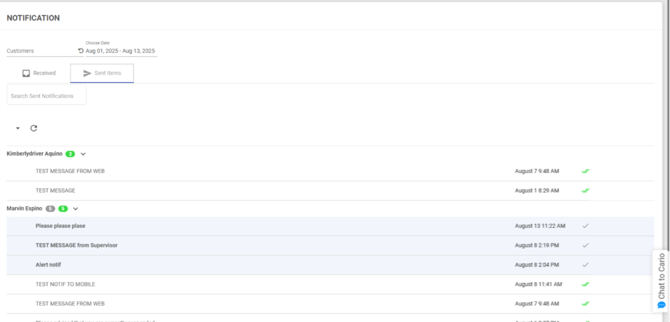
- Received – Messages and updates received from drivers.
- Sent Items – Messages sent from supervisors or administrators to drivers
- Use the Search bar to filter by:
- Driver name
- Keyword or message content
Sending Notifications to Drivers
Steps to Follow
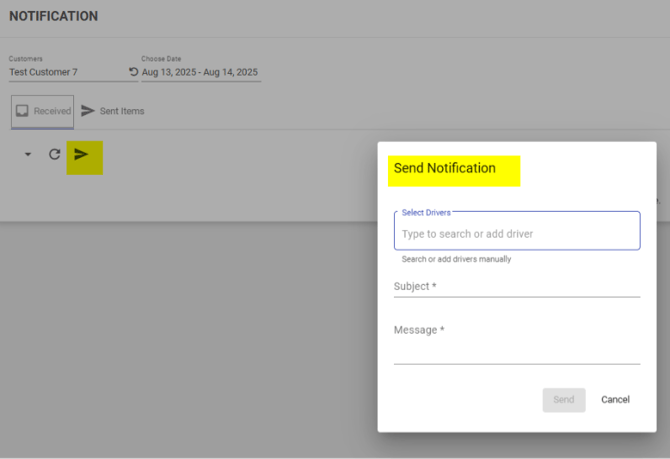
- Locate the driver or message thread in the list.
- Click the ▶ (Send Message) icon next to the entry.
- Type your message and send it.
- The message will appear in the Notifications section of the Cario Connect mobile app for the selected driver.
This is commonly used for:
- Run instructions
- Delivery updates
- Operational alerts
- Clarifications or follow-ups
Understanding Notification Types
Web-to-Mobile Messages
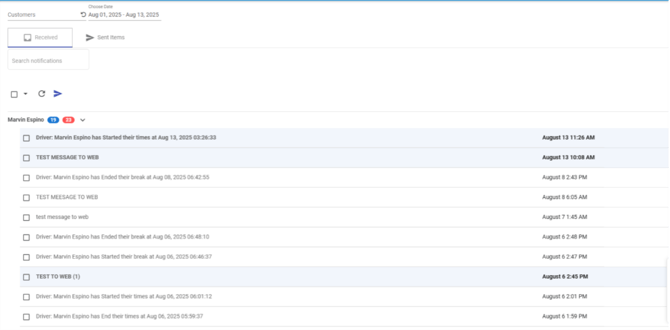
- Messages sent from the web (admin/supervisor) are clearly labelled and timestamped, such as:
-
- TEST MESSAGE FROM WEB
-
- TEST MESSAGE TO MOBILE
Driver Activity Notifications
Certain driver actions are automatically logged and appear in the notification list, including:
- Break start and end times
- Run-related activity updates
- App-triggered operational events
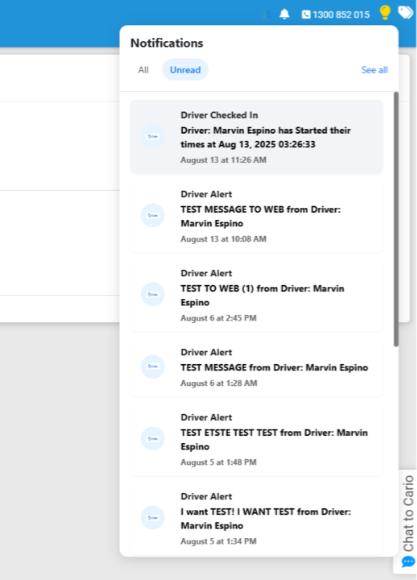
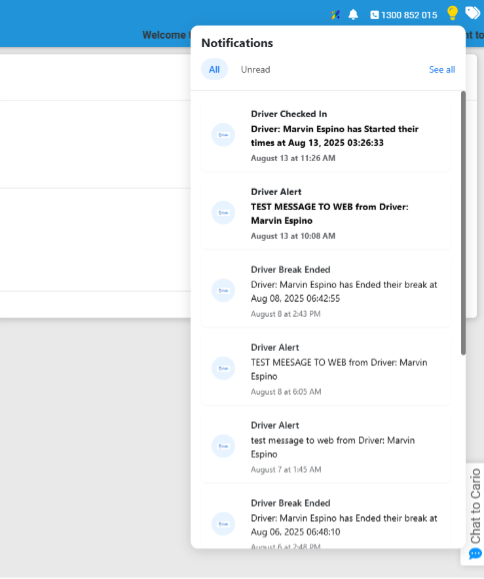
These entries help supervisors track driver activity without requiring manual messaging.
Key Notes & Best Practices
- Notifications provide an audit trail of communication and driver activity.
- Use Sent Items to confirm messages have been dispatched.
- Use the Received view to monitor driver feedback and responses.
- Combine Notifications with Drivers Timeline and Live Map for full operational visibility.
Related Articles
- Cario Connect TMS – Live Map Driver Tracking
- Cario Connect TMS – Drivers Timeline
- Cario Connect TMS – Driver Assignment
- Cario Connect TMS – Assessment Responses