![Cario logo RGB blue-1.png]](https://knowledge.cario.com.au/hs-fs/hubfs/Cario%20logo%20RGB%20blue-1.png?height=50&name=Cario%20logo%20RGB%20blue-1.png)
Purpose
The Live Map in Cario Connect TMS provides real-time visibility of driver locations, assigned runs, and delivery progress. It enables operations, customer service, and dispatch teams to monitor active drivers, track job completion, and respond quickly to delivery updates or exceptions.
What is Live Map used for?
The Live Map allows you to:
- Track driver locations in real time
- View assigned runs and delivery progress
- Monitor completed and upcoming drops
- Quickly locate drivers by date, customer, or name
- Review run timelines, including start, break, and end times
- Access manifest and run details directly from the map
How to Use the Live Map for Driver Tracking
Step 1: Open the Live Map
- Navigate to Driver Tracking
- Select Live Map from the left-hand menu
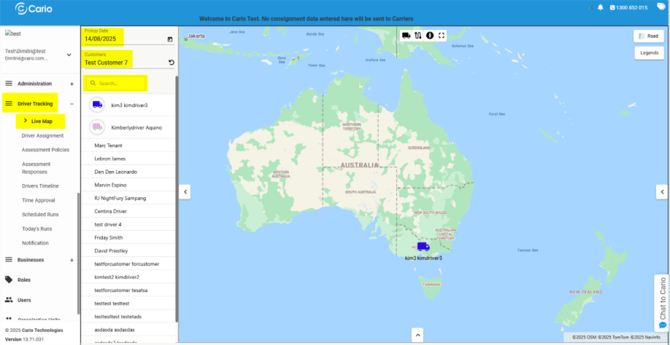
This opens the Live Map interface showing all available drivers and their real-time locations.
Step 2: Select the Pickup Date
- Use the Pickup Date selector (e.g. 14/08/2025)
- The map refreshes to display drivers and runs scheduled for that selected date
Step 3: Filter by Customer
- Use the Customers dropdown
- Select a customer (e.g. Test Customer 7)
Only drivers associated with the selected customer will be displayed on the map and list.
Step 4: Search for a Driver
- Use the Search bar
- Type the driver’s name
This allows you to quickly locate a specific driver without manually scanning the list.
Step 5: Centre the Map on a Driver
- Click on the driver’s name (e.g. kim3 kimdriver3)
- The map automatically centres on the driver’s live location
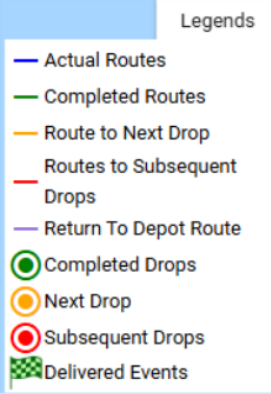
Step 6: Use Map Controls & Legend
- Use the map controls (vehicle icon, refresh, zoom tools) in the top-right corner to adjust your view
- Click Road / Legend to toggle map layers
- Open the Legend to view what each line colour on the map represents (e.g. completed routes, active runs)
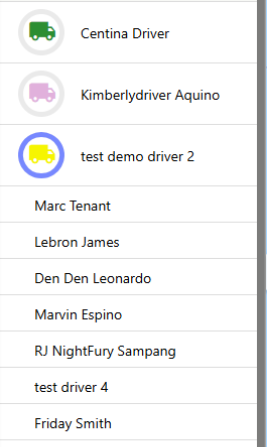
Step 7: Understand Driver Status Indicators
- The truck icon next to a driver’s name indicates the driver is currently assigned to a run
- The circular progress meter fills as the driver progresses through their run, reflecting completion status in real time
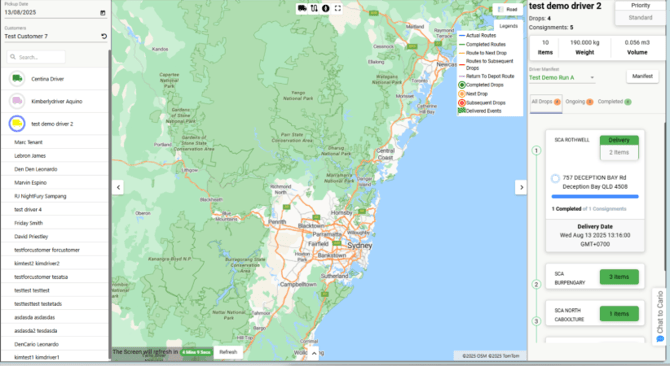
Step 8: View Run & Delivery Details
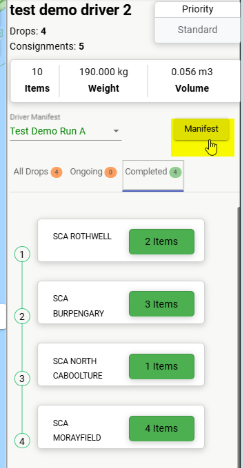
- Click on a driver to expand their details
- You can view:
- Assigned run information
- Real-time drop and delivery status
- Item details per stop
- Visual route showing completed and upcoming locations on the map
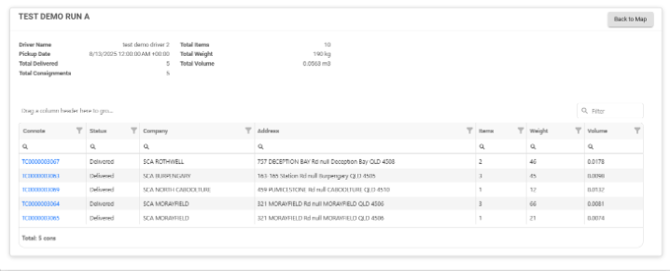
Step 9: View Manifest Details
- Click the Manifest button to open the manifest associated with the driver’s run
- This provides full visibility of the consignments included in that run
Step 10: View Driver Run Timeline
- The Live Map also displays the Driver Run Timeline, including:
- Start of charge time
- Break times
- End of run time
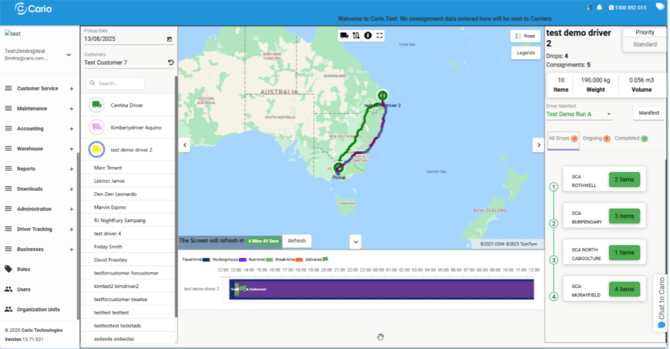
This helps monitor driver's activity and compliance throughout the day.
(Insert image)
Key Benefits
- Real-time operational visibility
- Faster response to delivery issues
- Clear tracking of driver performance and progress
- Improved coordination between dispatch, operations, and customer service
Related Articles
- Cario Connect TMS — Drivers & Vehicles
Learn how to create drivers, assign vehicles and trailers, and manage driver accounts within Cario Connect TMS. This setup is required before drivers can appear on the Live Map and be assigned to runs.