![Cario logo RGB blue-1.png]](https://knowledge.cario.com.au/hs-fs/hubfs/Cario%20logo%20RGB%20blue-1.png?height=50&name=Cario%20logo%20RGB%20blue-1.png)
The Drivers Timeline screen in Cario Connect TMS provides visibility into a driver’s daily activity, movement, and time-based events, captured directly from the Cario Connect mobile app.
It allows supervisors and operations teams to review working time, travel time, breaks, deliveries, and driver events for a selected date and customer.
This screen is commonly used for operational oversight, compliance checks, and post-run review.
Navigation
To access the Drivers Timeline screen:
- Open Cario FMS
- From the left-hand menu, navigate to:
Driver Tracking → Drivers Timeline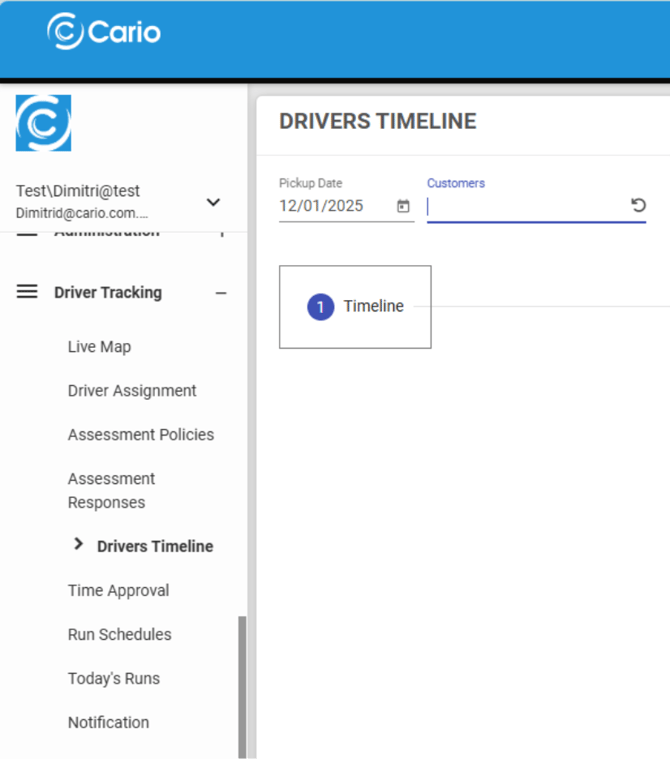
Page 1: Timeline View (Visual Driver Activity)
How to Load Driver Timeline Data
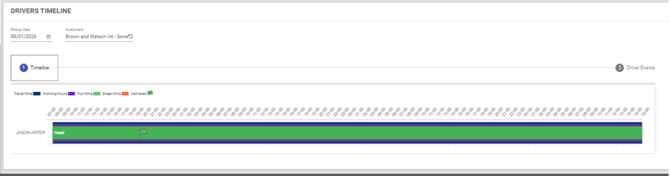
- Select the Pickup Date using the date picker
(e.g. 09/01/2026) - Select a Customer from the Customers field
(e.g. Brown and Watson Int – Som…) - The timeline will load driver activity data for the selected date and customer
What the Timeline Shows
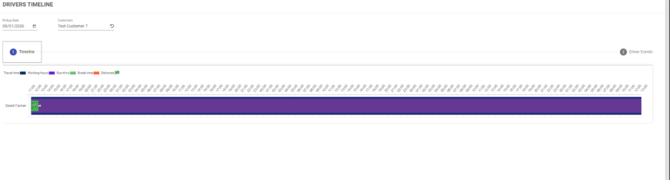
The Timeline view displays a horizontal, time-based visual of the driver’s day, including:
- Travel Time – time spent driving between locations
- Working Hours – total active working duration
- Run Time – time spent actively on assigned runs
- Break Time – rest or break periods taken by the driver
- Delivered Events – completed delivery milestones
Each activity type is represented by different colours on the timeline, allowing you to quickly understand how the driver’s day was spent.
Key Benefits of the Timeline View
- Visual representation of driver movement and activity
- Clear breakdown of working vs non-working time
- Easy identification of long travel times, breaks, or delays
- Supports time auditing and compliance reviews
Page 2: Driver Events (Detailed Event Log)
To view detailed driver events:
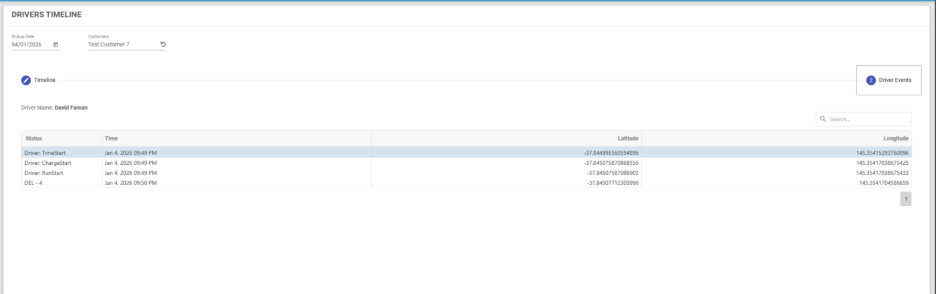
- Click on Driver Events (Step 2 indicator on the screen)
What the Driver Events Page Shows
The Driver Events page displays a table-based log of all recorded driver events for the selected date and customer, including:
- Status – type of event recorded
- Time – exact timestamp of the event
- Latitude & Longitude – GPS location captured from the mobile app
If no activity exists for the selected date or driver, the table will display “No data”.
Common Driver Events Captured
- Run start and end times
- Movement / travel events
- Delivery and scan-related events
- Break start and end times
- Location pings from the Cario Connect app
These events are captured automatically based on driver actions and app activity.
Use Cases
The Drivers Timeline is commonly used for:
- Reviewing driver working hours
- Auditing delivery timelines
- Investigating exceptions or delays
- Supporting compliance and reporting
- Verifying activity captured by the Cario Connect app
Important Notes
- Driver data is only available if the driver is actively using the Cario Connect mobile app
- Location and timeline data rely on location permissions being enabled on the driver’s device
- If no timeline appears, confirm:
- The correct date is selected
- The correct customer is selected
- The driver had an active run on that day
Related Articles
- Cario Connect TMS – Drivers & Vehicles
- Cario Connect TMS – Live Map (Driver Tracking)
- Cario Connect TMS – Driver Assignment
- Cario Connect TMS – Assessment Policies
- Cario Connect TMS – Assessment Responses