![Cario logo RGB blue-1.png]](https://knowledge.cario.com.au/hs-fs/hubfs/Cario%20logo%20RGB%20blue-1.png?height=50&name=Cario%20logo%20RGB%20blue-1.png)
The Driver Assignment screen in Cario Connect TMS allows dispatchers to create runs, assign drivers, allocate consignments (drops), and manage delivery sequences for normal runs allocated through the FMS. Once a run is saved, the assigned driver is notified instantly via the Cario Connect mobile app.
Navigation
- From the left-hand menu, navigate to:
Driver Tracking → Driver Assignment
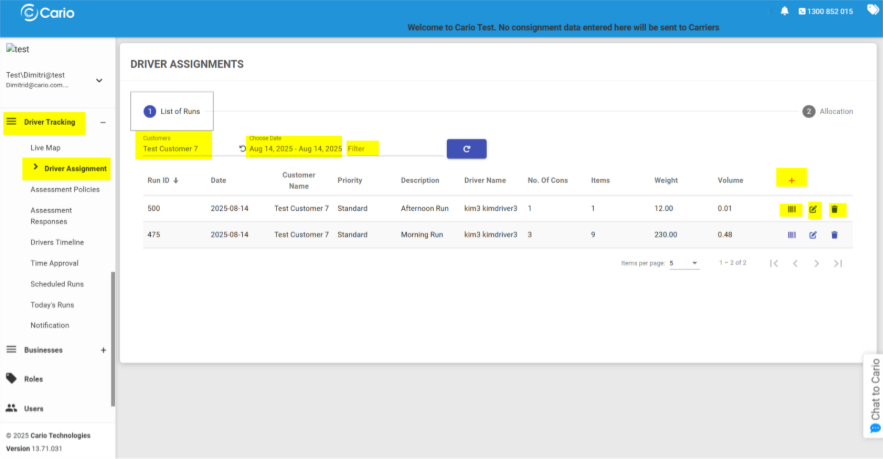
This opens the Driver Assignment screen where all available runs can be viewed and managed.
Viewing and Managing Runs
- Use the Customer dropdown to select the relevant customer
(e.g. Test Customer 7). - Select the Date Range for the runs you want to view.
- Click Filter to load matching runs.
- From the run list, you can perform the following actions:
- Barcode Icon – Print labels for the selected run
- Edit (Pencil) Icon – Modify run details such as items, description, or driver
- Trash Bin Icon – Delete a run that is no longer required
- Plus (+) Icon – Create a new run and assign it to a driver
How to Assign a Driver and Manage Drops
- Select an existing run from the List of Runs
(e.g. Run ID: 500)
OR click the red Plus (+) icon to create a new run.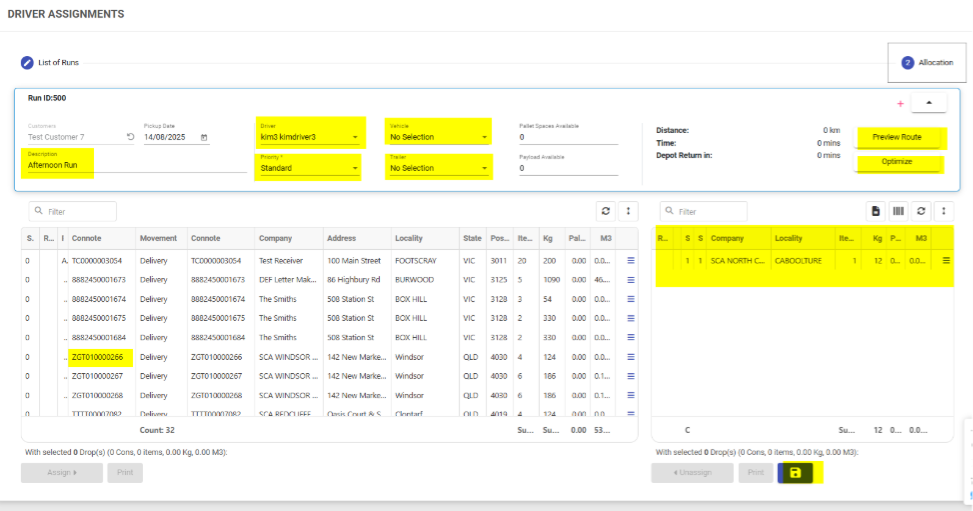
- In the Run Details panel, complete the following fields:
- Description (e.g. Afternoon Run)
- Driver (e.g. kim3 kimdriver3)
- Vehicle and Trailer (if applicable)
- Priority (e.g. Standard)
- Use the Filter search bar (bottom-left panel) to locate specific consignments.
- Drag and drop consignments from the left panel into the right panel to assign them to the selected run and driver.
- Once assigned, the drops appear in the right panel showing:
- Company
- Locality
- Items
- Weight
- Volume
- Optional actions:
- Click Preview Route to visualise the drop sequence on a map
- Click Optimize to allow the system to suggest the most efficient drop order
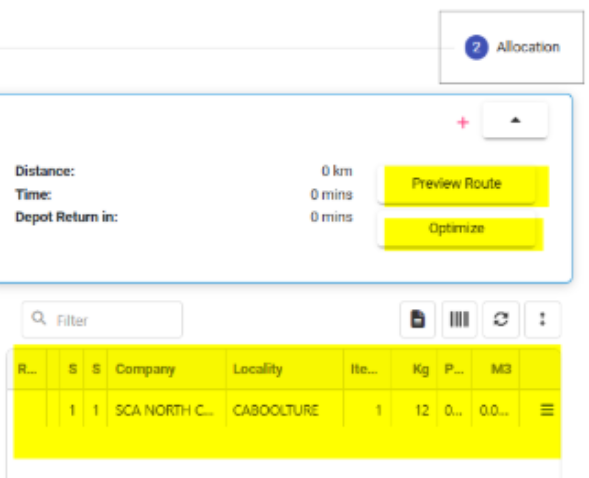
- When complete, click the Save (disk) icon at the bottom-right to finalise the run.
Driver Notification
Once the run is saved:
- The assigned driver receives a notification in the Cario Connect mobile app
- The driver can review the run details and start the run directly from the app
Related Articles
- Cario Connect TMS — Drivers & Vehicles
Learn how to create drivers, assign vehicles and trailers, and manage driver accounts required before assigning runs.
- Cario Connect TMS — Live Map (Driver Tracking)
Track drivers in real time, monitor run progress, and view drop completion on the live map.