![Cario logo RGB blue-1.png]](https://knowledge.cario.com.au/hs-fs/hubfs/Cario%20logo%20RGB%20blue-1.png?height=50&name=Cario%20logo%20RGB%20blue-1.png)
Dynamic Runs allow drivers to create, manage, and progress runs directly from the Cario Connect mobile app, without a dispatcher pre-allocating consignments in the FMS. This is ideal for courier-style operations, ad-hoc pickups, and flexible delivery workflows.
Overview: What Are Dynamic Runs?
Dynamic Runs are created and managed by drivers using the Cario Connect App. Instead of being pre-built in the FMS:
- Drivers scan consignments on board
- Create a run directly from the app
- Reorder drops dynamically
- Update delivery events in real time
- Runs automatically sync back to Cario FMS
Prerequisites
Before using Dynamic Runs, ensure:
- The driver is created and invited in Administration → Drivers/Vehicles
- The driver has logged into the Cario Connect App

- Required permissions are enabled (Camera, Location, Notifications)
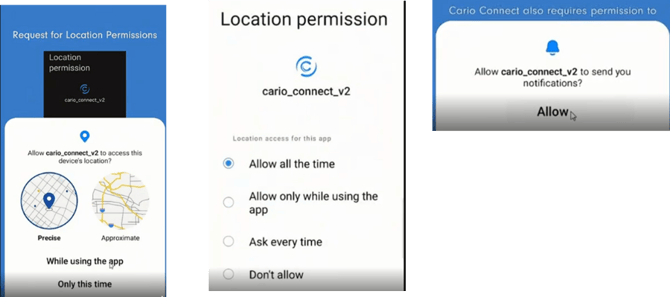
Start of Day — Creating a Dynamic Run
Driver Assessment (IfA ssigned)
- Log in to the Cario Connect App.
- If no active run exists, the driver may be prompted to complete a Driver Assessment
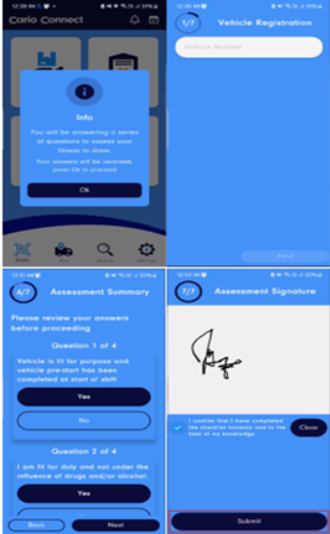
- Answer the questions, review the summary, sign, and submit.
Scan ItemsOnBoard (Create Dynamic Run)
- From the app home screen, select:
Scan On Board for Delivery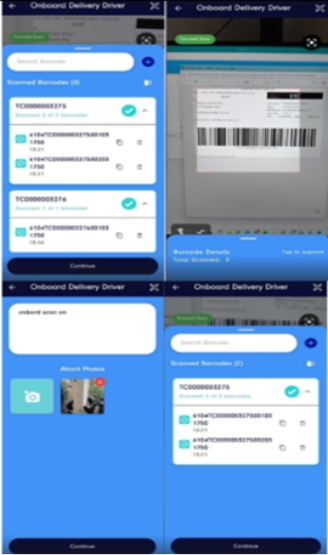
- Scan barcodes for all consignments being loaded.
- This downloads consignment details to the device.
- No pre-created run is required.
- While scanning:
- Drivers can reorder (resequence) deliveries
- Sequencing can be adjusted:
- Directly during scanning
- Or later from the Run screen (Edit mode)
- Tap the Edit (pencil) icon in the run screen.
- Drag and drop consignments to adjust delivery order.
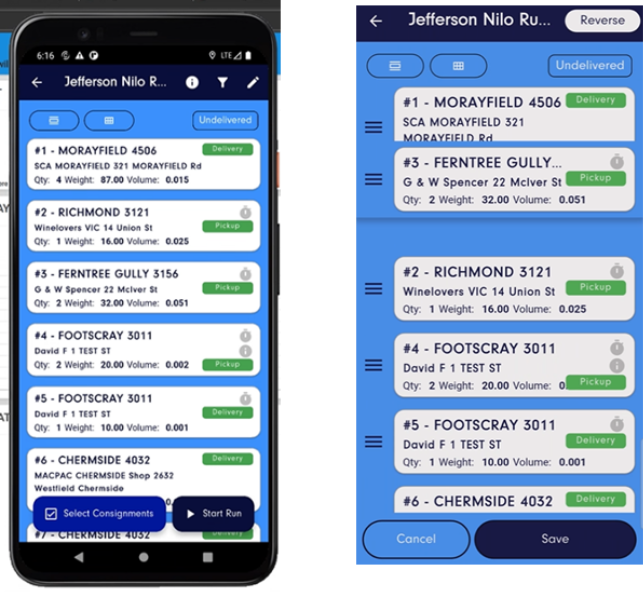
- Alternatively, use the Reverse icon to quickly reverse the drop sequence.
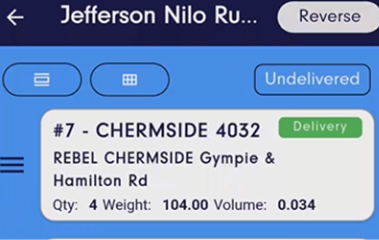
- When ready, tap Create and Upload New Run.
- Tap Start Run.
- Complete the Load Assessment questionnaire.
- Submit to officially begin the run.
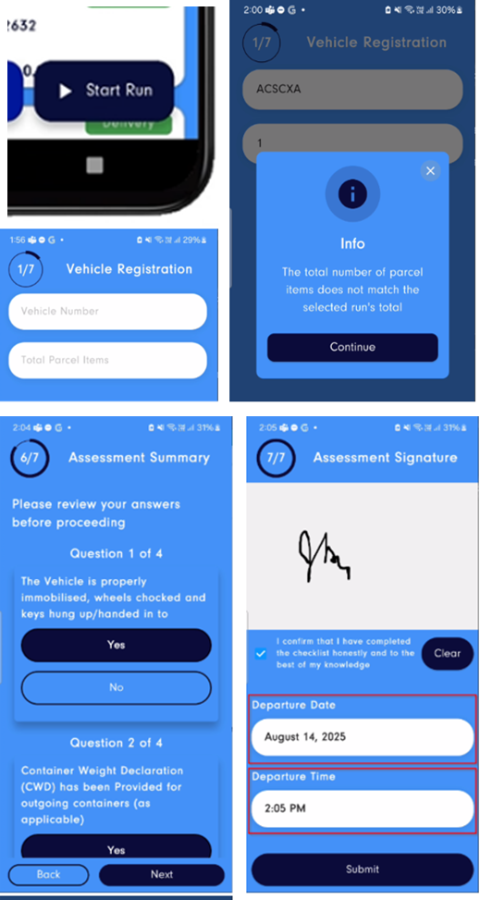
The Dynamic Run is now active and synced with Cario FMS.
During the Day — Managing Deliveries
Updating Event Status (Scanning)
From the Run Details screen, tap a consignment and use the circular Scan icon. 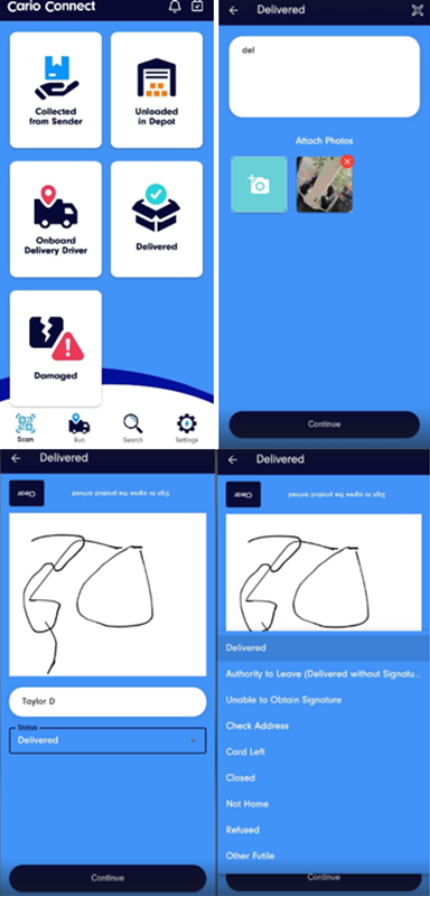
Delivered
- Select Delivered
- Add comments and/or photos for Proof of Delivery
- Receiver signs on glass
- Status colours:
-
- Green – All items delivered
-
- Yellow – Partial delivery
- Icons:
-
- i – Special instructions
-
- Clock – Delivery window provided
- Clock – Delivery window provided
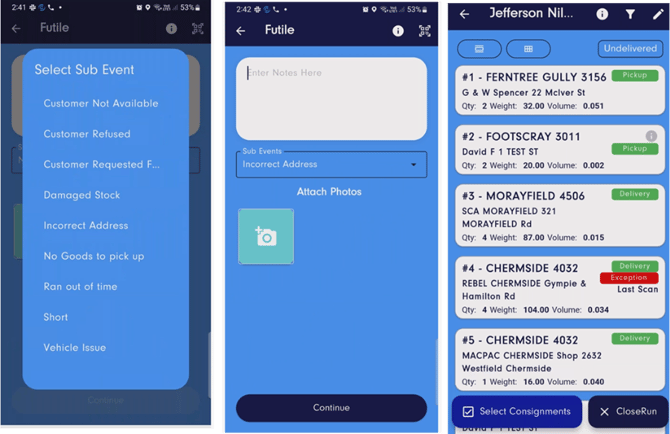
Futile (Delivery Attempt Failed)
- Use when delivery is unsuccessful
- A reason must be selected
- Status colour: Red (exception)
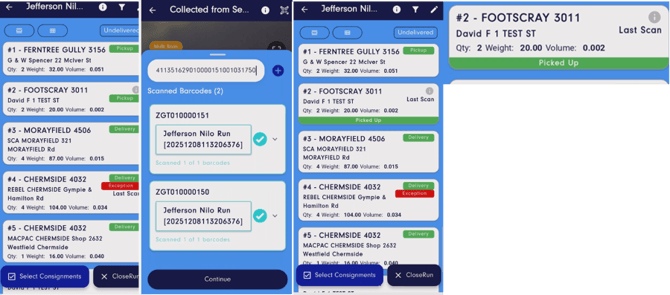
Collected from Sender (Returns)
- Use when collecting return freight
- Status updates to Picked Up (Green)
- Optional: scan barcode of collected item
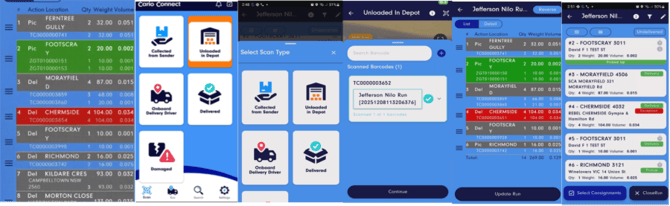
Unloaded in Depot
- Use when returning undelivered items to the depot
- Can be done:
- From the Scan Home screen
- Or directly from the Run Details screen
- Scan all returned items
- The consignment is removed from the active run
- Tap Update Run to save changes
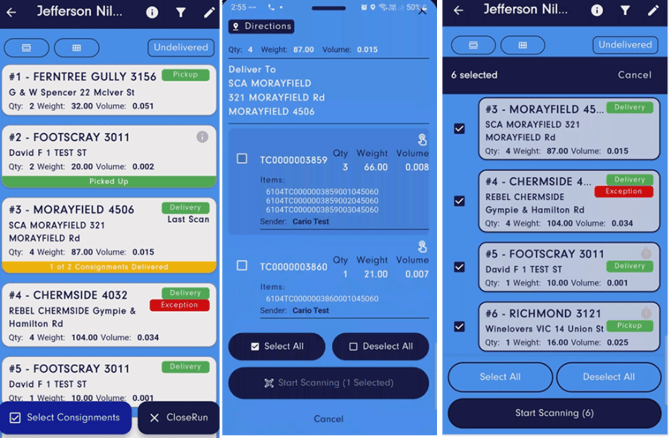
Monitoring Drop Status & Grouping Consignments
- Use Select Consignments to group multiple drops
- Grouped consignments can share:
-
- A single signature
-
- A single delivery event
- Drop status colours:
-
- Green – Fully delivered
-
- Yellow – Partially delivered
-
- Red – Exception / Futile
- Filters help isolate delivered or undelivered drops
End of Run
- Scan Off Remaining Items
- Any undelivered or un-unloaded items are automatically:
-
- Transferred to the next run
- Available for scanning the following day
- Close Run
-
- Tap Close Run
- If all consignments are scanned off:
- The run is completed
- If items remain on board:
- They carry over to the next run
In-App Notifications & Messaging
The Cario Connect App includes built-in messaging to keep drivers and supervisors aligned throughout the day. Notifications are used for run assignments, operational updates, and two-way communication. 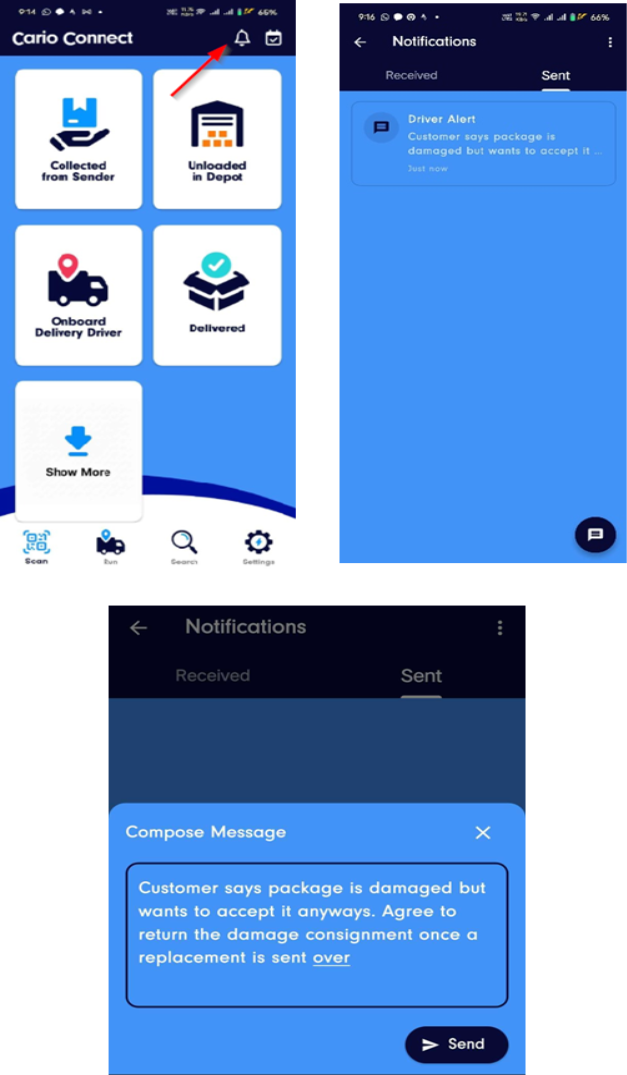
Accessing Messages
- Tap the Bell icon at the top-right corner of the app.
- This opens the Notifications screen.
Inbox & Outbox
- Inbox
-
- Displays all received messages.
-
- Includes:
-
-
- Run assignments
-
-
-
- Supervisor updates
-
-
-
- Operational alerts
-
- Outbox
-
- Displays messages sent by the driver.
Supervisor Messages
All messages sent by supervisors appear in the driver’s Inbox, including:
- Run changes or reassignment updates
- Delivery instructions
- Operational or service alerts
Notifications are delivered in real time when the app is online.
Sending Messages to a Supervisor
- Tap the Chat icon at the bottom-right corner of the app.
- Compose a message to the supervisor.
- Messages can include:
- Delivery status updates
- Issues or exceptions (e.g. damaged goods, access issues)
- General operational communication
Notification Behaviour
- Push notifications appear when:
-
- A run is assigned
-
- A supervisor sends a message
- Notifications require Notifications permission to be enabled on the device.
- Messages remain accessible even after the run is completed.
Offline Behaviour
If internet connectivity is lost:
- Drivers can continue scanning assigned consignments
- POD photos are stored locally
- All data syncs automatically once connectivity is restored
Related Articles
- Cario Connect TMS — Drivers & Vehicles
Learn how to create drivers, assign vehicles, and manage driver profiles.
- Cario Connect TMS — Live Map (Driver Tracking)
Track dynamic runs in real time and monitor delivery progress.
- Cario Connect TMS — Driver Assignment (Normal Runs)
Allocate and manage dispatcher-created runs through the FMS.