![Cario logo RGB blue-1.png]](https://knowledge.cario.com.au/hs-fs/hubfs/Cario%20logo%20RGB%20blue-1.png?height=50&name=Cario%20logo%20RGB%20blue-1.png)
Purpose
The Receive Return screen is used to confirm that a controlled return shipment has physically arrived back at your location and to accurately record what was received.
This step ensures returned goods are captured correctly for operational control, exception handling, and reporting accuracy.
Typical use cases include:
- Confirming a return has been received
- Recording partial returns (e.g. 2 sent, only 1 received)
- Updating return outcomes such as Rejected, Accepted, or Exchange required
- Capturing receipt notes for audit and customer visibility
How to Access Receive Return
- Navigate to Controlled Returns from the left-hand menu.
- Select Receive Return.
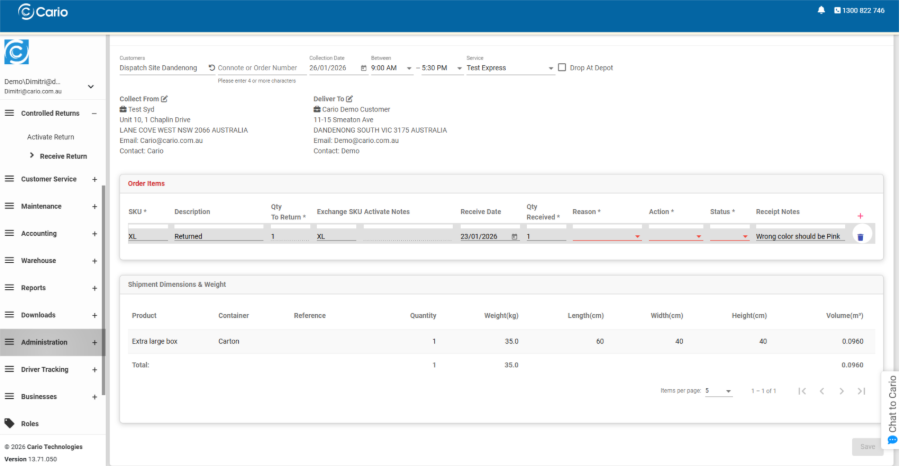
This screen will only display returns that have already been activated.
Step-by-Step: Receiving a Controlled Return
1. Locate the Return- Use the Connote Number or Order Number to search for the activated return.
- Once located, the return details will automatically populate, including:
-
- Collect From address
-
- Deliver To address
- Service and collection details
In the Order Items section, you will see all items that were activated for return.
For each line item, review and update the following fields as required:
- Qty To Return – Quantity originally expected to be returned
- Qty Received – Actual quantity physically received
- Receive Date – Date the return was received
- Reason – Final reason for the return (e.g. Wrong item, Damaged, Incorrect colour)
- Action – Outcome of the return (e.g. Accepted, Rejected, Exchange)
- Status – Current state of the return item
- Receipt Notes – Any additional notes (e.g. packaging condition, discrepancies)
💡 Example: If 2 items were returned but only 1 was received, update Qty Received to 1 and document the discrepancy in Receipt Notes.
3. Review Shipment Dimensions (Optional)The Shipment Dimensions & Weight section provides visibility of the transport unit used for the return.
This section is typically informational and does not need to be edited unless there is a specific discrepancy to record.
4. Save the Return
Once all required fields have been completed:
- Click Save.
- The return will be confirmed and updated in the system.
This finalises the receiving step of the controlled return process
What Happens After Saving
- The return status is updated for reporting and reconciliation
- Any discrepancies between expected vs received quantities are recorded
- The return is fully auditable within Cario
- Data becomes available for operational and financial reporting
Why This Step Is Important
Using Receive Return ensures:
- Accurate stock and return tracking
- Clear accountability for discrepancies
- Reliable reporting on return volumes and outcomes
- A controlled, auditable returns workflow across your operation
This step completes the Controlled Returns lifecycle, following:
- Controlled Returns configuration
- Activate Return
- Receive Return