![Cario logo RGB blue-1.png]](https://knowledge.cario.com.au/hs-fs/hubfs/Cario%20logo%20RGB%20blue-1.png?height=50&name=Cario%20logo%20RGB%20blue-1.png)
This guide explains how to activate a controlled return in Cario once the feature has been enabled and a consignment has been created with Controlled Returns selected.
Purpose
The Activate Return process allows you to formally trigger a return shipment against an existing outbound consignment. This ensures:
- The correct return service is used
- Return labels are generated and tracked
- Full visibility of returned items, reasons, and actions
Prerequisites
Before activating a return, ensure:
- Controlled Returns is enabled at the Customer Configuration level
- User roles have permissions enabled for:
-
- Controlled returns – Activate return
-
- Controlled returns – Receive return
- A consignment has already been created with Controlled Returns ticked
Step 1: Create a Consignment with Controlled Returns
- Navigate to Consignments → Create New
- Complete the consignment details as normal (addresses, service, shipment dimensions)
- At the bottom of the screen, tick the checkbox for Controlled returns
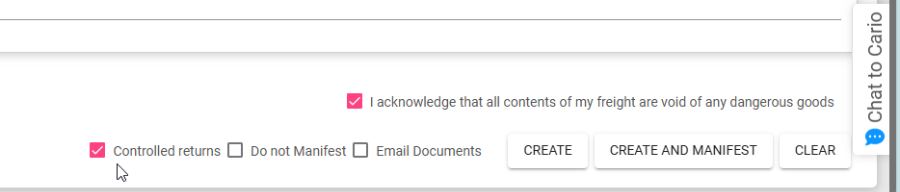
- Acknowledge the dangerous goods declaration
- Click CREATE (or CREATE AND MANIFEST)
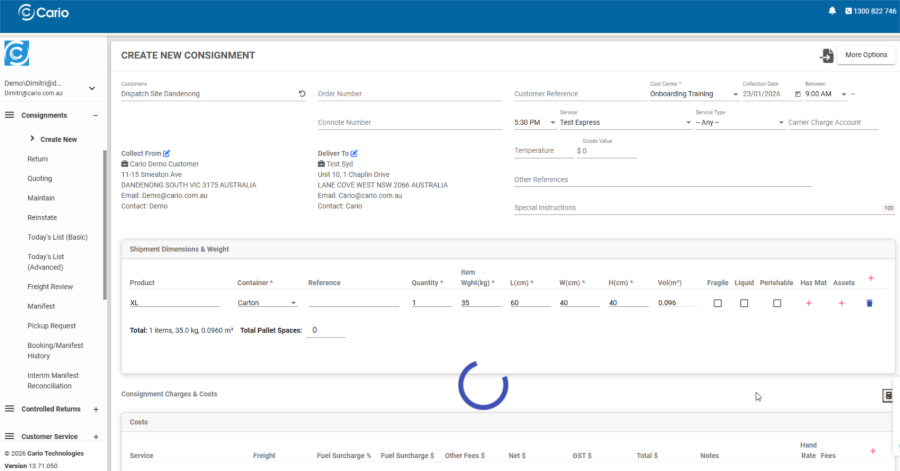
Result
- Two labels will be generated:
-
- ✅ The outbound (sending) label
-
- 🔁 The controlled return label
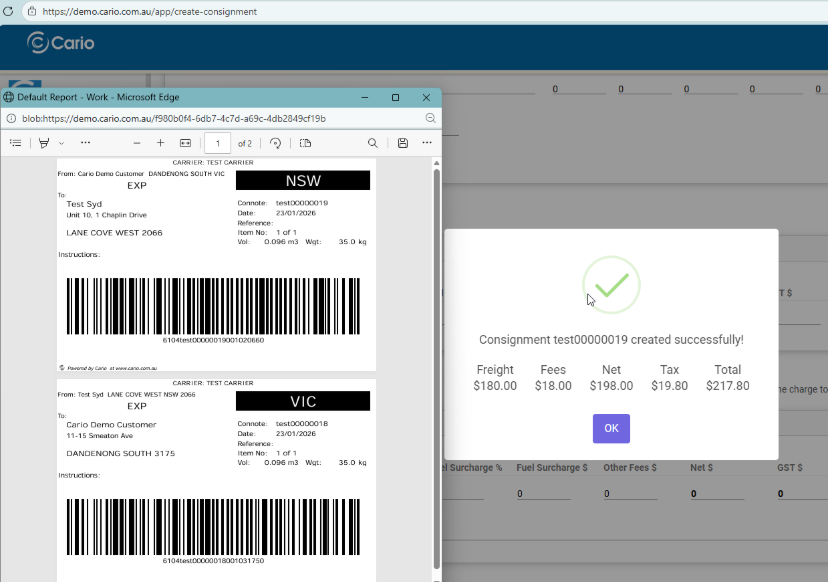
- 🔁 The controlled return label
These labels are linked to the same transaction for tracking and reconciliation.
Step 2: Navigate to Activate Return
- Go to Controlled Returns → Activate Return
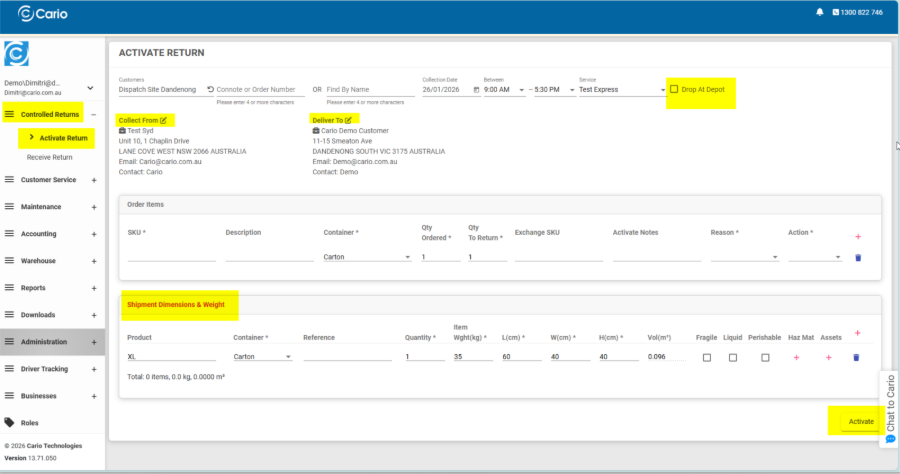
- Select the correct Customer
- Locate the return using one of the following:
- Connote Number
- Order Number
- Find by Name
Once entered, the eligible controlled return will automatically populate.
Step 3: Review Collection & Delivery Details
- Collect From: The original delivery location (return pickup point)
- Deliver To: The configured Controlled Returns address
- Optional: Toggle Drop at Depot if the return will be dropped off instead of collected
Confirm the collection date, time window, and service if required.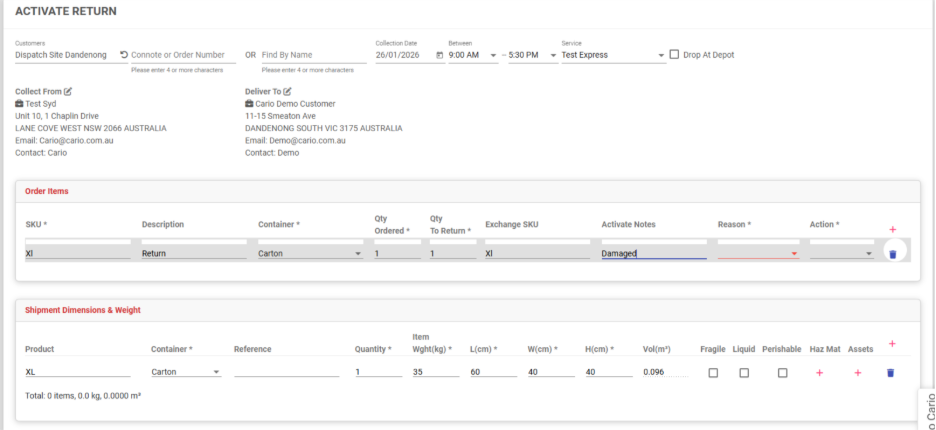
Step 4: Complete Order Items Section
Each return item must be clearly defined.
For each item, complete the following fields:
- SKU – Original product SKU
- Description – Item description (optional but recommended)
- Container – Packaging type (e.g. Carton)
- Qty Ordered – Original shipped quantity
- Qty To Return – Quantity being returned
- Exchange SKU (optional) – Used if a replacement item will be shipped
- Activate Notes – Internal notes (e.g. damage details)
- Reason – Reason for return (e.g. Damaged, Incorrect item)
- Action – Required action (e.g. Return, Replace, Inspect)
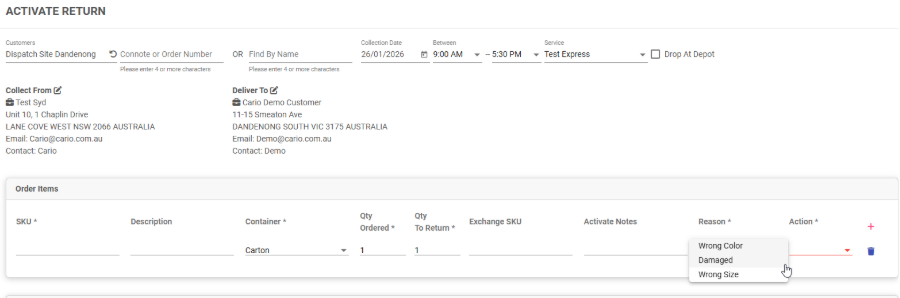
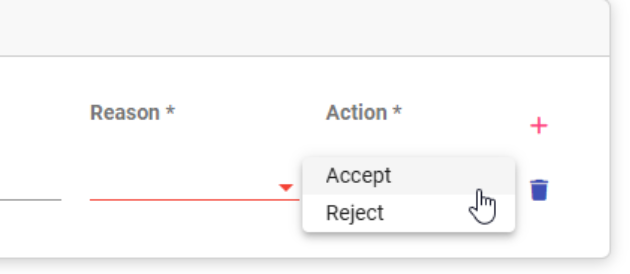
All mandatory fields must be completed before activation.
Step 5: Confirm Shipment Dimensions
In the Shipment Dimensions & Weight section:
- Confirm or enter the transport unit details for the return
- Ensure weight and dimensions are accurate
These details will be used for carrier rating and label generation.
Step 6: Activate the Return
- Review all entered details
- Click ACTIVATE
Result
- The controlled return is activated
- A return consignment is created
- Status tracking is enabled for the return journey
What Happens Next?
- The return can now be:
- Tracked like a standard consignment
- Scanned via Event Scanning
- Received via Controlled Returns → Receive Return
Summary
Activating a Controlled Return ensures returns are:
- Properly authorised
- Fully traceable
- Linked to the original outbound shipment
This creates a clean, auditable return workflow across warehouse, transport, and customer service teams.