![Cario logo RGB blue-1.png]](https://knowledge.cario.com.au/hs-fs/hubfs/Cario%20logo%20RGB%20blue-1.png?height=50&name=Cario%20logo%20RGB%20blue-1.png)
Purpose
Duplicating a consignment in Cario allows you to quickly reuse an existing shipment’s details—such as addresses, items, dimensions, references, and instructions—without needing to re-enter everything manually.
This is especially useful for:
- Repeat or recurring shipments
- Re-booking freight with the same details
- Creating a new booking based on a completed or manifested consignment
- Saving time and reducing data entry errors
When a consignment is duplicated, a new booking and a new connote number are generated, and the original consignment remains unchanged.
Key Notes Before You Start
- ✅ You can duplicate consignments that are already manifested
- ✅ The duplicated consignment will always create a new booking
- ❌ The original consignment is not modified
- ✅ You can choose whether to copy references from the original consignment
How to Duplicate a Consignment
There are two ways to duplicate a consignment in Cario.
Option 1: Duplicate from Today’s List (Basic)
Steps
- Navigate to Consignments
- Click Today’s List (Basic)
- Locate the consignment you want to duplicate
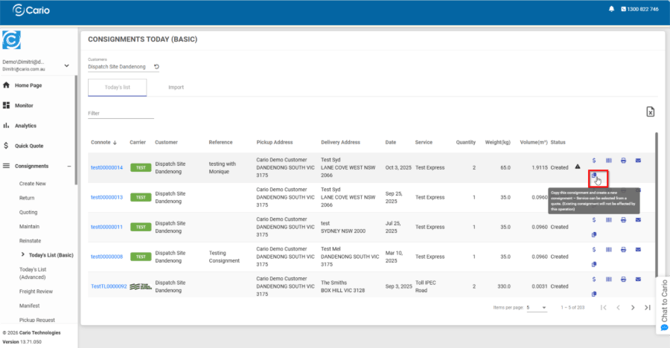
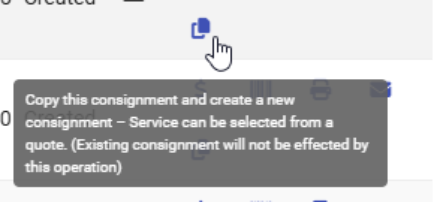
- Click the Copy Consignment icon (copy / duplicate icon)
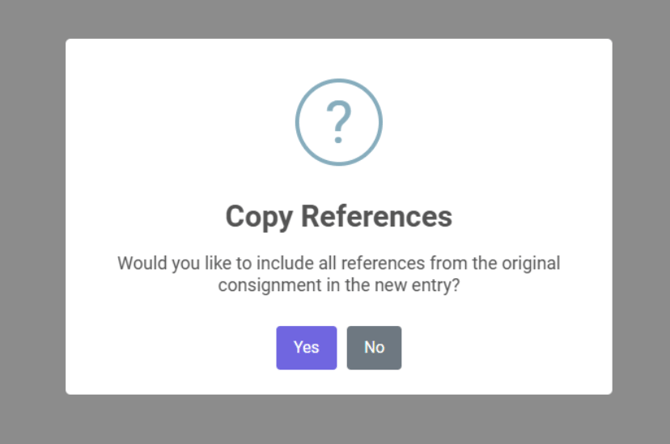
- When prompted, choose whether to copy references from the original consignment:
- Yes – copies all references into the new consignment
- No – starts without references
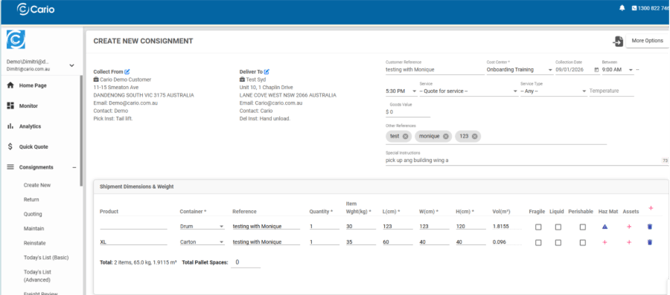
- A new Create New Consignment screen will open with the duplicated details
- Review or update details if required (dates, service, quantities, instructions, etc.)
- Click Create to generate the new consignment
➡️ A new connote number will be assigned once created.
Option 2: Duplicate from Customer Service → Consignment Status (Advanced)
This method is useful for duplicating older, delivered, or manifested consignments.
Steps
- Go to Customer Service
- Select Consignment Status (Advanced)
- Search for the consignment using:
- Connote number
- Date range
- Customer or carrier filters
- Click the three-bar (menu) icon on the consignment row
- Select Copy Consignment
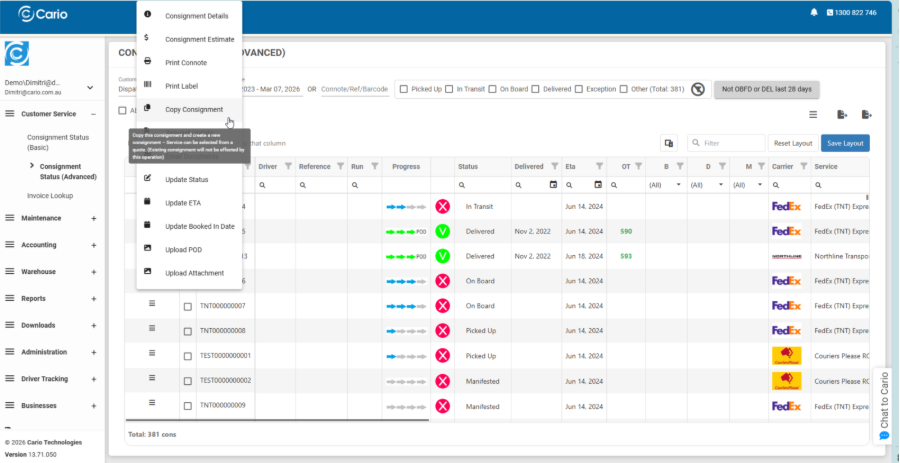
- Choose whether to copy references from the original consignment
- A new Create New Consignment screen will open with all copied details
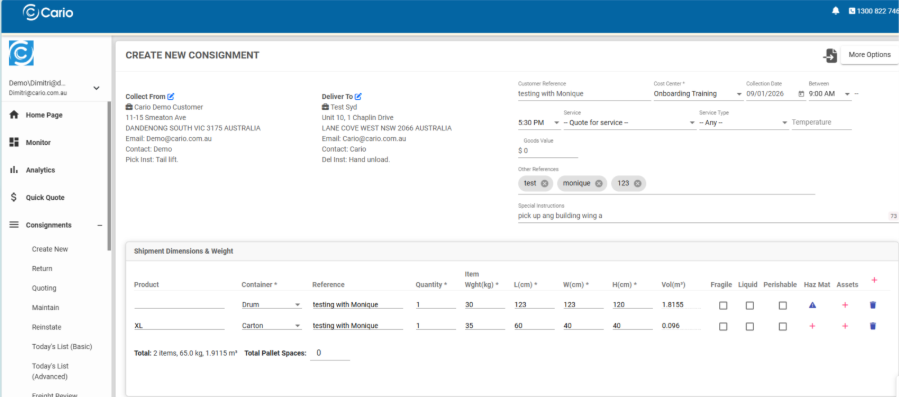
- Make any required changes
- Click Create to finalise the new booking
What Gets Copied When Duplicating
✔ Pickup and delivery addresses
✔ Shipment dimensions and weights
✔ Products and container types
✔ Special instructions
✔ Other references (if selected)
What Cannot Be Copied or Changed Automatically
- A duplicated consignment will not reuse the original connote
- The carrier booking is always new
- Any pricing or availability will be recalculated at creation time
When to Use Duplication vs Updating
- Use duplication when:
-
- The original consignment is manifested
-
- You want a new booking with the same details
-
- You need to change the carrier or service
- Use update when:
-
- The consignment is not yet manifested
-
- You only need to adjust quantities, weights, or instructions