![Cario logo RGB blue-1.png]](https://knowledge.cario.com.au/hs-fs/hubfs/Cario%20logo%20RGB%20blue-1.png?height=50&name=Cario%20logo%20RGB%20blue-1.png)
The Return function in Cario allows users to quickly create a return shipment using the same workflow as creating a new consignment, with one key difference:
the collection and delivery locations are reversed.
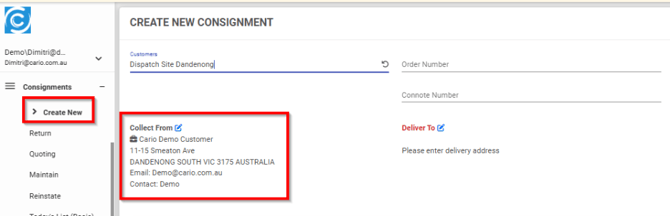
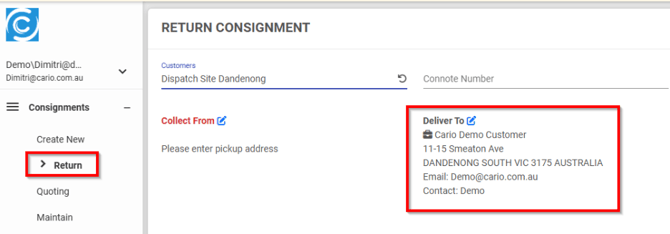
This makes it easy to arrange returns when your business is the receiver of goods from a customer or external site.
How Return Consignments Work
A return consignment follows the same process and validation rules as a standard consignment, including:
- Shipment dimensions and weight entry
- Carrier service selection
- Pricing and consolidation logic
- Label and document generation
The only functional difference is how the addresses are handled.
Collect From & Deliver To (Key Difference)
When creating a return:
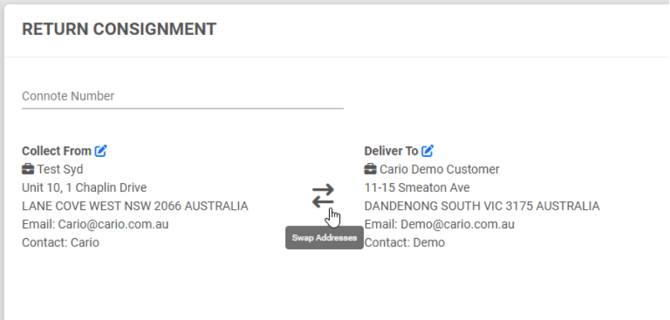
- Deliver To is automatically set to your business address
- Collect From becomes the customer or external location
This reflects the return workflow, where goods are being shipped back to you rather than sent outbound.
All other consignment fields behave the same as a standard booking.
Why Use the Return Function
Using the Return option helps:
- Eliminate manual address swapping
- Reduce booking errors
- Speed up return processing
- Keep return consignments clearly identifiable
This is especially useful for:
- Customer returns
- Warranty or repair shipments
- Rejected or damaged goods
Useful Tip: Email Documents for Returns
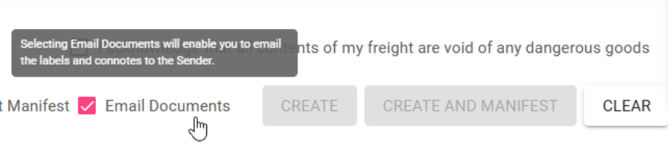
When creating a return consignment, you can select Email Documents before completing the booking.
When enabled:
- Labels and consignment documents are emailed directly to the Collect From address
- Customers can print labels themselves
- No manual forwarding of labels is required
This allows you to book the return on behalf of your customer and send them everything they need in one step.
Return Consignment Workflow (High-Level)
- Go to Consignments → Return
- Confirm the customer and dispatch site
- Review Collect From and Deliver To details (now reversed)
- Enter shipment dimensions and weight
- Select Email Documents if labels need to be sent to the sender
- Choose a carrier service and complete the booking
Copy Consignment from Customer Service (Fastest Method)
This is the recommended and fastest method, especially for repeat or existing consignments.
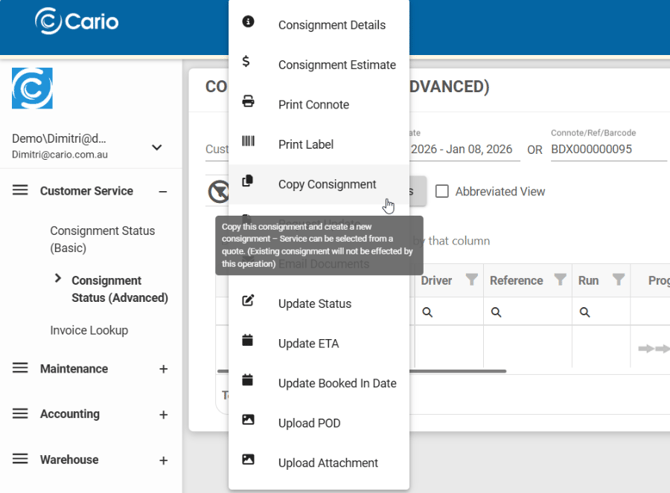
- Go to Customer Service → Consignment Status (Advanced)
- Locate the original consignment
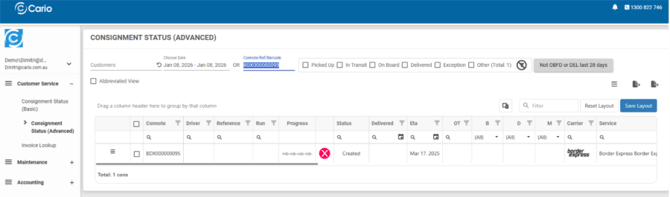
- Click the three-line (menu) icon
- Select Copy Consignment
- Choose to swap the addresses to convert it into a return
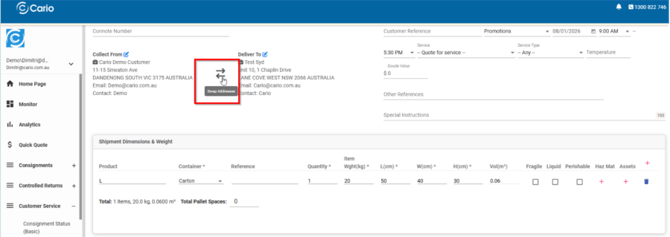
This automatically copies:
- Addresses
- Shipment items
- Dimensions and weights
- References and instructions
✅ Saving time and avoiding manual re-entry.
Key Things to Note
- Return consignments follow the same pricing and carrier rules as outbound consignments
- Consolidation rules still apply if enabled
- Email Documents is recommended for customer-initiated returns