![Cario logo RGB blue-1.png]](https://knowledge.cario.com.au/hs-fs/hubfs/Cario%20logo%20RGB%20blue-1.png?height=50&name=Cario%20logo%20RGB%20blue-1.png)
Updating a consignment in Cario allows users to make changes to shipment details before the consignment is manifested.
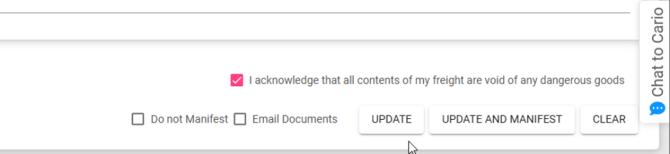
Once a consignment has been manifested, it is considered final. Any changes to a manifested consignment cannot be made in Cario and must be handled directly with the carrier.
When Consignments Can Be Updated
A consignment can be updated when:
- The consignment status is Created
- The consignment has not yet been manifested
A consignment cannot be updated when:
- It has already been manifested
- It has been finalised and sent to the carrier
This ensures data integrity and alignment with carrier systems.
Why Update a Consignment
Updating consignments is commonly used to:
- Correct shipment dimensions or weights
- Adjust quantities or add/remove items
- Add or update references and special instructions
- Fix data entry errors before manifesting
This helps prevent carrier rejections, pricing discrepancies, and invoicing issues.
Ways to Open a Consignment for Update
There are two ways to open an existing, unmanifested consignment for editing.
Option 1: Search by Connote Number (Create New Screen)
- Go to Consignments → Create New
- Enter the Connote Number in the Connote field
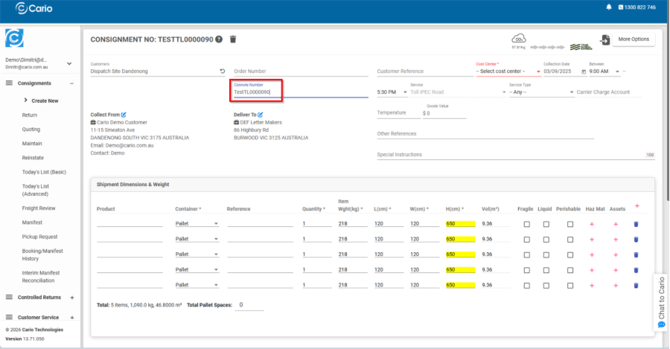
- The previously created consignment will load automatically
This method is useful when you already know the connote number and want fast access.
Option 2: Use Consignments → Maintain
- Go to Consignments → Maintain
- Search or filter to locate the required consignment
- Click the edit (pencil) icon next to the consignment

This method is useful when browsing or searching by date, customer, or status.
What Can Be Updated
Once the consignment is open, you can update: 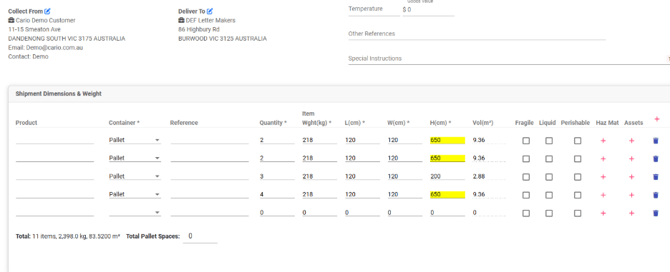
- Shipment dimensions, weight, and quantity
- Add new shipment lines or delete existing ones
- References and special instructions
- Pickup or delivery details (where applicable)
- Cost centre and other non-carrier fields
What Cannot Be Updated
The carrier service selected for a consignment cannot be changed once the consignment is created.
If you need to:
- Keep the same shipment details and references
- But change the carrier or service
You must duplicate or copy the consignment instead.
This process is covered in a separate guide.
How to Save Updates
After making changes:
- Scroll to the bottom of the consignment screen
- Click Update (instead of Create)
- The updated details are saved against the existing consignment
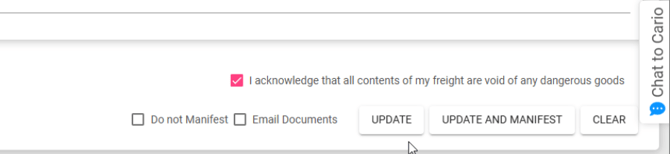
If required, you can then proceed to Update and Manifest.
Key Things to Note
- Updates are only allowed before manifesting
- Manifested consignments must be amended directly with the carrier
- Always review totals after making changes
- The Update button confirms you are modifying an existing consignment