![Cario logo RGB blue-1.png]](https://knowledge.cario.com.au/hs-fs/hubfs/Cario%20logo%20RGB%20blue-1.png?height=50&name=Cario%20logo%20RGB%20blue-1.png)
Purpose
The Freight Review screen provides a centralised analytics view of consignments based on a selected date and customer. It allows users to analyse freight activity, review carrier performance, monitor spend, and access detailed consignment and transport provider information — all from a single screen.
Why Use Freight Review?
The Freight Review screen helps users:
- Analyse consignment volumes, weight, and spend
- Compare carrier services and shipment status
- Quickly identify manifested vs unmanifested consignments
- Access detailed consignment and transport provider information
- Refresh and monitor live freight data without reloading the page
Navigation
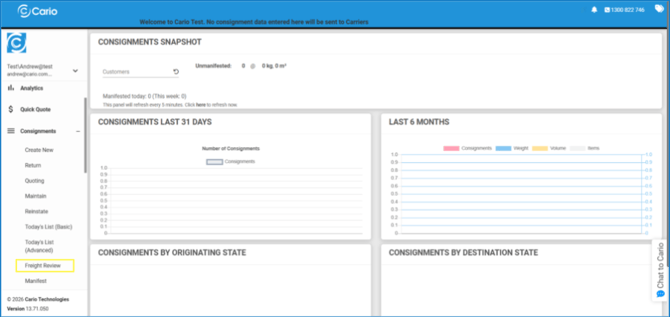
- From the left-hand menu, select Consignments.
- Click Freight Review.
Date and Customer Selection
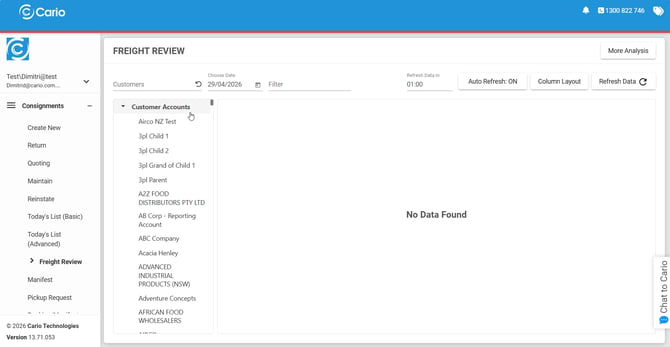
- When the screen first loads, no data is displayed until a date is selected.
- Selecting a date only will display all consignments created on that date.
- To view today’s consignments:
-
- Select today’s date
-
- Click Refresh Data
Filtering by Customer
You can filter consignments by customer in two ways: 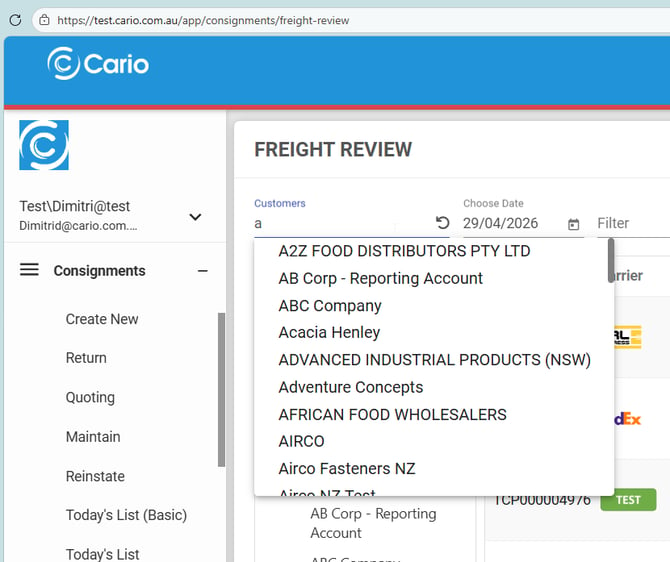
- Start typing the Customer Name in the Customer field and select from the dropdown.
or - Use the customer accounts list on the left panel and select a customer.
To reset the customer filter and view all data, click the reload icon next to the customer field.
Data Refresh
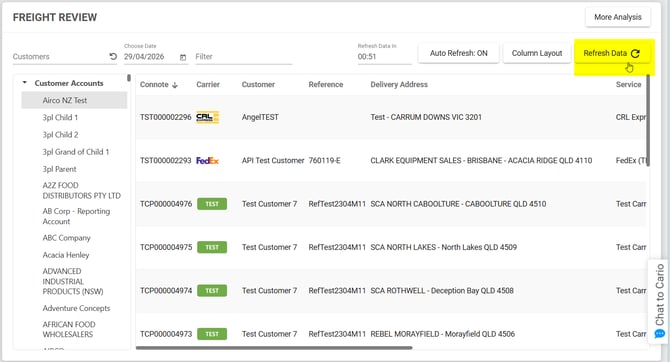
The Freight Review screen supports both automatic and manual data refresh. 
- Auto Refresh updates the data every 60 seconds.
This ensures recently created consignments are automatically visible. - Toggle Auto Refresh on or off from the top-right of the screen
- Click Refresh Data at any time to manually refresh the data
Carrier Service Filtering
The left-hand panel displays:
- A list of carrier services
- The number of manifested and unmanifested consignments for each service
You can filter consignments by:
- Clicking a carrier service name
- Expanding a carrier service to filter by:
-
- Manifested
-
- Unmanifested
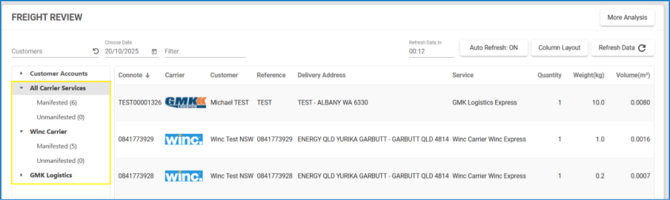
A highlighted state indicates the active carrier service and status filter.
Selecting All Carrier Services clears the filter and displays all consignments.
Consignment Summary View
Each consignment row includes action buttons on the far-right of the screen: 
- Print Label – Downloads the consignment label
- Print Connote – Downloads the connote document
- Email Documents – Sends consignment documents via email
- Copy Consignment – Creates a new consignment using the existing details
- Edit Consignment – Opens the consignment for editing
- Delete Consignment – Permanently deletes the consignment
Column Layout Customisation
You can customise the columns displayed on the Freight Review screen. 
How to Update the Layout 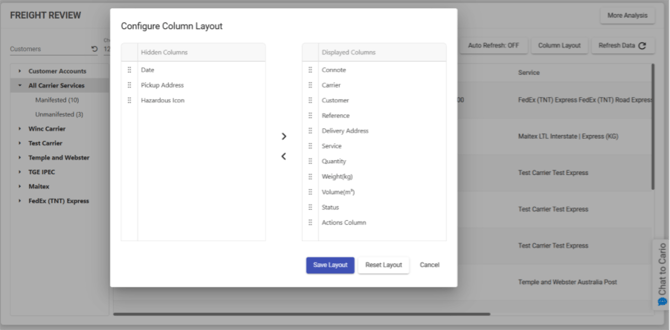
- Click Column Layout in the top-right corner.
- Drag and drop columns between:
- Displayed Columns
- Hidden Columns
- Reorder columns as needed.
- Click Save Layout to apply the changes.
Consignment Details
For deeper visibility, each consignment includes a detailed view. 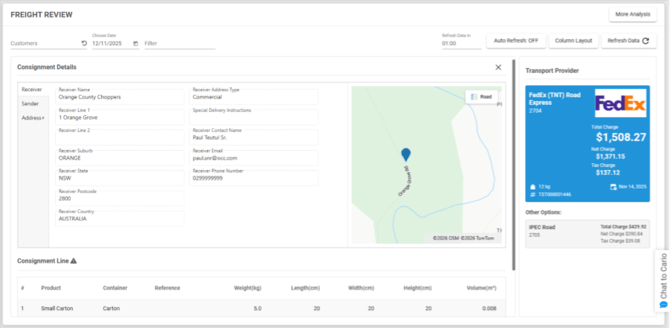
Accessing Consignment Details
- Click the connote number, or
- Double-click the consignment row
Information Available 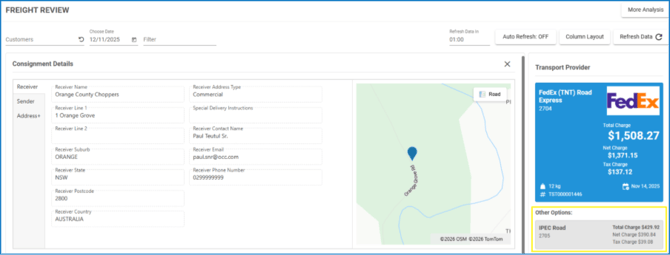
- Sender and receiver details
- Collection and delivery addresses
- Interactive delivery address map
- Line item details (product, container, dimensions, DG status)
Transport Provider Details
The Transport Provider panel displays delivery-related carrier information, including:
- Carrier service name
- Estimated total charge
- Estimated delivery arrival (ETA)
- Total shipment weight
- Alternative transport provider options (if available)
Changing the Transport Provider 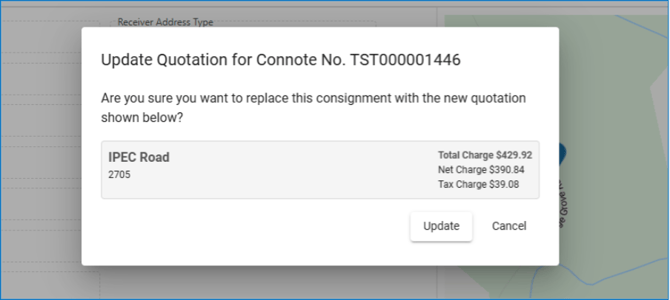
- Select an alternative carrier card in the panel on the bottom right.
- Confirm the change in the modal.
⚠️ Important:
Changing the transport provider (service) deletes the current consignment and creates a new one using the selected service.
- Transport provider changes are only available for unmanifested consignments
- Manifested consignments cannot be updated to a different carrier

Data Analysis Chart
The Data Analysis Chart provides a high-level summary of the consignments shown on the main screen. 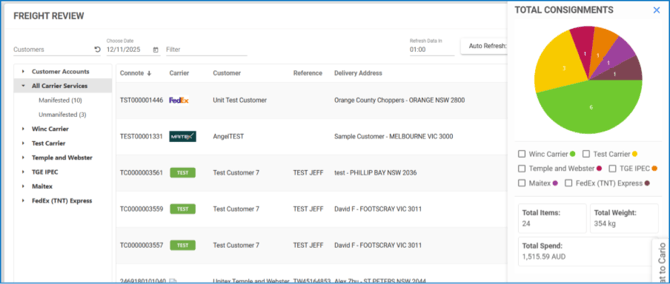
Metrics Displayed
- Total consignments
- Total items
- Total weight
- Total spend
How to Use the Chart 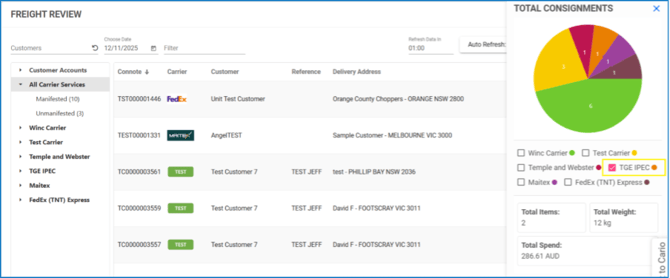
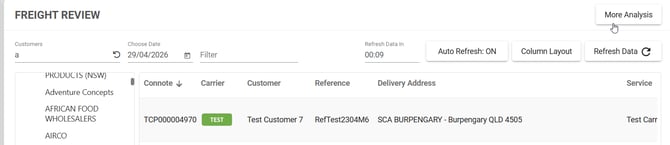
- Click More Analysis in the top-right corner to open the chart panel.
- Use the carrier service checkboxes to filter the metrics.
- Select one or multiple carrier services to include them in the analysis. You can do this by
ticking the box next to the Carrier Service Name you would like to view.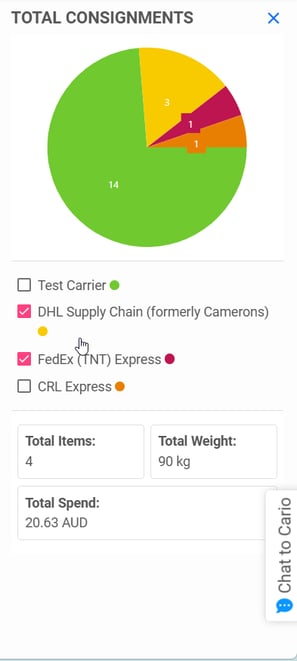
- Hover over a chart segment to view carrier-specific values.
- The pie chart updates dynamically based on the hovered metric.
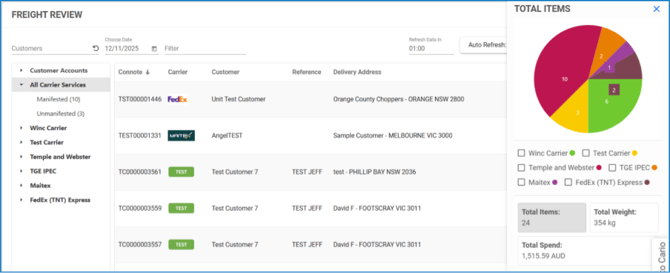
- The pie chart updates dynamically based on the hovered metric.