![Cario logo RGB blue-1.png]](https://knowledge.cario.com.au/hs-fs/hubfs/Cario%20logo%20RGB%20blue-1.png?height=50&name=Cario%20logo%20RGB%20blue-1.png)
The Consolidate option in Cario allows multiple consignments to be merged into a single carrier booking when they share the same delivery address and carrier details.
This feature is designed to optimise freight costs, reduce paperwork, and improve operational efficiency when multiple shipments are going to the same destination.
What Consolidation Means
When the Consolidate checkbox is selected:
- The consignment is grouped with any unmanifested consignments
- The delivery address must be an exact match
- The carrier and service details must also match
These consignments are then treated as one consolidated shipment when rates and services are calculated.
Consolidation occurs before manifesting, and users always have visibility of whether a consignment is being consolidated or quoted separately.
Why Use Consolidation
Consolidation is commonly used to:
- Reduce overall freight costs
- Minimise multiple carrier bookings to the same destination
- Improve carrier efficiency and pickup coordination
- Reduce paperwork and handling effort
It is especially useful when shipping:
- Multiple orders to the same customer
- Separate cartons or pallets going to one site
- High-volume daily outbound freight
Impact on Carrier Services & Pricing
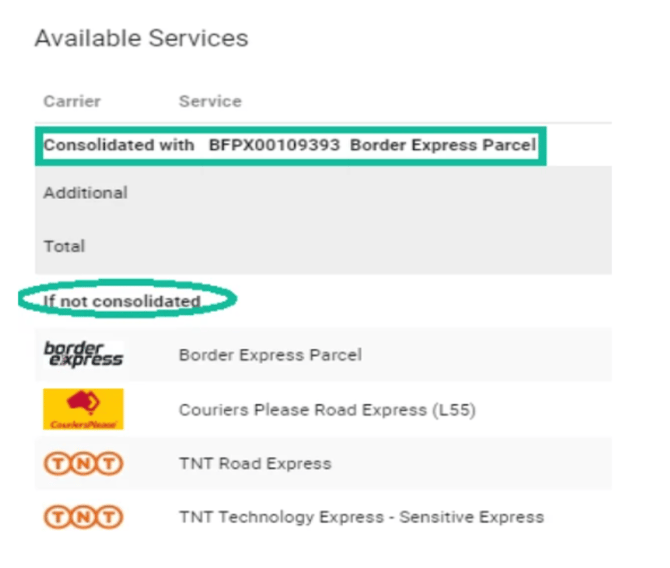
When consolidation is enabled, the Available Services screen clearly separates pricing into two sections:
- Consolidated Services
Shows pricing and details when the consignment is merged with existing unmanifested consignments.
- If not consolidated
Displays pricing for the consignment as a standalone shipment.
This allows users to:
- Compare consolidated vs non-consolidated pricing
- Understand cost differences clearly
- Decide whether consolidation provides a benefit
Some carrier services may only appear in one section depending on capacity, service rules, or pricing logic.
When Not to Consolidate
There are scenarios where consolidation may not be suitable, such as:
- Urgent or time-critical shipments
- Consignments requiring different service levels
- Separate billing or reference requirements
- "Direct courier" or immediate booking services
In these cases, users can simply untick the Consolidate checkbox and proceed with the consignment as a standalone booking.
How to Use Consolidate (Workflow)
- Create a new consignment as normal
- Enter shipment details and dimensions
- Tick the Consolidate checkbox
- Click Create
- Review the Available Services screen:
- Consolidated services appear at the top
- Non-consolidated options appear under If not consolidated
- Select the preferred service and continue
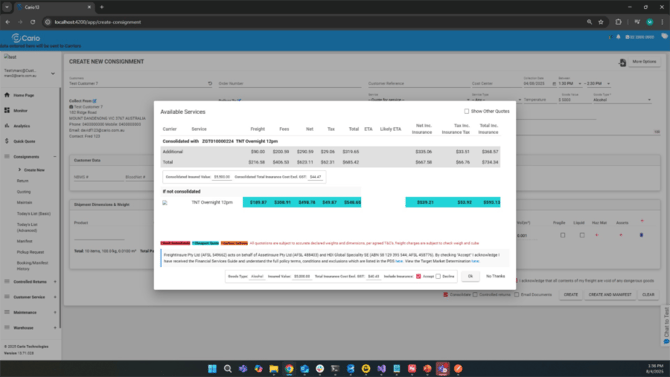
- Click Ok to consolidate.
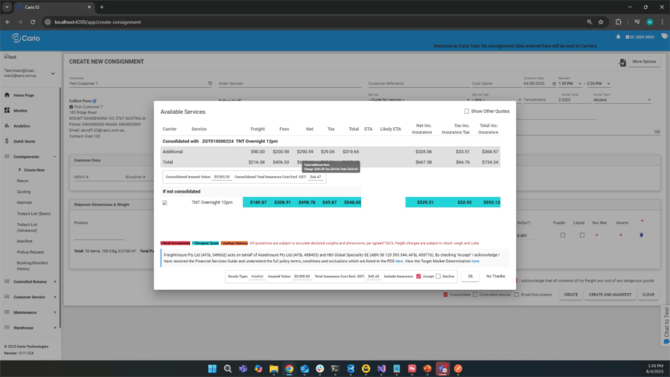
The system always provides visibility and choice—consolidation is never forced.
Key Things to Note
- Only unmanifested consignments can be consolidated
- Delivery address and carrier details must match exactly
- Consolidation affects pricing and service availability
- Users can override consolidation at the service selection stage