![Cario logo RGB blue-1.png]](https://knowledge.cario.com.au/hs-fs/hubfs/Cario%20logo%20RGB%20blue-1.png?height=50&name=Cario%20logo%20RGB%20blue-1.png)
Overview
In Cario, carriers must be linked to your customer account before you can book consignments or use their services. This article provides a simple overview of how carriers are added and configured. The Cario Onboarding Team will complete the full setup for you, but this guide explains what to expect and what each step generally involves.
Accessing Carrier Options
Carriers are managed through the Tenant Carriers section in Cario. This is where available carriers and their services are displayed.
If a carrier needs to be added, renamed, or configured, the onboarding team will handle this for you.
Carrier Setup Overview
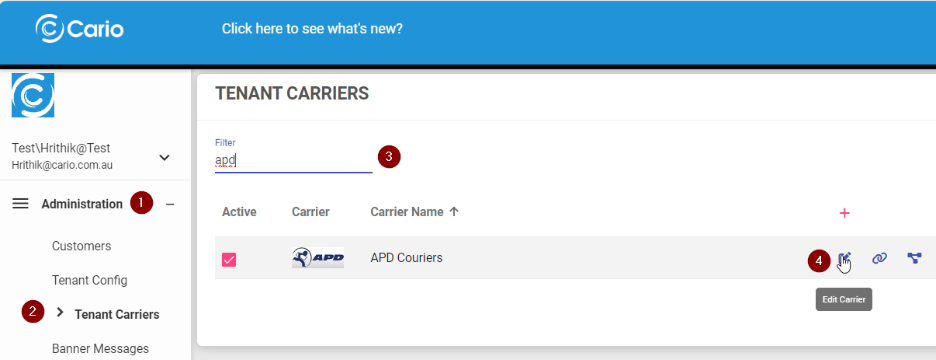
When adding a carrier to your account, the onboarding team will:
- Add or Enable the Carrier
The carrier is added to your customer profile or activated if it already exists in the system.
Carrier services may also be renamed to make them easier to identify when creating consignments. - Ensure Carrier Services Are Enabled
Only services relevant to your account will be activated.
This ensures that when you calculate quotes or create consignments, only the correct carrier options appear. - Apply Required Carrier Sequences & Connections
Each carrier requires specific sequence and connection information to work correctly.
This includes identifiers such as connote formats and integration settings.
These are configured by the onboarding team based on the information you provide. - Apply Your Rate Card
Your carrier rate card must be uploaded before rates can be applied to your account.
Once uploaded, the onboarding team will assign the correct rate card so pricing calculates correctly in Quick Quote and Consignments. - Configure Carrier Settings
Certain carriers require additional details such as:
- Charge account number
- Location code
- Integration folder codes
Your onboarding team will enter this information as part of the setup.
Adding a Carrier to Your Customer Account
Once the carrier is prepared in the Tenant Carriers menu, it is added directly to your customer account through the Customers → Carriers section.
The onboarding team will:
- Add the carrier
- Activate all relevant services
- Ensure the correct configuration is applied
- Save and validate the setup
After this is complete, the carrier will be available for use in your consignment creation workflow.
Using the Carrier in Consignments
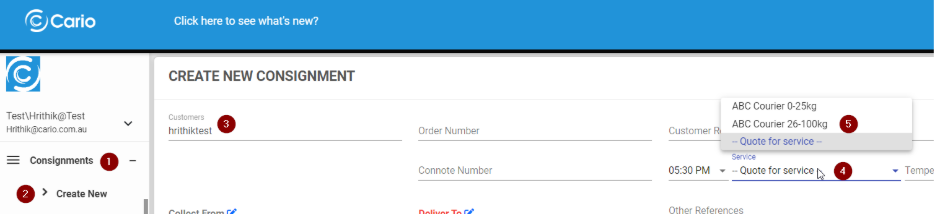
Once a carrier has been successfully added to your account:
- Go to Consignments → Create New
- Select your Customer
- Choose the relevant carrier service
- Enter freight details
- Finalise the consignment
You will see the updated service names that were configured (e.g., simplified or customer-specific naming) to help you easily identify the correct service.
Adding Multiple Carriers
If your organisation uses several carriers, each setup follows the same steps. The onboarding team will ensure:
- All services are correctly named
- Each carrier is mapped to the correct rate card
- All integration and configuration settings are applied
You will then be able to choose from multiple carriers when creating consignments.
Conclusion
Adding a carrier to your customer account enables you to access the full range of services you need for quoting and shipping. While the detailed configuration is handled by the Cario Onboarding Team, understanding this process helps ensure you know what to expect and what information may be required from your side.
If you need a new carrier added or existing settings reviewed, simply contact Cario Support or your onboarding specialist for assistance.