![Cario logo RGB blue-1.png]](https://knowledge.cario.com.au/hs-fs/hubfs/Cario%20logo%20RGB%20blue-1.png?height=50&name=Cario%20logo%20RGB%20blue-1.png)
Overview
In Cario, some carriers require specific charge account numbers or additional credentials provided by the customer. These details must be added into the customer’s carrier configuration so the carrier can bill correctly and process consignments without errors.
This article provides a simplified explanation of how Carrier Charge Account configuration works in Cario.
When Charge Account Configuration Is Needed
A charge account may need to be entered when:
- The customer provides a carrier-specific account number
- A carrier requires a location code or additional reference
- Custom credentials must override the system default values
These updates are applied on a per-customer, per-carrier basis.
Accessing Carrier Settings
To manage charge account information:
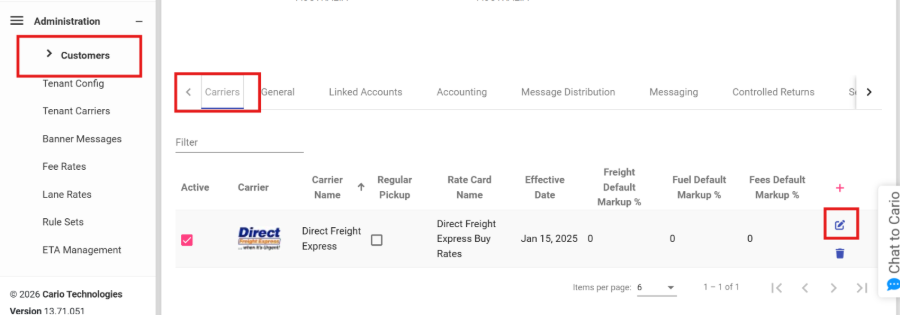
- Go to Administration → Customers
- Select the customer
- Choose the carrier you need to update
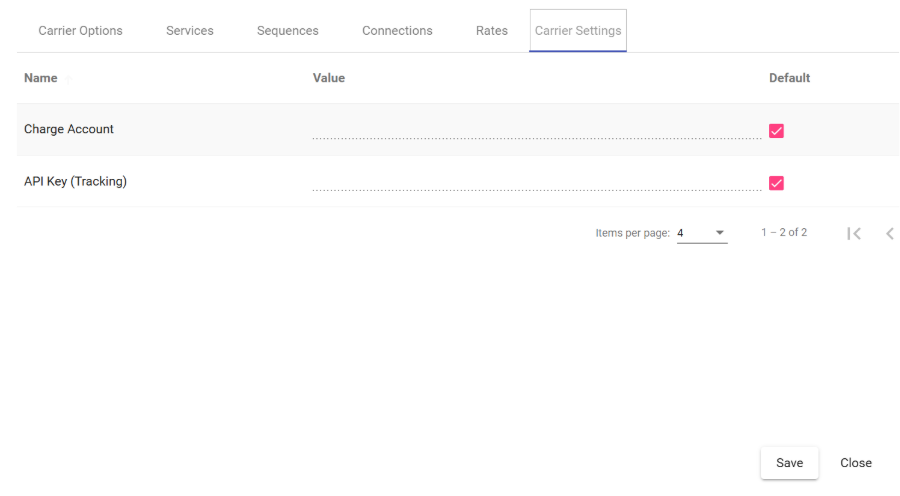
- Open Edit Carrier and go to Carrier Settings
Updating Charge Account Information
Within the Carrier Settings tab:
- Uncheck the Default checkbox where required to allow manual data entry
- Enter your Charge Account Number
- Add any additional values (e.g., location code or reference ID)
- Save the changes to confirm the update
When saved successfully, a confirmation message appears indicating the carrier settings have been updated.