![Cario logo RGB blue-1.png]](https://knowledge.cario.com.au/hs-fs/hubfs/Cario%20logo%20RGB%20blue-1.png?height=50&name=Cario%20logo%20RGB%20blue-1.png)
Purpose
Advanced Shipment Notifications (ASN) in Cario allow you to automatically notify receivers and internal stakeholders about shipment progress via email and/or SMS.
By configuring ASN at the customer level, you can control:
- Who the notification appears to be sent from
- Branding and sender details
- When notifications are triggered during the shipment lifecycle
This ensures clear communication, improves customer experience, and reduces inbound tracking enquiries.
Where to Configure ASN
Administration → Customers → Messaging
ASN settings are configured per customer/site, allowing different branding, sender details, and notification rules per account.
Prerequisites
Before configuring ASN, ensure:
- You have Administrator access
- The correct Customer is selected
- Email and/or SMS templates are already available in the system
- SMS usage complies with Australian SMS regulations (if applicable)
Configuration Steps
Step 1: Navigate to Customer Messaging Settings
- Go to Administration
- Select Customers
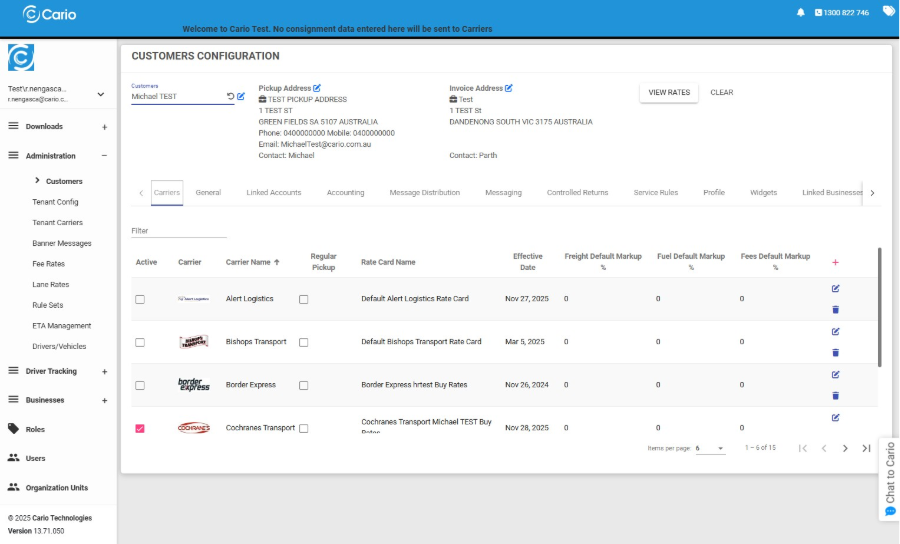
- Choose the relevant Customer
- Open the Messaging tab
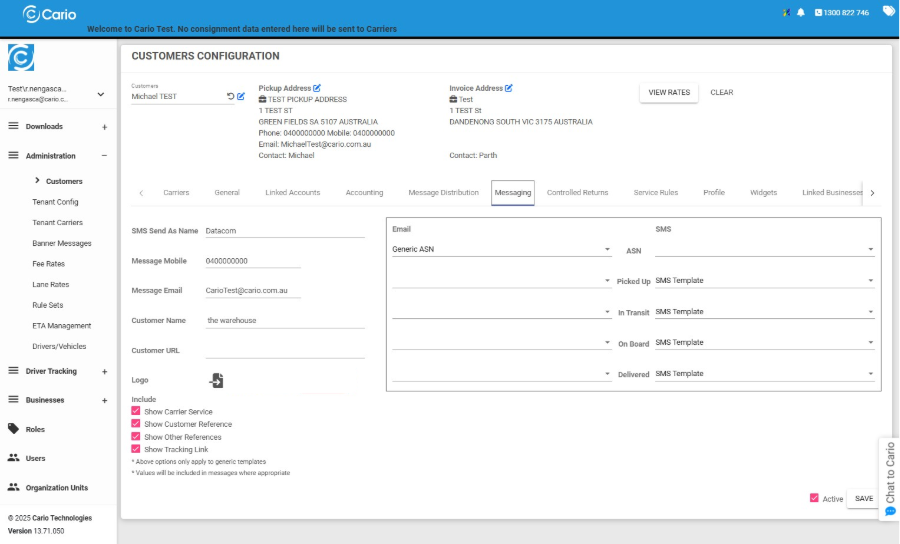
Step 2: Configure Sender Details 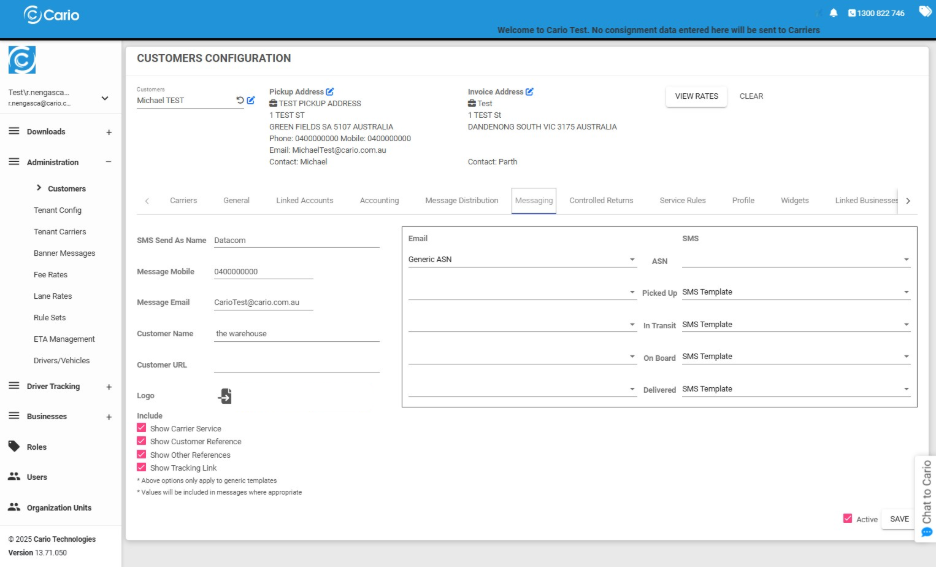
SMS Send As Name
- Set the display name that recipients will see as the SMS sender
- Example: Cario, YourCompany, or Warehouse Team
This name appears as the sender/from on SMS notifications.
Message Mobile
- Enter the sender mobile number used for SMS notifications
Important (AU-specific):
- SMS charges and compliance rules apply
- Ensure the number is valid and approved for outbound messaging
Message Email
- Enter the sender email address
- Example: onboarding@cario.com.au or dispatch@yourcompany.com
This email address will appear as the From address on ASN emails.
Customer Name
- Enter a clear customer/site name
- This helps recipients identify which warehouse or business sent the notification
Step 3: Upload Branding (Optional)
- Click the File / Upload icon
- Upload your preferred logo or branding
- This logo will appear in ASN email notifications
Step 4: Select Notification Templates 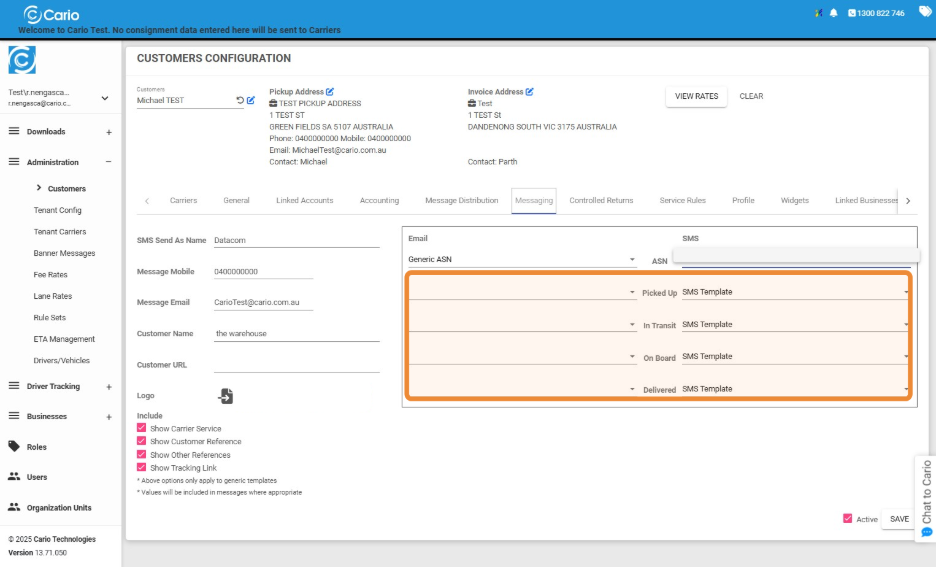
Email Template
- Select the desired Email ASN template from the dropdown
SMS Template
- Select the desired SMS ASN template from the dropdown
Templates control the content and formatting of notifications sent to recipients.
Step 5: Choose Notification Triggers
Use the highlighted fields to define when ASN messages are sent during the shipment lifecycle:
- Picked Up
- In Transit
- On Board
- Delivered
Best Practice Recommendation:
In most cases, enabling Picked Up and Delivered provides the right balance—keeping recipients informed without over-notifying.
Step 6: Enable ASN
- Tick the checkbox to enable ASN for this customer/site
Step 7: Save Configuration
- Click Active
- Click SAVE to apply the changes
Your ASN configuration is now active and will trigger notifications based on the selected events.
Operational Notes & Best Practices
- ASN settings apply per customer, not globally
- SMS notifications may incur carrier or provider charges
- Ensure receiver contact details (email/mobile) are correctly populated on consignments
- Avoid enabling too many trigger points to prevent notification fatigue