![Cario logo RGB blue-1.png]](https://knowledge.cario.com.au/hs-fs/hubfs/Cario%20logo%20RGB%20blue-1.png?height=50&name=Cario%20logo%20RGB%20blue-1.png)
Differences between Consignment Status Basic and Advanced
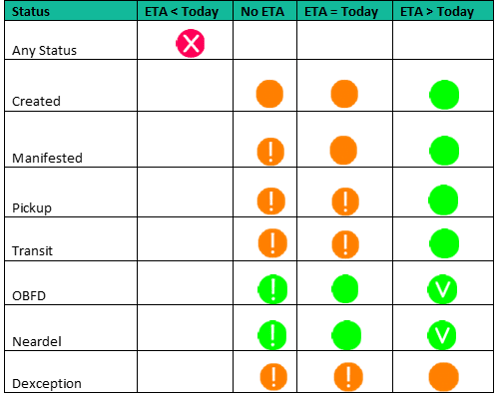
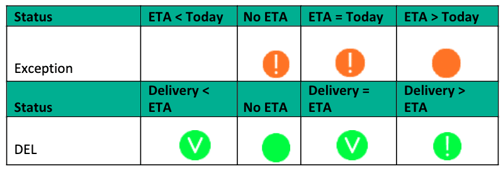
- Explanation of the symbols and colours
- Drag a column
- Filter on a column
- Search on a column
- Progress of a consignment
- Quick access to the option consignment details
- Quick access to consignment not on board for delivery or delivered
Both menus have the same results however in menu option ‘Consignment Status (Advanced)’ the look-and-feel is different.
Each column you can search, and you can drag a column header to group that column. Also, for each consignment you can see the progress of the consignment.
1. Explanation of the symbols and colours
In the columns between ‘Progress’ and ‘Status’ are symbols and colours displayed.
Explanation of these symbols:
2. Drag a column
Select a column eg delivery state
And drop the column on the top
The data will be displayed sort by delivery state
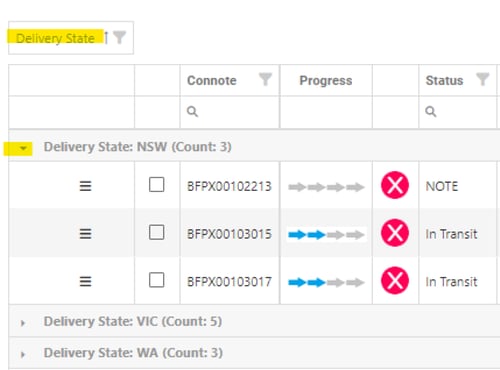
You can click on the dropdown arrow before delivery state, and it will be displayed all the
consignments going to that state.
3. Filter on a column
On the columns with a filter symbol  you can add a specific filter for eg column delivered.
This works the same as in Excel.
- Click on the filter
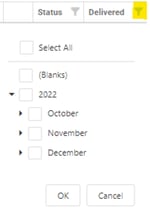
- Select ‘blanks’ and [ok]
- All the consignments without a delivery date will be displayed
4. Search on a column
On the columns with a magnifying glass symbol you can search for a specific criterion eg delivery company.
Go to column ‘delivery locality’ and add the name of the delivery company

5. Progress of a consignment
In columns ‘Progress’ you have a quick view of the status of the consignment.
Hovering over the column you can see the status of the consignment. However, on the next 2 columns you have also this extra information.
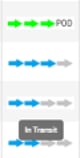
You can also see which consignments have a POD attached.
6. Quick access to the option consignment details
Instead of selecting actions - consignment details you have quick access to the same option
using the symbol in column next to ‘Progress’.
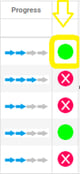
7. Quick access to consignment not on board for delivery or delivered
Steps to follow:
- Open menu option ‘Customer Service – Consignment Status (Advanced)’
- Select button [Not OBFD or DEL last 28 days]
- All consignment with status ‘Pickup’/ ‘In transit’ / ‘Exception’ / ‘Other’ for the last 28 days
will be displayed - In the top of the screen, you can see how many consignments of each status
